I Don't Write Code Anymore. So I Rebuilt My Development Screen Too.
How a non-engineer built AgentDeck, a Mac, iPhone and iPad dashboard for running many Claude Code agents at once, from an Excel sketch to a tool used every day.

Contents15 items
── The making of “AgentDeck”, for my brilliant AIs and for me, the one who needs the most looking after
Hi, I’m Kay.
For the past few months, I’ve been building all sorts of things with Antigravity and Claude Code.
Business systems for work, things around this blog, hobby and learning apps, even games. To top it off, I’ve started building my own email client, the app I use every single day (I’ll share that one later). Things that used to end at “it’d be handy if something like this existed” can now be taken all the way to something that actually runs. That never gets old, no matter how many times I do it.
Tell the AI what you want, and it writes the code. In that case, why not have it work on that project while I work on this one? And if I ask for one more on top of that, won’t things go even faster…?
This is roughly where things start to go sideways.
The AI is doing the work. I’m busy searching for where that AI is.
In this window, development is underway. In that one, it’s waiting for review. Another project has quietly stalled, waiting for my reply. Before I knew it, I had more than ten projects running at once.
Things were supposed to get easier, yet what I was actually doing in front of the screen was patrolling windows. Am I a security guard?
Me, using cutting-edge AI, running several projects in parallel. On paper, I sound pretty productive.
The real me: “Wait, where did that last one go?”
Since you started developing with AI, have you ever felt like this?
That’s when it hit me.
Last year, when I started AI-driven development, I decided “I won’t write code myself anymore.” So why am I still working around a screen built for writing code?
Shouldn’t the thing I make easy to see be the state of my agents, not the code?
So I went ahead and built it. A dashboard for a non-engineer like me to develop with multiple AI agents. Its name is AgentDeck.
Let me give you the conclusion up front: it’s ridiculously easy to use!!
Building one more thing in order to make building things easier. Thinking about it calmly, that’s a suspicious solution, but this time it genuinely worked. I want to say that loud and clear.
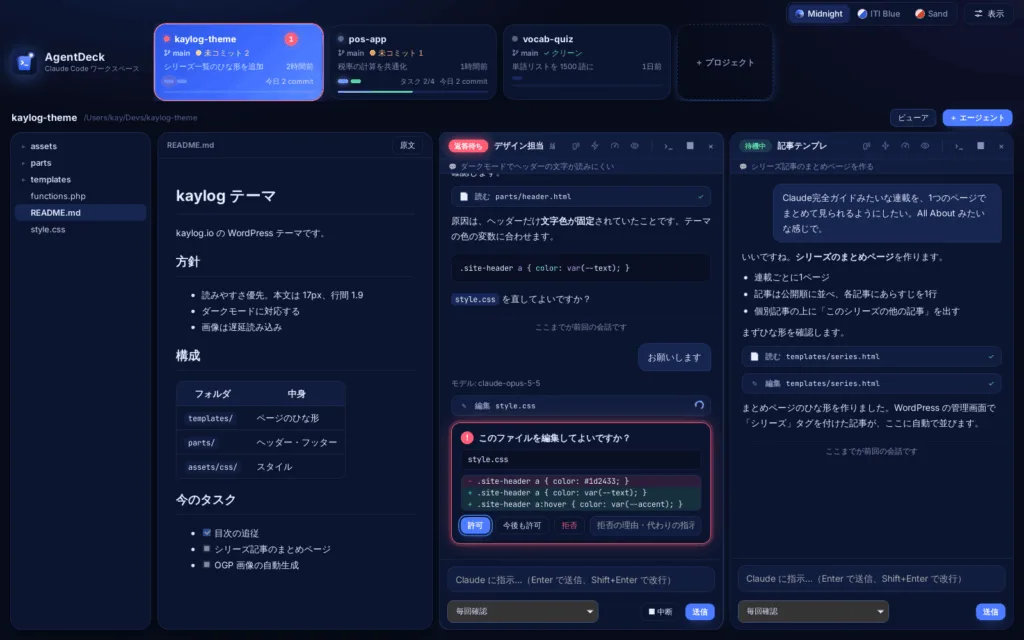
AgentDeck on the Mac. Projects across the top, agents on the right. Everything I want to keep track of, gathered in one place I can take in at a glance.
Lining up brilliant AIs only made it obvious how hopeless I am#
Until now, I’d been developing with Claude Code running inside Antigravity.
For one project and one conversation, that’s plenty. Give an instruction, read the reply, run it and check. If something bothers you, tell it again.
But once I was running several projects in parallel, and using multiple agents even within one project, the number of things I had to keep in my head shot up.
Who did I ask to do what? How far along are they? Who needs my reply right now?
In one window, Claude is waiting for permission. I’m focused on something else and notice 30 minutes later. And all the while, I think I’m the one waiting on the AI: “Isn’t it done yet?”
…The one holding things up was you.
If AI had feelings, I think my performance review would have been scheduled by now.
The crowning moment was when I sent instructions to an agent on a different project.
With lots of similar screens open, humans make mistakes, reliably. And so did I, reliably.
This is no time to worry about the AI’s comprehension. First, I’m not even sending the order to the right contractor.
Add more AI and development speeds up accordingly. That’s what you tend to think, but once things exceed what a human can keep track of, it’s you who stops the progress.
I can add more hands to write code, but I only have one set of eyes and one head.
I thought the ones I needed to add were AIs, but the thing that needed fixing first was my own workflow. Not exactly a dreamy conclusion.
The contradiction of someone who swore off writing code camping out in front of it#
Deciding not to write code myself doesn’t mean I stopped thinking during development.
What to build. How I want it to behave. Whether this screen is easy to use. Whether what came out matches what I asked for.
There’s no end of things to decide and check.
“Can’t this be a bit easier to read?” “I tried it, but something’s off.”
Doesn’t write code, but has plenty of demands. From a developer’s point of view, I’m probably a pain of a client. Good thing my developer is an AI.
If anything, now that the AI turns things into reality so quickly, I have to make decisions one after another. And every time, the time spent hunting for where the conversation is, or trying to remember what I asked before, feels like such a waste.
What I needed was a screen that let me survey all the work in progress and talk right away to whoever needed me.
That’s why, in AgentDeck, the area for viewing code and design notes is read-only. I can read it when I want to. If there’s something I want changed, I tell an agent.
I’m quite fond of this clean cut. Having declared that I won’t touch it myself, I’m oddly principled about that one part.
Cutting-edge AI development, starting from a doodle in Excel#
At first, I asked Claude whether there was a more comfortable way to work.
It suggested a few approaches, but none was quite what I had in mind. So I opened Excel and drew the screen I wanted.
Projects lined up across the top. A red mark on anything waiting for a reply.
Select a project and its workspace appears below. A file list on the left, a place to view code and notes in the middle, conversations with agents on the right.
That’s about all I had in my head.
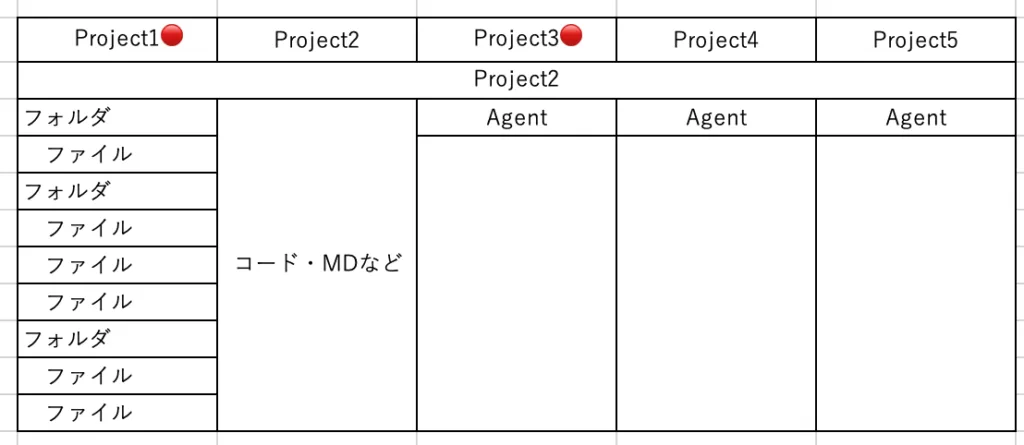
The first sketch of the screen. Excel can do spreadsheets, but it’s also excellent graph paper for moments like this.
It wasn’t a grand specification, or a screen made in a proper design tool. I just placed boxes in Excel and wrote “this goes here.”
Someone who goes on about AI and multi-agent setups, falling back on Excel graph paper in the end. I thought I’d arrived in the future, but my footing is strangely familiar.
When I showed it to Claude and asked, the answer was that it could be built.
I gave three conditions:
- It runs on my usual Claude subscription
- It doesn’t use a separate API key
- I don’t write any code myself
I know what I want. I have conditions. Implementation’s on you.
If nothing else, my attitude as a client is fully fledged.
After a lot of back and forth, the floor plan from my doodle started running as a Mac app.
“It’d be nice to have a screen like this” becomes something I can actually use on my own computer. Even after building lots of things with AI, that moment is still fun.
And this time, it’s a tool that makes all my future development easier, every day. It felt like remodeling my own workspace exactly the way I like it.
The more I build, the easier development gets afterwards. In that case this isn’t a detour, it’s an upfront investment. And if it’s an investment, surely it’s fine to get a little more elaborate…
When it comes to talking myself into things like this, I have plenty of ability without any help from AI.
…So, is it actually useful? It turned out to be ridiculously useful#
What runs inside AgentDeck is my usual Claude Code. I didn’t rebuild the AI itself; I built a screen, for myself, for talking to Claude Code.
That alone made it feel completely different to use.
I’ve been goofing around a lot so far, but I want to be serious in this section. It’s not just the satisfaction of a look I like; my daily operations really have gotten easier.
The places that need my reply catch my eye on their own#
The top row is lined with project cards. Besides showing progress and Git status (branch, number of uncommitted changes, today’s commit count and so on), each card glows red when something is waiting for a reply.
Before, I’d open windows one after another to check whether anything had stalled. Now, I just open whatever is red. That’s it.
Explained like that, it sounds dull. But since it’s something I do dozens of times a day, in practice it makes a huge difference.
I no longer need to patrol around worrying that “someone somewhere might be waiting,” and I can focus on the work I have open.
It also notifies me through macOS notifications and a badge on the Dock icon, so I don’t miss anything while working in another app.
Agents that were just numbers now show what they’re working on#
Within one project, I can line up conversations with multiple agents side by side.
But just lining them up isn’t enough. Even with “Agent 1”, “Agent 2”, “Agent 3” written on them, after a while I lose track of who I asked to do what.
Hands out the work, then forgets who’s on it. Not the kind of boss you’d want. That’s me.
So I made each column show a title based on what the conversation is about. Things like “Design” or “Article template”.
This worked better than I expected.
I no longer have to trace back through my memory from a number; I see the heading and pick “this is the continuation of that task.” Even when I come back from another project, I can pick up the conversation right away.
It’s just a small heading, but the screen has taken over something I used to manage in my head.
Before thinking about what to do about the AI’s memory, first make up for my own. Apparently that was the right order.
Read, decide, and reply on the spot#
Conversations are formatted to read nicely as text, and when it asks permission for an action, I can answer with buttons.
Besides the three choices “Allow”, “Always allow” and “Deny”, when I deny I can type a reason or alternative instructions right there. Changes are shown as diffs too, so I can read what it’s about to do before replying.
Files and design notes are viewable on the same screen, so if I want to check something mid-conversation, I don’t have to go looking for it somewhere else.
Each of these is a small thing. But when those small snags go away, the whole development process feels much lighter.
I think what’s really behind the feeling that it’s easier to use is less hassle before giving the next instruction.
I don’t write code. But I do have opinions on colors and fonts#
It’s a screen I open every day, so I made it look the way I like too.
Three themes: Midnight, based on deep navy; ITIBlue; and the bright Sand. I also unified the chat fonts so Japanese and Latin characters don’t end up in mismatched typefaces.
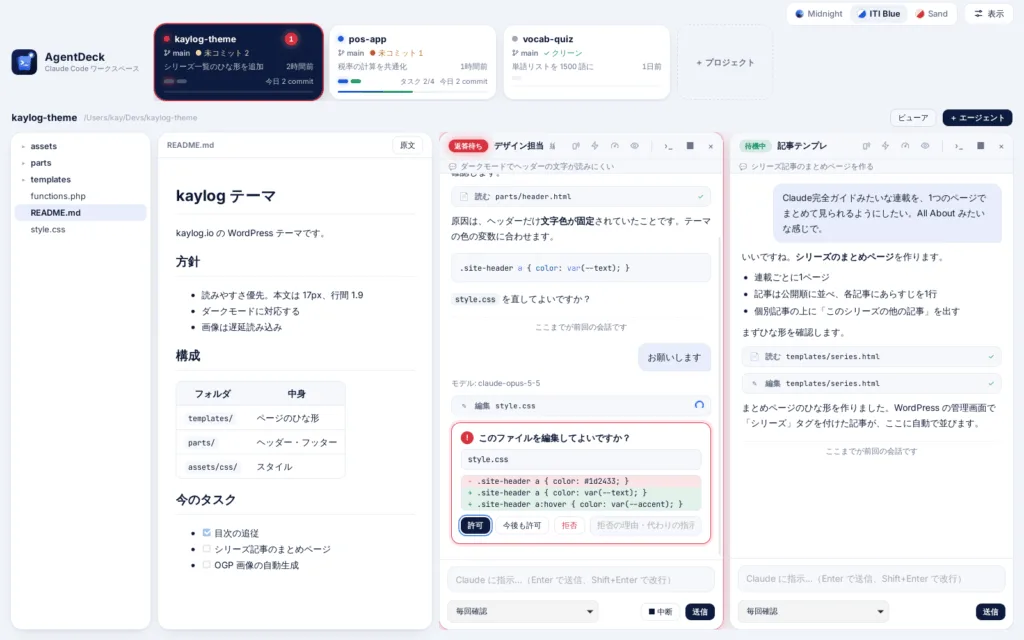
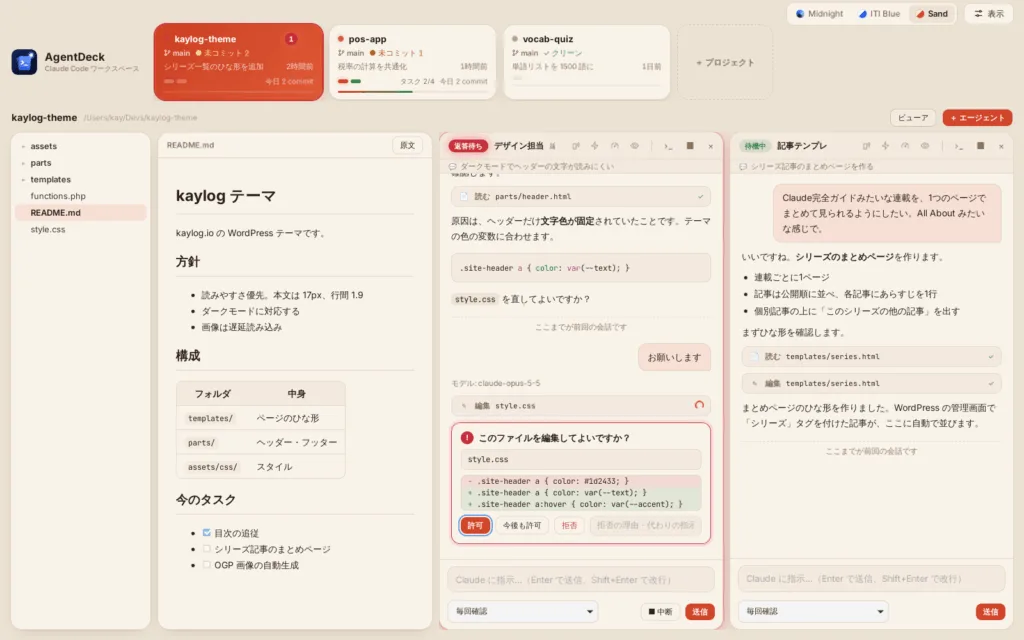
ITIBlue and Sand. Since it’s a tool I use every day, I didn’t hold back on demands about readability and taste.
You could settle for “as long as it works” on this kind of thing if you wanted.
But my “as long as it works” only lasts until it works. The moment it runs, I start fussing over colors and spacing. Pretty selfish of me.
Still, I’m building it for myself, so there’s no reason to hold back. If it’s hard to read, fix it. If a color bugs me, change it. Put the actions I use most where they’re easy to press.
Any adjustment I want becomes the next improvement directly. That closeness is another part of the fun of building your own.
I built a command center, and then incidents broke out in the command center#
Reading this far, you might think everything went smoothly once I handed over the doodle.
In reality, it was use, fix, use, fix, over and over.
For example, there was a time when two chats started running with the same content, and the agents mixed up their roles. When I had it investigated, it turned out two Claudes were running the same conversation at the same time.
With the tool I built to reduce my confusion, now the AI side was confused.
Build a command center and the chain of command falls into place. There was a time when I believed that too.
We dealt with this by adding cleanup on exit, plus a check at startup for any process already running the same conversation.
Another time, I pressed the remote-control toggle while Claude was thinking, and the chat vanished.
“What I wanted to switch was where I operate it from, not whether the conversation exists!!”
The cause was that it stopped Claude mid-task and reopened it. We fixed it so it waits for a break in the work before switching.
There were other problems I only discovered by using it: pressing “Always allow” got treated as a denial. Files I meant to hand to the agent next door somehow landed in the leftmost column every time.
The latter amounted to a system where all the work piles up on the first agent. There’s no need for the app to recreate my own poor workflow.
At times like these, what I do is explain what happened and how I want it to behave.
What I pressed and what happened. Which screen gave me trouble. I explain while showing screenshots, have it investigate the cause, and then use the fixed version again.
Even without writing code, I can tell when something is awkward to use.
That’s where I’m the top expert. I’m the one using the tool every day, after all.
I may not be able to explain the cause, but I can explain where I got stuck. So I tell it, without holding back. For once, having lots of demands actually comes in handy.
Once I know what’s possible, my perfectionism won’t stop#
As usual, the moment I realize “oh, this is possible too,” my obsession with details kicks into overdrive.
At first, I just wanted to tidy up my windows. But once it got going, “couldn’t this part go one step further?” kept bubbling up, one after another.
Remote control in one button#
Claude Code has a command called /remote-control. It’s a feature that lets you continue a conversation running on your Mac from the Claude app on your phone.
It’s really handy when I step away for a bit. But typing the command every time was a minor pain. On top of that, I’d forget which conversation I’d turned it on for. Yes, my memory drags me down here too.
So I added a button to each agent column so I can toggle it with one tap.
That’s right. The very button behind the “chat vanished when I pressed it while it was thinking” incident from the previous section. These days, it properly waits for a break in the work before switching.
Permission rules per agent, from a dropdown#
Another thing I like is being able to choose permission rules for each agent.
Some work I want it to check with me every time it edits a file or runs a command; other work I want it to just get on with, to a degree. I made it switchable from a dropdown under each column, with options like “Ask every time”.
The design agent, who touches the important theme files, gets “Ask every time” and close supervision. The research agent gets a bit more freedom.
Human teams change how much they delegate depending on the person and the job, right? Now I can do that with a single dropdown.
I was supposed to be satisfied with the Mac, but it spread to my phone and iPad#
After turning remote control into a button and using it for a while, a thought struck me.
From my phone, I can only continue the one conversation I turned it on for. But what I want to know when I’m out is “which project, and who, is waiting for a reply right now.”
Claude Code itself runs on the Mac, so as long as the Mac is awake, wouldn’t it be even handier to see the whole AgentDeck screen on my phone…?
When things get more convenient, people find the next inconvenience before they get around to being grateful. At least, I’m that type.
I asked, not expecting much.
Me: Can you make an iPhone/iPad version of the AgentDeck UI?
Claude: Yes, I can. Let’s use Tailscale!
Here it comes, here it comes!!
The moment Tailscale, which I already use for my NAS setup, came up, my excitement hit its peak. It connects only my own devices to each other securely, without exposing anything to the outside. It’s exactly the tool for moments like this.
So I made it usable from my phone and iPad too.
Claude Code keeps running on the Mac. From my phone or iPad, I can see what’s going on, continue conversations, and grant permissions when needed.
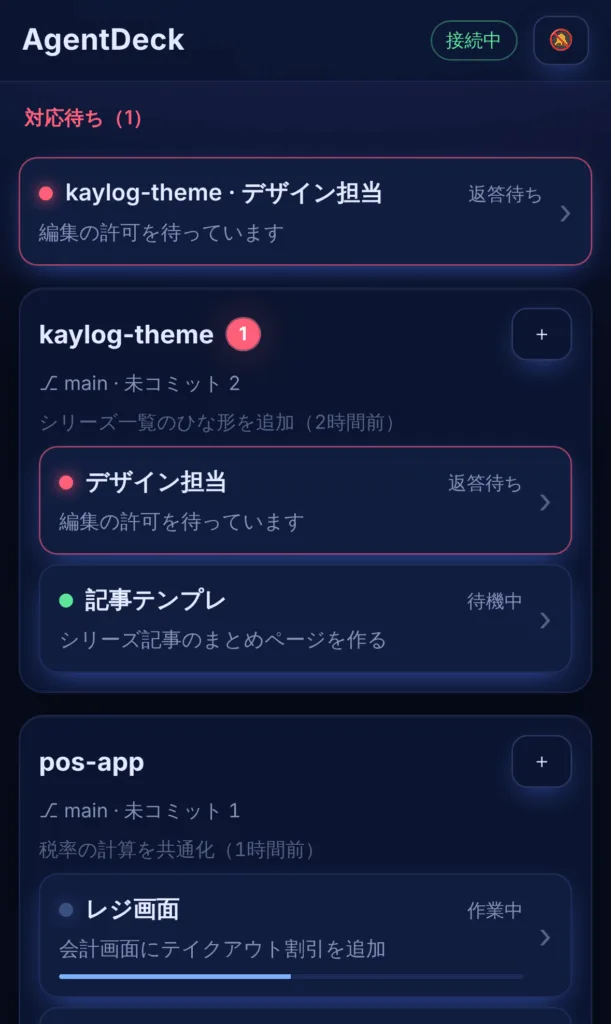
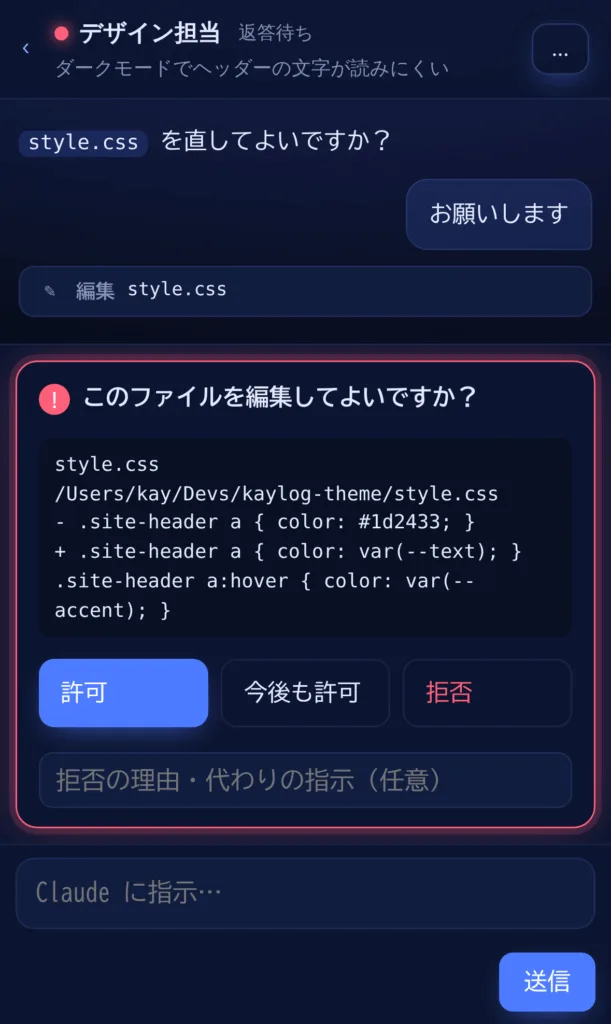
On the iPhone, check the overall status, then jump into the conversation with the agent that needs you. I made sure I can review and reply even on the small screen.
On the iPhone, “Waiting for you” items are gathered at the very top, and I can check the status of projects and agents in a list. Tap one and you go straight into the conversation. On the iPad, the larger screen allows a layout close to the Mac’s, with files and multiple conversations side by side.
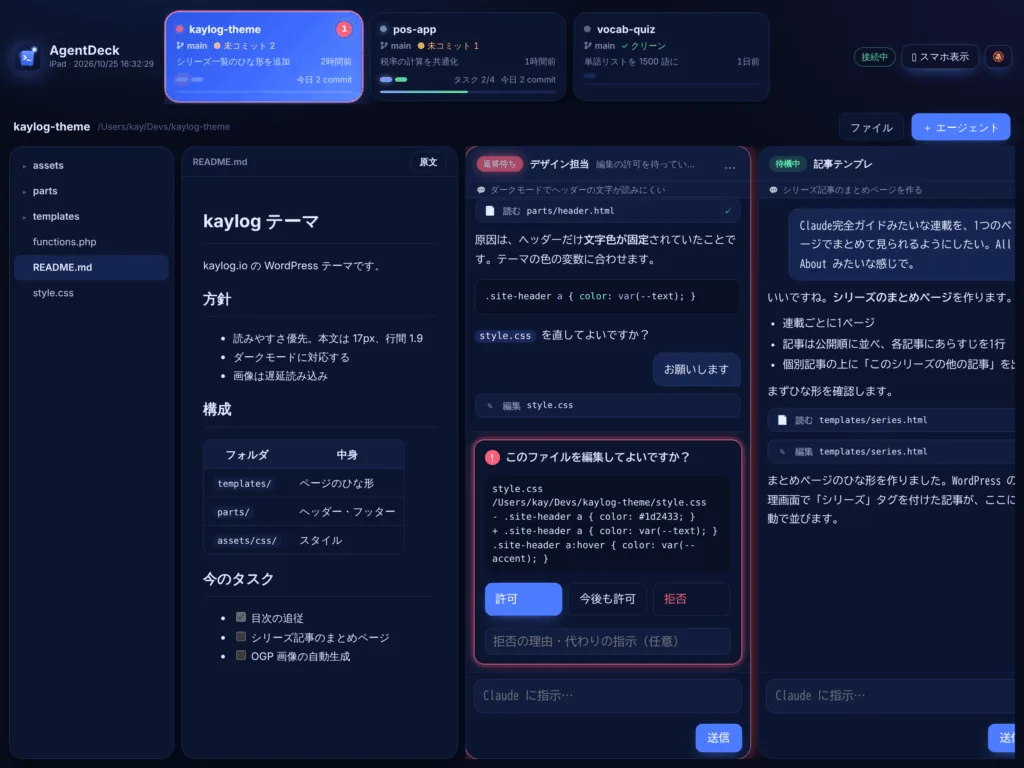
On the iPad, reviewing files and talking with agents happen on the same screen. Even away from the Mac, I can grasp the big picture of the work.
What I like is being able to survey several jobs and then slip straight into the one that needs my reply. It fits what I want to do while I’m out much better than simply shrinking the Mac screen.
All I wanted at first was to tidy up my Mac windows, yet before I knew it I had workspaces on my phone and iPad too.
I meant to make things convenient and free up some breathing room, and instead I’ve increased the places where I can get involved in development. I have a feeling the direction is a little questionable, but it’s convenient, so I’ve decided not to think too hard about it for now.
What AgentDeck made easier#
- Agents waiting for a reply glow red, and notifications and the Dock badge tell me too, so I no longer patrol windows
- Each conversation gets a title describing its content, so I no longer have to remember “who I asked to do what”
- I can reply with allow, deny or alternative instructions on the spot, while looking at the diff
- Files and design notes can be read on the same screen, so I don’t have to go elsewhere to check things
- I can check status and reply from my iPhone or iPad too, so I’m no longer tied to the Mac
The thing that needed improving most was my own work environment#
This time, I realized I’ve become completely used to AI writing the code.
What I was actually struggling with was how to survey multiple jobs, where I make the decisions, and how to keep going comfortably.
Until now, I thought development tool screens were something you got used to as provided.
But if you know what you want to do, you can also build tools to fit it. AgentDeck was the experience that made me feel that firsthand.
I don’t think this screen is ideal for everyone. I don’t write code; I give instructions to multiple agents and check what comes out. I think it feels this easy to use because I built it around that way of working.
No matter how smart AI gets, if I overlook something waiting for a reply or send instructions to the wrong agent, everything stops right there.
AgentDeck cut down on that hassle and those dropped balls. I know which job to look at now, I check it, and I ask for the next thing. That feeling of development moving forward that way is simply fun.
I didn’t start from some grand vision.
Where did that window go? Who was waiting for a reply again? Can’t this be a bit easier to see?
I just took those small frustrations and placed them in boxes in Excel.
If you’ve gotten similarly “lost” developing with AI, try starting by drawing what you want to see, on paper or in Excel. Surprisingly, that might be the shortest route.
Last year, I decided I wouldn’t write code myself anymore.
This year, I ended up building the very development screen that I use.
And now, because development has gotten easier, I want to build something else again.
…That’s odd. I started this to make life easier, and somehow my workload has grown.
Oh well, this time I have a command center to keep an eye on it all.
One more project should be fine.
I’m pretty sure I said the same thing the first time, too.