I Made Claude Code a Permanent Resident of My Synology NAS, and Now My NAS Talks Back
A step-by-step guide to running Claude Code 24/7 on a Synology NAS with Container Manager and tmux, controlling it from an iPhone via Remote Control, plus every pitfall I hit.
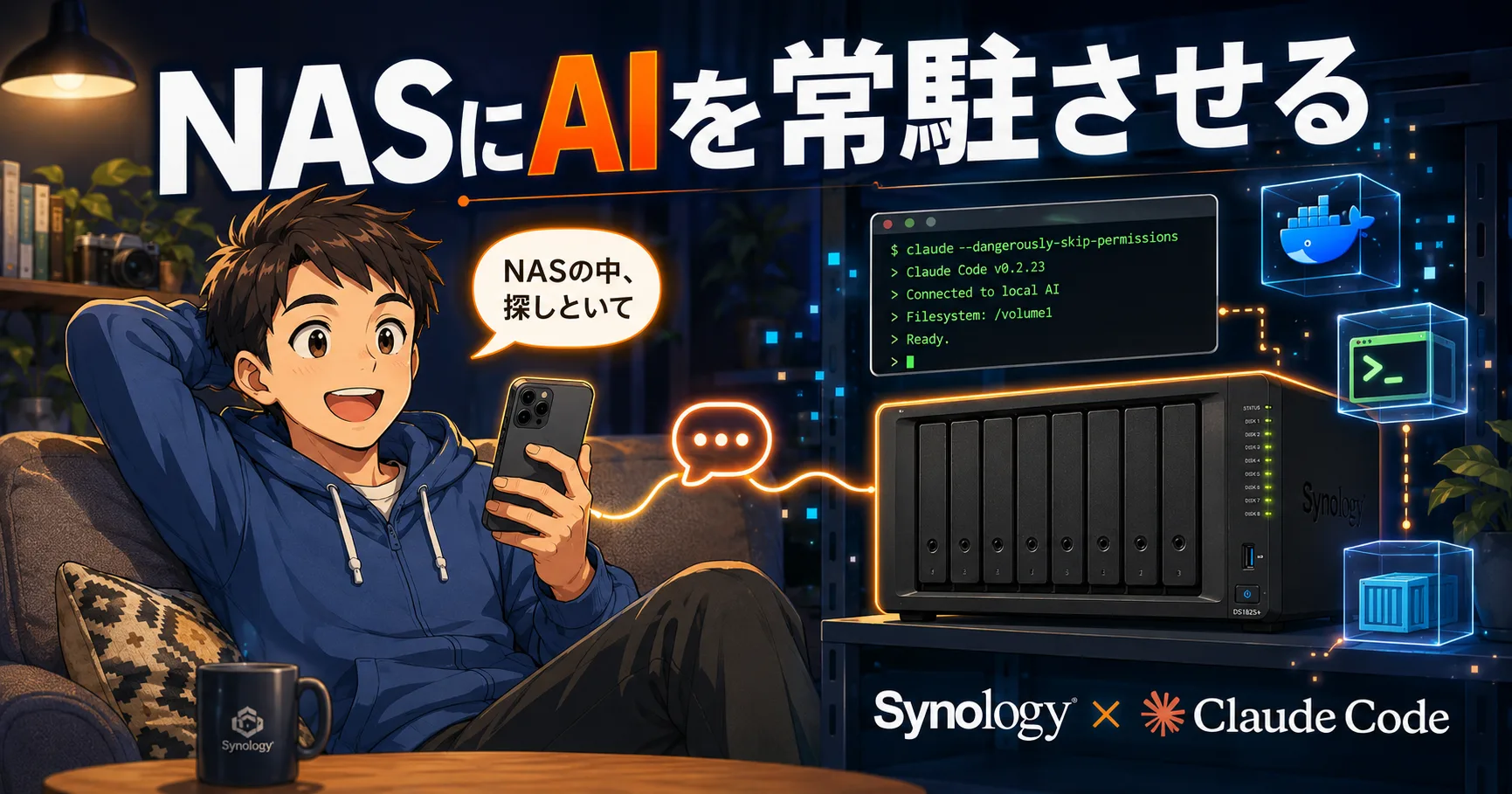
Contents27 items
“Where on the NAS did I put that file again…?”
I throw everything onto my NAS — photos, code, documents — so I honestly can’t count how many times a month I mutter that line. Type it into the File Station search box, wait, wrong result, wait again…
Then one day it hit me.
“Why not just put an AI inside the NAS?”
No time like the present. I logged in over SSH, opened Container Manager, and before I knew it, it was the middle of the night. Spoiler: it worked. It runs 24/7, I can control it from my iPhone anywhere, and I can talk to it in plain Japanese.
In this post, I’ll walk through how to make Claude Code a permanent resident on a Synology NAS, step by step, so that even if Docker and tmux are a mystery to you, you can follow along. Including, of course, every spot where I spectacularly got stuck.
Why run an AI “inside the NAS”?#
If you’re thinking “why not just run it on a Mac?” — fair point. But there are four reasons to run it on the NAS.
1. A NAS is on 24/7
This is the biggest reason. A MacBook stops when you close the lid, but a NAS doesn’t. So you can ask the AI to “rename everything in that folder,” close the lid, and the AI inside the NAS keeps quietly working. Being able to fire off a job and walk away is a server’s privilege.
2. Connect from anywhere with Remote Control
Claude Code has a feature called Remote Control that lets you connect directly to a session running on the NAS from the Code tab of the Claude app on your iPhone. You can search your home NAS in plain Japanese from the train. That’s practically magic.
3. The AI can edit your website directly
This one is quietly powerful. I host this blog on a Synology NAS myself, and I suspect quite a few people run websites on their NAS too. If the AI lives right there, you don’t have to open an editor to fix a page every time; you just tell it “fix this part of that page” and it does. The files are inside the NAS, so they’re within the AI’s reach.
By the way, my kaylog.io runs on WordPress, so the article text lives in a database. Direct file editing can’t touch that, but theme, CSS and feature customizations can be fixed with nothing but instructions. Once you’ve felt the job being done before you even open an editor, there’s no going back.
4. The romance of putting everything on the NAS
On this blog, I’ve run the blog itself, a POS register and a wild-bird shooting game all on the NAS. As someone afflicted with the condition of “wanting to put everything that runs on the NAS,” leaving just the AI outside was never an option.
Today’s stage: NAS #3 of my three#
Between work and hobbies, I run three Synology NAS units. In this post I’ll call them NAS01, NAS02 and NAS03 for convenience.
- NAS03 (DS1825+): the star of this post. An x86_64 machine with a Ryzen V1500B CPU. It’s also a production machine running my development folders and POS system
- NAS02 (DS1019+ / 8 GB RAM): the server running this blog’s (kaylog.io) WordPress
I built it on NAS03 first, then once it was stable, ported the same setup to NAS02. The second unit took 20 minutes with the same steps, so I think the recipe is reasonably reproducible.
What is Docker anyway, and why Docker?#
If I suddenly say “use Container Manager,” a lot of people will tense up. So, just one line first.
Docker is a way to create an entire “small separate computer” inside your NAS.
Picture a shipping container for a move. You pack all the tools you need inside (Node.js, git and so on this time), seal it, and plop it on top of the NAS. Whatever you do inside, the NAS’s own environment (DSM) stays completely clean. When you no longer need it, you throw away the whole container. Synology provides it as a package called “Container Manager.”
So why the Docker approach? You can technically install Claude Code directly on the NAS with the official installer, but I decided to put the AI in Docker. There are four reasons.
- DSM’s userland is extremely minimal — it doesn’t even have git. It lacks the tools Claude Code assumes are there
- Even if a DSM update changes the environment, the inside of the container is unaffected
- It’s a straightforward Debian-based environment, so anything missing is one apt command away
- By choosing which folders to mount, you control “what the AI can see” (quietly the most important point)
The fourth is the big one. Showing it everything on the NAS would be a bit too bold. With Docker, “show only this folder” and “this one is read-only” are decided in a few lines of compose.yaml.
Setup steps#
What you need#
- Control Panel → Terminal & SNMP → Enable SSH service
- Install Container Manager from Package Center
- Create two folders
/volume1/docker/claude(working folder for the build)/volume1/docker/claude/home(for persisting credentials. This comes into play later)
Write the Dockerfile#
A Dockerfile is the “blueprint for a container.” It’s just a text file that describes what should be installed in the container.
FROM node:22-bookworm

RUN apt-get update && apt-get install -y --no-install-recommends \
    git ripgrep jq less procps tmux \
    poppler-utils \
    exiftool \
    python3 python3-pip \
    && rm -rf /var/lib/apt/lists/*

RUN pip3 install --break-system-packages openpyxl pandas

RUN npm install -g @anthropic-ai/claude-code

ENV TZ=Asia/Tokyo
ENV LANG=C.UTF-8
ENV LC_ALL=C.UTF-8
WORKDIR /workspace
CMD ["sleep", "infinity"]
Knowing what each piece does makes you fond of it, so here’s a quick rundown.
- ripgrep: a blazing-fast full-text search tool. The core of Claude Code’s search power. It’s the secret behind the “instant search” I’ll mention later
- git: essential for diffs and commits
- tmux: the key to keeping it resident. More on this later
- poppler-utils / exiftool / openpyxl: for searching inside PDFs, reading photo EXIF data, and reading Excel files. If you want to dig through documents sleeping on your NAS, installing these opens up a whole new world
- ENV LANG / LC_ALL: without these, Japanese text display falls apart completely. Details in the pitfalls section
Write compose.yaml#
compose.yaml is the configuration file for “how to run that container.”
services:
  claude:
    build: .
    image: claude-code-nas:latest
    container_name: claude-code
    tty: true
    stdin_open: true
    volumes:
      - /volume1/docker/claude/home:/root/.claude   # Persist credentials
      - /volume1/homes/Kay:/workspace/kay:ro         # Entire home (read-only)
      - /volume1/homes/Kay/Devs:/workspace/kay/Devs  # Only the dev folder is writable
    cpuset: "0-3"
    mem_limit: 4g
    restart: unless-stopped
This is the heart of the design.
- Nested mounts: the entire home is exposed as
:ro(read-only), and only theDevsdevelopment folder is layered on top as writable. “It can read everything, but only write here” — the most reassuring arrangement - cpuset limits it to four CPU cores, and
mem_limitcaps memory at 4 GB. This NAS also runs production services, so resources are physically separated - With
restart: unless-stopped, the container starts automatically when the NAS reboots
Build, start and authenticate#
cd /volume1/docker/claude
sudo docker compose up -d --build
sudo docker exec -it claude-code claude
On first launch you’ll see screens such as theme selection; keep going and a URL for OAuth authentication appears. Just open that URL in a browser on your PC or phone, sign in, and paste the code it shows into the terminal. The NAS doesn’t need a browser.
Since /root/.claude is persisted, you only have to authenticate once.
Alias and CLAUDE.md#
Typing a long command every time is torture, so add an alias to ~/.profile.
alias cc='sudo docker exec -it -e LANG=C.UTF-8 -e LC_ALL=C.UTF-8 claude-code tmux -u attach -t cc'Now just two letters, cc, over SSH puts you in front of the AI.
Also place a CLAUDE.md in the working folder. This is “the rulebook for that location” that Claude Code reads automatically. Along with a description of the folder structure, I wrote this:
For systems running in production, always get confirmation before making changes.
Just one line, but it really works as a guardrail.
What is tmux? Building “a room that doesn’t disappear when you close it”#
So far, it works. But there’s a problem: when you disconnect SSH, the session dies.
Enter tmux.
tmux is software that creates “a room that doesn’t disappear when you close it” inside your terminal.
Normally, the moment you disconnect a terminal connected over SSH, whatever you were doing inside ends too. tmux moves that work into a separate room. Even after you close the door and go home, work continues inside. Open the door again the next morning and yesterday’s progress is right where you left it.
So the operating rules are:
- To leave the room: press
Ctrl+B, release, thenD(detach; the session stays alive) - Don’t use
/exit(it tears down the room itself, and also cuts the Remote Control connection)
Controlling it from an iPhone: Remote Control#
Now for the main event. Inside tmux, start Claude Code like this.
claude --remote-controlThat’s all it takes to connect directly to the session on the NAS from the Code tab of the Claude app on your iPhone.
The important point is that the phone is just a “window.” All the actual processing and file access happens entirely inside the NAS. It doesn’t drain your phone’s battery or data.
Auto-recovery at boot and monthly auto-updates#
Once you’ve built all this, the rest is making it run unattended. Register two tasks in DSM’s Task Scheduler.
Boot-up task (auto-recover when the NAS starts)#
“Create → Triggered Task → User-defined script,” user root, event “Boot-up.”
#!/bin/bash
sleep 90
DOCKER=/usr/local/bin/docker
$DOCKER exec claude-code tmux kill-session -t cc 2>/dev/null
$DOCKER exec claude-code tmux new -d -s cc -c /workspace/kay/Devs
sleep 5
$DOCKER exec claude-code tmux send-keys -t cc 'claude --remote-control' Enter
sleep 90: wait for the container to finish starting. No rush- Doing
kill-session→newin that order means it won’t break even if you press the “Run” button manually to retest (idempotent) - You could pass claude directly as tmux’s startup command, but the moment an error occurs, the whole session vanishes and you can’t tell why, so creating a bash room first and typing into it with send-keys turned out to be the right approach
Monthly update task (once a month, late at night)#
#!/bin/bash
cd /volume1/docker/claude
DOCKER=/usr/local/bin/docker
$DOCKER compose build --no-cache && $DOCKER compose up -d || exit 1
sleep 15
$DOCKER exec claude-code tmux new -d -s cc -c /workspace/kay/Devs
sleep 5
$DOCKER exec claude-code tmux send-keys -t cc 'claude --remote-control' Enter
$DOCKER image prune -f--no-cacheis key. Without it, the npm install layer gets cached and you stay on an old version forever&& ... || exit 1: if the build fails, the current environment is kept. Insurance so you don’t wake up to a broken setupimage prune -f: automatically cleans up old images
And with that, even maintenance is automatic.
Pitfall collection (the real meat of this post)#
I’ve made it all sound tidy, but in reality, this is where the long part began. For anyone walking the same road, I’m leaving all of it here.
1. compose.yaml says “invalid leading UTF-8 octet”#
The cause was my editor saving in UTF-16 or with a BOM. If you write it from SSH with a heredoc (tee << 'EOF'), you’re guaranteed BOM-less UTF-8.
DSM doesn’t have the file command, by the way, so check with this.
head -c 4 compose.yaml | od -An -tx1ff fe means UTF-16, and ef bb bf means UTF-8 with a BOM.
2. “NanoCPUs can not be set”#
DSM’s kernel doesn’t support Docker’s CFS quota (the cpus: setting). Switching to core assignment with cpuset: "0-3" solved it. If anything, physically separating cores is the surer way to isolate it from production services.
3. “Bind mount failed: does not exist”#
The container won’t start if a source folder for a mount doesn’t exist. In my case, my development folder was simply at /volume1/homes/Kay/Devs instead of /volume1/dev. Paths are case-sensitive (Devs and devs are different), so watch out.
4. Anything installed directly in the container disappears#
Anything installed with docker exec ... apt-get install lives only in that container. When you change compose.yaml and the container is recreated, it vanishes without a trace. When tmux disappeared, I genuinely panicked.
Anything you want to keep must be written into the Dockerfile and baked into the image. That’s the iron rule.
5. Three Task Scheduler traps in a row#
- PATH is minimal, so write docker with its full path (
/usr/local/bin/docker; depending on your DSM version,/var/packages/ContainerManager/target/usr/bin/docker) - Saving output is OFF by default. Unless you enable saving output results in “Settings,” you’ll learn nothing when it fails
- And the biggest trap: I had registered the task on a different NAS
…Yep. After wrestling with “why won’t it run?!” for about an hour, the punchline was that my browser tab was NAS02’s DSM. If you run multiple units, check the hostname in the title bar first.
6. Changing the mount path triggers a trust prompt#
Claude Code remembers working folders by path, so if you change the mount path, it stops at the first-run trust dialog. Attach once and approve it.
7. Japanese text gets garbled (you can’t even read what you typed)#
The official node image has no UTF-8 locale set out of the box, so tmux can’t calculate the width of full-width characters. As a result, characters you type disappear or overlap.
The fix is to bake ENV LANG=C.UTF-8 and ENV LC_ALL=C.UTF-8 into the Dockerfile. On the attach side, also add tmux -u and -e LANG=....
Bonus: a trick for checking what’s on screen#
While troubleshooting, there’s a more reliable way than taking a screenshot to check “what does the screen look like right now?”
tmux capture-pane -t cc -pThis dumps the screen inside tmux as plain text. Since then, this has become my standard troubleshooting move.
Trying it for real: search is so fast it made me laugh#
Now for the main topic. What can it do?
It finds files from a request in Japanese. Instantly.
“Find the ◯◯ file.”
The answer comes back in what feels like 1-2 seconds. It’s on a different level from the File Station search box. The secret is the ripgrep I mentioned earlier; it sweeps through tens of thousands of files in an instant. I was genuinely amazed: “Was NAS search always capable of being this fast?”
It can even look inside files and tell you about them
Ask questions like “Read the ▢▢ PDF in the 〇〇 folder and tell me about △△!” or “What’s in that photo?” and you actually get answers back!
Bulk renaming and organizing in natural language, too.
“Standardize the dates at the start of the file names in this folder to YYYY-MM-DD format.”
That’s all it takes. Jobs I used to write Automator workflows or shell scripts for now just take talking to it. And since it all happens inside the NAS, there’s no need to transfer huge files over the network. That’s the decisive difference from an AI running on a local Mac.
Investigating and fixing config files.
“Read the Web Station config files and list which sites are running right now” — taking inventory of settings I wrote myself and then forgot about is genuinely easy now.
Security and operational notes#
It’s convenient, but it’s not something to use carelessly. Here are the rules I follow.
- Control what it can see with mounts. Shared folders you don’t want it to see simply aren’t mounted. Anything it only needs to reference gets
:ro - Put a note about production systems in CLAUDE.md. The single line “always get confirmation before making changes” acts as insurance
- It runs as root inside the container, so files the AI creates are owned by root. Use
chownwhere needed, such as in web-published folders - If it shares the machine with production services, isolate resources with
cpusetandmem_limit - While Remote Control is in use, conversation logs are synced through Anthropic’s servers (execution and file access stay local to the NAS)
- Restrict permissions on config files such as compose.yaml with
chmod 600
Summary#
- You can make Claude Code a permanent resident on a Synology NAS (x86_64 models). Container Manager (Docker) is the only way to go
- Keep the session resident with tmux, and connect from your iPhone anywhere with Remote Control
- Use Task Scheduler to make it fully unattended, from auto-recovery at boot to monthly auto-updates
- The pitfalls: character encoding, the CPU-limit method, the Japanese locale and Task Scheduler traps. Baking in LANG/LC_ALL is especially essential
- Control what it can see with mounts.
:roand CLAUDE.md are your guardrails - Day to day, there are just two operations:
ccfrom SSH, andCtrl+B→Dto leave
And next time, something happens#
…It would have been nice to end here, all neatly wrapped up.
But having an AI working 24/7 inside your NAS breeds a dangerous line of thinking: “So what should I have it build next?” Having run a blog, a POS register and a game on the NAS, what I set my sights on next was Synology’s own “USB Copy.”
Anyone who photographs wild birds will know this: with that package, once you format a memory card, you can no longer call up the tasks you registered. Formatting is important for keeping cards performing well. But formatting wipes your settings. That contradiction had been bugging me for a long time.
So I tried building my own with the NAS-resident Claude, and — I ended up with something easier to use than the original.
Plug it in → beep → beep-beep → the icon disappears, so you just pull it out. And it even works when I say “do a USB Copy” from my iPhone.
Next time is the full record. I’ll tell all, including how auto-eject alone sent me into a five-stage labyrinth. Stay tuned.