Setting Up Cowork and Designing Folder Permissions
On this page8 items
In 10 seconds
The first thing to do isn’t configuration but limiting what it can touch.
Create one dedicated working folder and hand over only that. This prevents most accidents.
This is the most important page in this chapter. Don’t skip it and move on.
The reason is simple: Cowork actually rewrites files. In chat, if you get a wrong answer, you can just skip over it. In Cowork, the wrong result gets saved.
Limit what it can touch first#
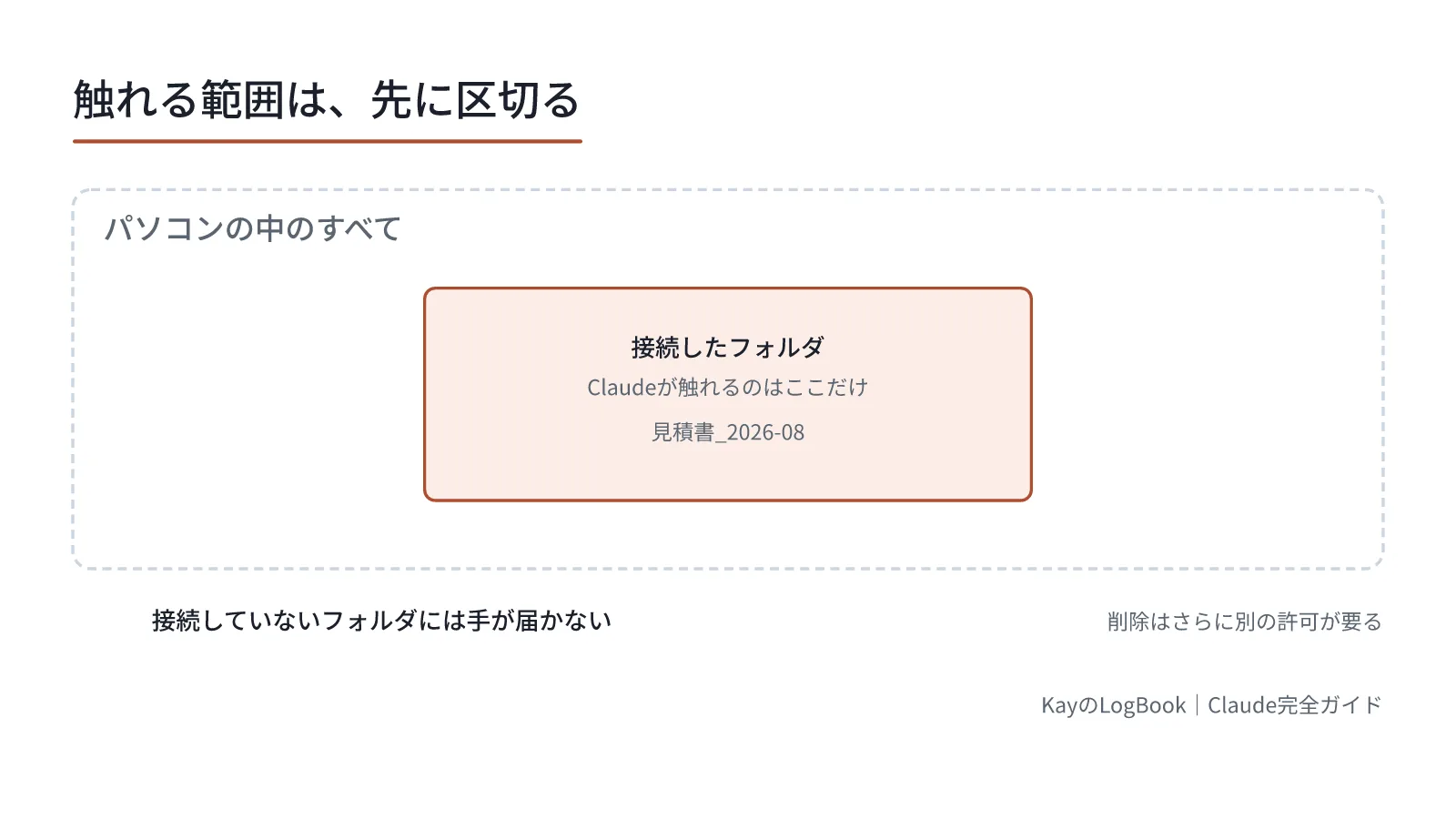
Cowork accesses only the folders you connect. It doesn’t see your whole computer. The official documentation also says it “only accesses folders you explicitly grant permission to.”
In other words, what you connect is itself your safety design. “It can’t break what it can’t touch,” from #21, maps directly onto how you operate.
What to do first:
- Create one dedicated working folder (e.g.
Quotes_2026-08) - Put copies of the files you’ll work with this time into it
- Connect only that folder
Your entire Desktop, your entire Documents folder, your Downloads folder: don’t connect these. They always contain unrelated files.
Putting in copies matters too. If it never touches the originals, you can undo anything that happens. Once you’re used to it, you can work with originals; it’s only extra effort for the few weeks until you get used to it.
Choose an approval mode#
Cowork has three levels of settings for how much it checks with you before acting.
| Mode | Behavior | Best for |
|---|---|---|
| Manual | Asks before every action | The first few weeks, important work |
| Automatic (with safety checks) | Proceeds automatically but stops at risky actions | Everyday work once you’re used to it |
| Skip all | Never asks | Not recommended |
The official documentation also recommends switching to manual approval for important work.
Note that permanently deleting files requires explicit permission, separate from the mode. However, this only works while you’re watching. If you’re not looking at the screen, the confirmation just sits there, stalled.
What you must not hand over#
These are named explicitly in the official safety guide.
- Financial documents
- Credentials (passwords, keys, tokens)
- Personal records
Don’t connect folders that contain these. Telling it not to touch just those files isn’t enough. The moment you connect the folder, they become readable.
There’s one more caveat that’s easy to miss. Sensitive information in Excel files or presentations can move between apps during work. Be careful when handling files containing figures that must not leave the company.
Be careful with files from outside#
The prompt injection from #21 becomes a real concern here.
The official documentation states that Cowork’s biggest weakness is when Claude reads content from outside the trusted boundary. PDFs from business partners, email attachments, web pages. Instructions can be planted in these.
Cowork has its own countermeasures running too: classifiers that detect malicious instructions, and a mechanism that stops risky actions during automatic approval. But these are aids and no substitute for design.
For the quotes job, here’s what you do.
- Copy PDFs from business partners into a dedicated folder before connecting it
- Don’t put anything that can be used to send or publish in that folder
- Limit browser automation to trusted sites
Getting used to it#
The official recommendation is a good sequence as is. It describes it as building trust gradually, just as with a new colleague.
- Try it with files you wouldn’t mind breaking (a copied test folder)
- If that works, one production file of the same kind
- If that passes too, five at once
And rather than inspecting every action, watch so that you can spot unusual patterns. If you check everything, eventually you’ll stop checking. A stance of “stop it if it does something unusual” is what lasts.
Try it: Design the folder you can safely connect (5 minutes)
Prompt
“`
I’m designing a folder to connect to Claude Cowork.
The work I want to do is (describe it here).
- Which files should go in this folder
- Which files must not go in
- Whether I should put copies rather than originals
- What could happen in the worst case with this design
Please tell me.
“`Expected result: What goes in and what stays out are separated, and the worst case comes out concretely.
If it doesn’t work: If the “worst case” stops at “files get deleted,” add “including cases where information leaks outside.” A leak is harder to undo than a deletion.
Common pitfalls#
Connecting folders too broadly. Even if it’s a hassle, create a dedicated folder for each job. Once you’ve made one, you can reuse it.
Switching to “Skip all” because you’ve gotten used to it. Just when you’re used to it, an unusual file arrives. If you go automatic, stop at “with safety checks.”
Clicking “Yes” through every confirmation. As #21 said, once you start clicking through, it’s a sign to review your scope settings. Don’t reduce the number of approvals; reduce what it can touch.
Summary#
- Designing what it can touch is nearly all of safety
- Create one dedicated working folder, put copies in it, and connect only that
- Don’t connect folders containing financial documents, credentials or personal records
- To get used to it, start small with files you wouldn’t mind breaking