What Is a Branch?
What you will learn on this page
- Explain a branch as "a sticky note attached to a commit"
- Understand that when you commit, only the branch HEAD is attached to moves forward
- Check where branches are with
git branchandgit log --graph --all - Understand what you gain by splitting work into branches
On this page7 items
In Part 3, #19, we found that a branch is really just a 41-byte file containing a single commit ID. This begins Part 4. Building on that, we’ll take a fresh look at what branches are for and how they move when you commit.
A branch is “a sticky note attached to a commit”#
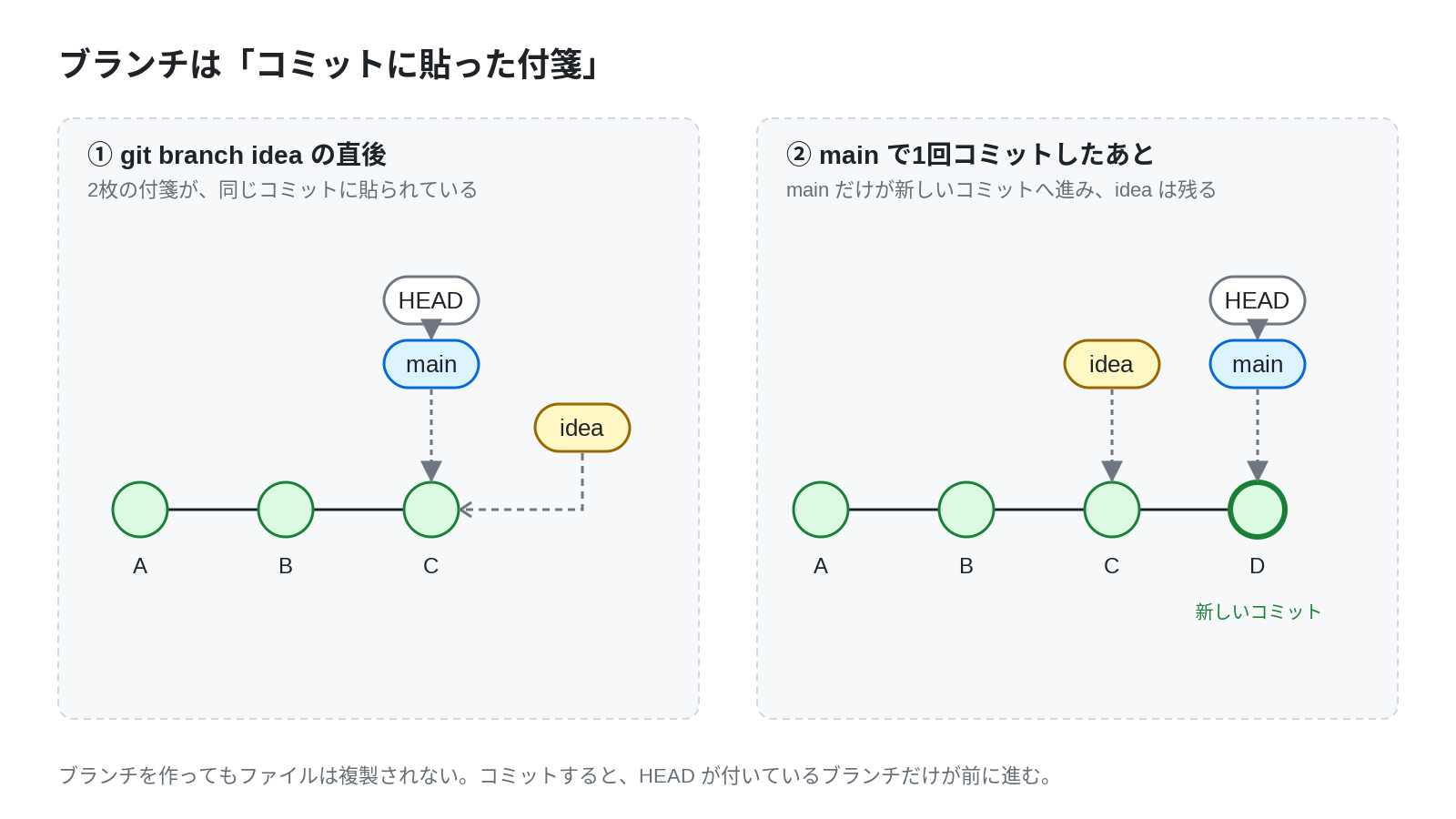
“Branch” suggests a limb of a tree. The name tends to make you imagine “a separate workspace with a full copy of the history,” but that’s not what a Git branch is. A branch is a named sticky note attached to a single commit.
No matter how many sticky notes you attach, not a single commit or file is added. The only thing that differs is “which sticky note is attached to which commit.”
In the practice repository, check which branches exist right now.
cd ~/git-practice
git branch* maingit branch is the command that lists branches. Right now there’s only main, and the leading * marks “the branch you’re on,” that is, the branch HEAD is attached to (Part 3, #18).
Now let’s add one more sticky note.
git branch idea
git branch idea
* maingit branch <name> creates a new branch at the commit you’re on. Creating it doesn’t move you, so the * stays on main.
git log --oneline --decorate -n 1370768c (HEAD -> main, tag: v1.0, idea) Add cake recipe--decorate is an option that lists the names pointing at a commit inside ( ). You can see that the commit 370768c has three names: main, idea and the tag v1.0. HEAD -> main means “HEAD is attached to main.”
When you commit, only the branch HEAD is attached to moves#
If you commit while there are two sticky notes, which one moves?
echo "Clean the room" >> todo.txt
git commit -am "Add cleaning to the to-do list"
git log --oneline --decorate --graph --all -n 3* 4e16e23 (HEAD -> main) Add cleaning to the to-do list
* 370768c (tag: v1.0, idea) Add cake recipe
* 2d6c77c Revert "Add post office to the to-do list"--graph is an option that draws how the history connects using symbols on the left edge, and --all shows the history of every branch, not just the one you’re on. In Part 4, which deals with branches, you’ll use this combination again and again.
Only main moved to the new commit 4e16e23; idea stayed on the previous commit. As we saw in Part 3, #18, when you commit, only the sticky note of the branch HEAD is attached to is moved to the new commit. Other branches don’t move.
git branch -v lists which commit each branch points to.
git branch -v idea 370768c Add cake recipe
* main 4e16e23 Add cleaning to the to-do listDiverging: how a branch becomes “a separate workspace”#
Since you’re not on idea right now, idea stays put. What happens if you switch to idea and commit there? idea moves from C (370768c) to a new commit, while main is on D (4e16e23), so you get two lines of history that share the same parent, C. This is “diverging.”
          ┌─ D  ← main
A ─ B ─ C ┤
          └─ E  ← idea
A branch is just a sticky note, yet it can be used as “a separate workspace” because two things work together:
- When you commit, only the branch you’re on moves (other branches aren’t affected)
- When you switch branches, the files in the working tree are swapped to match that branch’s commit (covered next, in #22)
Thanks to these two, you can experiment on idea without breaking main, bring it into main if it works out, and throw idea away if it doesn’t. Bringing it in is the merge, covered in #23.
What you gain by splitting work into branches#
| Situation | Without branches | With separate branches |
|---|---|---|
| You want to try a major rewrite | Hard to undo if it fails | Throw away the whole branch and you’re back where you started |
| An urgent fix comes in mid-task | It gets mixed with your half-written changes | Go back to main to fix it, and resume your work later |
| You want to work on several things in parallel | Everything gets jumbled in one history | Each task gets its own history, and you can bring them in one at a time later |
Branches take an instant to create or delete and use almost no space (Part 3, #19). Feel free to create a branch even for “just trying something.”
We won’t use the practice branch idea this time, so delete it.
git branch -d ideaDeleted branch idea (was 370768c).Only the sticky note is gone; the commit 370768c remains as part of main’s history.
FAQ#
Q. Is main a special branch?
A. To Git, it’s just a sticky note like any other branch. The only differences are that it’s created automatically at the start and that, by convention, it’s used as the place for “the finished, official history.” Its name is the one you set with init.defaultBranch in Part 2, #06.
Q. When you create a branch, are files copied into a new folder?
A. No. There’s still only one folder, and switching branches swaps its contents. If you want to open several branches in separate folders at the same time, use worktrees, covered in Part 5, #33.
Summary#
- A branch is a named sticky note attached to one commit. Creating one adds no files or commits
git branchlists branches, andgit branch <name>creates a new branch at the commit you’re on- When you commit, only the branch HEAD is attached to moves to the new commit
- When two branches each move forward from the same commit, the history diverges
git log --oneline --decorate --graph --allshows where every branch is and how they connect
Next page#
22. Creating, Switching and Deleting Branches ── Move between branches with git switch and watch the contents of the working tree change.