Resolving Conflicts
What you will learn on this page
- Understand when conflicts happen
- Read the
<<<<<<<,=======and>>>>>>>markers to tell which change is which - Finish a merge by fixing the file and running
git add→git commit - Go back to before the merge with
git merge --abort, and show the original content withzdiff3
On this page12 items
In #23, we saw that a merge stops when both branches change the same line. This is a conflict. On this page, you’ll cause a conflict on purpose and practice reading the markers and finishing a stopped merge by hand.
Why do conflicts happen?#
In the 3-way merge from #23, for “parts only one side changed” relative to the merge base, that change was adopted. So what happens when both sides changed the same part in different ways? Which one to take can only be decided by someone who understands what the content means. So instead of deciding automatically, Git stops the merge partway and leaves it to a person.
A conflict isn’t a failure or an error. It’s Git asking, “Please make the call on just this part.”
Let’s cause one in the practice repository. On a branch, change soy milk to oat milk; on main, change soy milk to two cartons. Both changes are to the first line of the shopping list.
cd ~/git-practice
git switch -c oat-milk
sed -i.bak 's/Buy soy milk/Buy oat milk/' shopping.txt && rm shopping.txt.bak
git commit -am "Change soy milk to oat milk"
git switch main
sed -i.bak 's/Buy soy milk/Buy 2 cartons of soy milk/' shopping.txt && rm shopping.txt.bak
git commit -am "Change soy milk to 2 cartons"Stopping the merge and reading the situation#
git merge oat-milkAuto-merging shopping.txt
CONFLICT (content): Merge conflict in shopping.txt
Automatic merge failed; fix conflicts and then commit the result.CONFLICT appeared and the merge stopped. When this happens, start with git status.
git statusOn branch main
You have unmerged paths.
(fix conflicts and run "git commit")
(use "git merge --abort" to abort the merge)
Unmerged paths:
(use "git add <file>..." to mark resolution)
both modified: shopping.txt
no changes added to commit (use "git add" and/or "git commit -a")There are three things to read.
| Output | Meaning |
|---|---|
You have unmerged paths. | You’re in the middle of a merge, and some files are still unresolved |
both modified: shopping.txt | The file both sides changed, causing the conflict. This is what you fix |
fix conflicts and run "git commit" / git merge --abort | What to do next: fix it and commit, or give up |
How to read the markers#
Look inside the conflicted file.
cat shopping.txt<<<<<<< HEAD
Buy 2 cartons of soy milk
=======
Buy oat milk
>>>>>>> oat-milk
Buy eggs
Buy bread
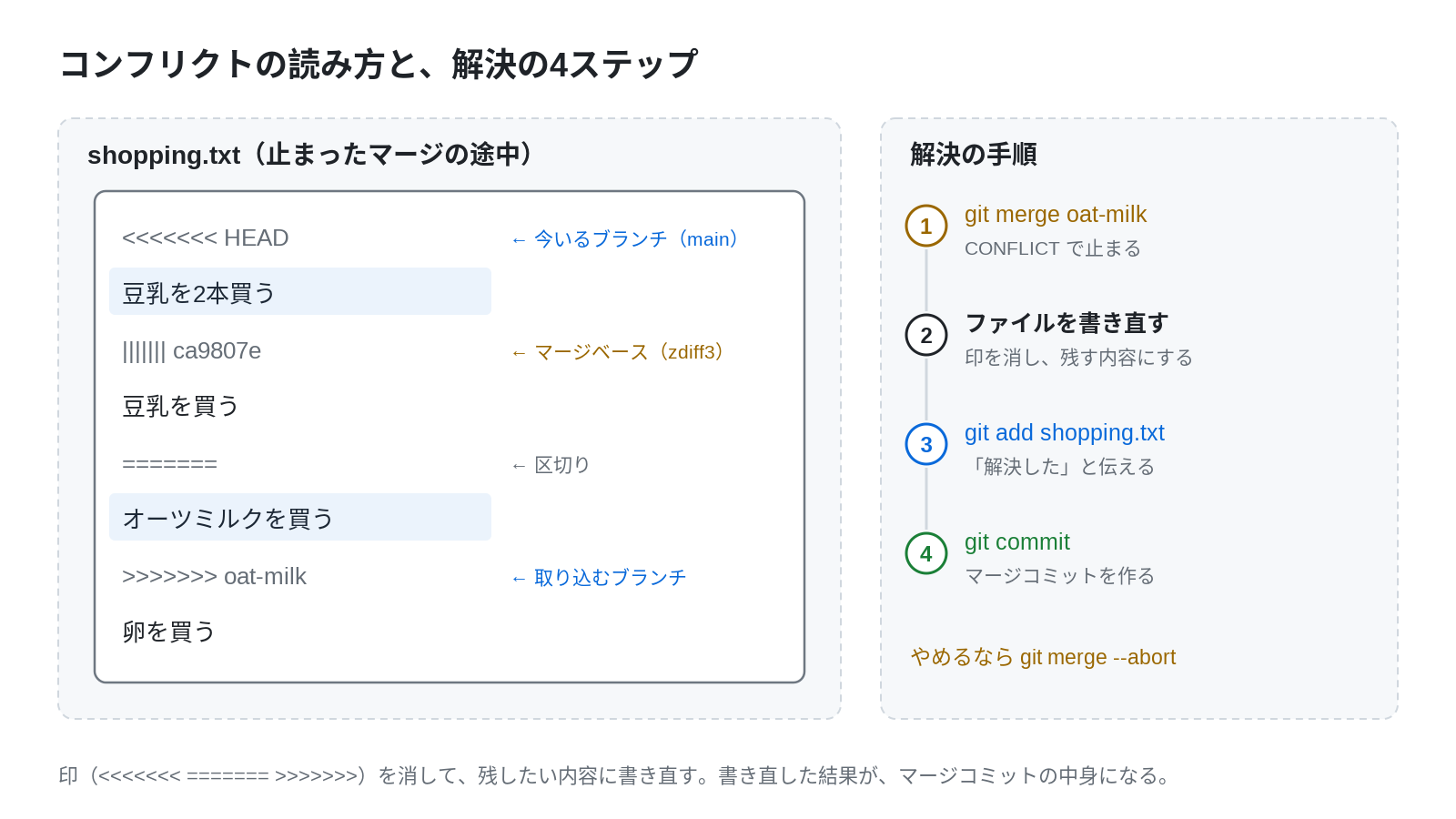
Buy applesGit has written markers (conflict markers) into the conflicted part.
- From
<<<<<<< HEADto=======: the content of the branch you’re on (main) - From
=======to>>>>>>> oat-milk: the content of the branch you’re merging in (oat-milk)
The lines from “eggs” onward, which didn’t conflict, remain as they were.
Backing out for now: git merge --abort#
If you’re unsure how to fix it, you can cancel the merge itself and go back to the state before you started.
git merge --abort
git status -s
cat shopping.txtBuy 2 cartons of soy milk
Buy eggs
Buy bread
Buy applesgit status -s shows nothing, and the file is back to main’s content before the merge. Knowing that even if a conflict happens, --abort lets you pretend nothing happened helps you face it calmly.
Showing the original content too: zdiff3#
With the markers above, you can’t tell whether “2 cartons” or “oat milk” was the change from the original. Change one setting and the merge base content is shown as well.
git config --global merge.conflictStyle zdiff3
git merge oat-milk
cat shopping.txt<<<<<<< HEAD
Buy 2 cartons of soy milk
||||||| ca9807e
Buy soy milk
=======
Buy oat milk
>>>>>>> oat-milk
Buy eggs
Buy bread
Buy applesThe part from ||||||| to ======= is the merge base (ca9807e) content. You can read that it was originally “Buy soy milk”, main changed the quantity, and oat-milk changed the type. Because you can see both intentions, you can choose a fix that keeps both. This guide recommends this setting.
Fixing and finishing#
1. Rewrite the file#
Open shopping.txt in an editor, delete all the marker lines, and rewrite it to the content you want to keep. This time, keep both intentions with “Buy 2 cartons of oat milk”.
Buy 2 cartons of oat milk
Buy eggs
Buy bread
Buy apples
You can take only one side, keep both lines, or write something completely different. Whatever you rewrite becomes the result of the merge.
2. Use git add to say “resolved”#
git add shopping.txt
git statusOn branch main
All conflicts fixed but you are still merging.
(use "git commit" to conclude merge)
Changes to be committed:
modified: shopping.txtDuring a conflict, git add also serves as the signal “this file is resolved”. It now says All conflicts fixed.
3. Complete the merge with git commit#
git commit --no-edit[main 52db35e] Merge branch 'oat-milk'--no-edit is an option that uses the message Git prepared, Merge branch 'oat-milk', as is. Without it, an editor opens, so you can also add a note about how you resolved it.
git log --oneline --decorate --graph -n 4* 52db35e (HEAD -> main) Merge branch 'oat-milk'
|\
| * 2eff5e0 (oat-milk) Change soy milk to oat milk
* | 085ffbb Change soy milk to 2 cartons
|/
* ca9807e Merge branch 'shopping-apple'
|\ You now have a merge commit of the same shape as in #23. Clean up oat-milk, which has already been merged.
git branch -d oat-milkFAQ#
Q. Is there a way to reduce conflicts?
A. Not leaving branches alone for long is the most effective. The longer branches stay apart, the more likely they are to touch the same place. Keep two things in mind: split work into small pieces and merge early, and bring in main’s changes frequently (the rebase in #25 works for this too).
Q. Can I resolve conflicts in an editor like VS Code?
A. Yes. VS Code shows buttons such as “Accept Current Change” (take the current branch’s side) and “Accept Incoming Change” (take the incoming side) on the marked parts. Pressing one removes the markers too. The git add and git commit afterward are the same.
Summary#
- When both branches change the same part in different ways, the merge stops with a conflict. It’s not an error but a request for a decision
- The files marked
both modifiedingit statusare the ones to fix <<<<<<< HEADto=======is the current branch,=======to>>>>>>>is the incoming side. Withzdiff3, you can see the original content too- Delete the markers, rewrite the file, and finish with
git add→git commit - If in doubt,
git merge --aborttakes you back to before the merge
Next page#
25. Understanding rebase: rebase is a way of bringing in changes that differs from merging; it rearranges a forked history into a single straight line.