Downloading with clone, fetch, and pull
What you will learn on this page
- Explain the difference between clone, fetch, and pull
- Copy an entire remote repository to your machine with
git clone - Check changes received with
git fetchbefore bringing them in - Know what to choose when pulling into divergent branches
On this page7 items
In #39, you sent your local history to GitHub. This page goes the other way. There are three commands for receiving GitHub’s history on your machine: clone, which copies everything the first time; fetch, which only receives what’s new; and pull, which receives and brings it in. The names are similar, but each one changes something different.
clone: copy everything the first time#
clone is the operation that copies a remote repository in its entirety, history included, to your machine and creates a new repository (Part 1, #05). You use it only once, at the start.
Imagine starting to use the practice repository on another computer (say, a laptop for when you’re out). Here, create a folder called laptop on your machine to stand in for the other computer.
mkdir ~/laptop
cd ~/laptop
git clone https://github.com/username/git-practice.gitCloning into 'git-practice'...A folder called git-practice is created, containing a working tree and .git.
cd git-practice
git log --oneline -n 2
git branch -ab61e25d Add clipping nails to the to-do list
e73a1b3 Add reading to the to-do list
* main
remotes/origin/HEAD -> origin/main
remotes/origin/mainThe history built up since Part 2 has been copied as is. The -a in git branch -a means “everything, including the remote copies.” In a cloned repository, the source is registered as origin (#36), and the local main is linked to origin/main from the start.
Make a commit on this laptop and send it to GitHub.
echo "Buy light bulbs" >> shopping.txt
git commit -am "Add light bulbs to the shopping list"
git pushfetch: just receive what’s new#
Go back to the original computer (~/git-practice). GitHub now has the extra “light bulbs” commit you sent from the laptop, but the original computer doesn’t know about it yet.
cd ~/git-practice
git fetchFrom https://github.com/<username>/git-practice
b61e25d..c05f751 main -> origin/mainfetch receives new commits from the remote and advances your local copy (origin/main). This is the important point: your local main and the files in your working tree don’t change.
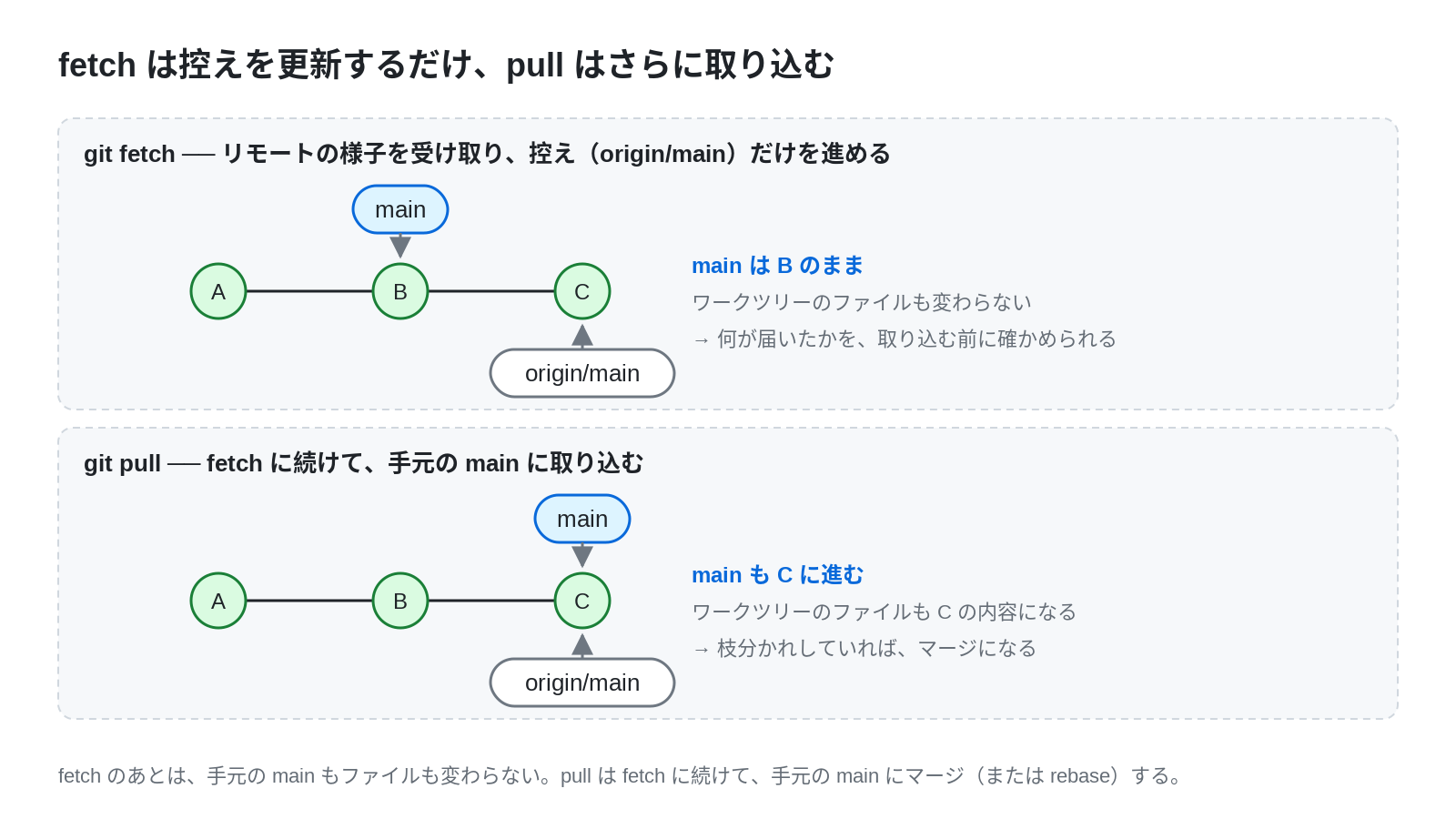
git statusOn branch main
Your branch is behind 'origin/main' by 1 commit, and can be fast-forwarded.
(use "git pull" to update your local branch)behind 'origin/main' by 1 commit means “your local main is one commit behind GitHub.” Because you fetched, you can check what arrived before bringing it in.
git log --oneline main..origin/main
git diff main origin/mainc05f751 Add light bulbs to the shopping listmain..origin/main means “commits that are in origin/main but not in main” (the same notation as in Part 4, #26). With git diff you can also see the difference in content. If everything looks fine, bring it in.
pull: receive and bring it in#
git pullUpdating b61e25d..c05f751
Fast-forward
shopping.txt | 1 +
1 file changed, 1 insertion(+)pull is the operation that does a fetch and then brings in the received changes, one after the other. This time your local branch was simply behind on a straight line, so it was a Fast-forward as in Part 4, #23. main advanced to c05f751, and “Buy light bulbs” was added to shopping.txt.
| Command | Local copy (origin/main) | Local main and files | When to use |
|---|---|---|---|
git clone | Created | Created | The very first time |
git fetch | Advances | Unchanged | When you want to check before bringing changes in |
git pull | Advances | Advances (changes brought in) | Everyday “get up to date” |
Usually pull is enough. When you don’t know what’s coming, or you want to proceed carefully, fetch first and check.
pull on divergent branches#
At the end of #39, you saw a push get rejected. That’s the state where separate commits have been made both locally and on the remote. Send “detergent” from the laptop, then commit “trash bags” on the original computer and try to pull.
git pullhint: You have divergent branches and need to specify how to reconcile them.
hint: You can do so by running one of the following commands sometime before
hint: your next pull:
hint:
hint: git config pull.rebase false # merge
hint: git config pull.rebase true # rebase
hint: git config pull.ff only # fast-forward only
(snip)
fatal: Need to specify how to reconcile divergent branches.Because these are divergent branches, Git stops and asks you to specify how to combine them. There are three options.
| Setting | How to combine | Result |
|---|---|---|
pull.rebase false | Merge (Part 4, #23) | A merge commit is created. History is kept as it is |
pull.rebase true | rebase (Part 4, #25) | Your unsent local commits are recreated on top of the remote. History becomes a single line |
pull.ff only | Fast-forward only | Does nothing if the branches have diverged. You decide what to do each time |
Each is a valid choice. This guide uses merge, which doesn’t rewrite history, as the default. Set it once at the start.
git config --global pull.rebase false
git pull --no-editMerge made by the 'ort' strategy.
shopping.txt | 1 +
1 file changed, 1 insertion(+)--no-edit tells Git to use the merge commit message as is, without editing it in an editor. Now that changes from both your machine and the remote have been combined, you can push (git push).
FAQ#
Q. I got a conflict when I pulled.
A. It happens when the same line was changed both locally and on the remote. The fix is the same as in Part 4, #24: fix it, git add, and finish the merge with git commit.
Q. I edited a file on GitHub’s website. How do I get it onto my machine?
A. Edits made on the website are also commits on GitHub. Run git pull locally and they’ll be brought in.
Summary#
- clone copies the remote in its entirety, history included, and creates a new repository. Use it only the first time
- fetch receives the remote’s changes and advances only the copy (origin/main). Your local main and files don’t change
- pull does a fetch and then brings the changes in. This is your everyday “get up to date”
- When your local branch and the remote diverge, decide whether to combine them by merge, rebase, or fast-forward only
- After they diverge, pull to combine them, then push
Next page#
41. Understanding tracking branches (upstream) ── What git push -u was linking, what origin/main really is, and how to read ahead and behind.