Undoing Things, Part 1 (restore, reset, amend)
What you will learn on this page
- Restore working tree edits to the state of the last commit
- Fix the last commit's message or a forgotten file with
--amend - Understand the difference between
git resetwith--soft, no option, and--hard - Recognize which operations destroy uncommitted changes
On this page14 items
Through Part 2, #13, you’ve learned to commit changes and organize files. This page covers how to undo mistakes made along the way by choosing how far back to go.
The big picture first: which area to restore#
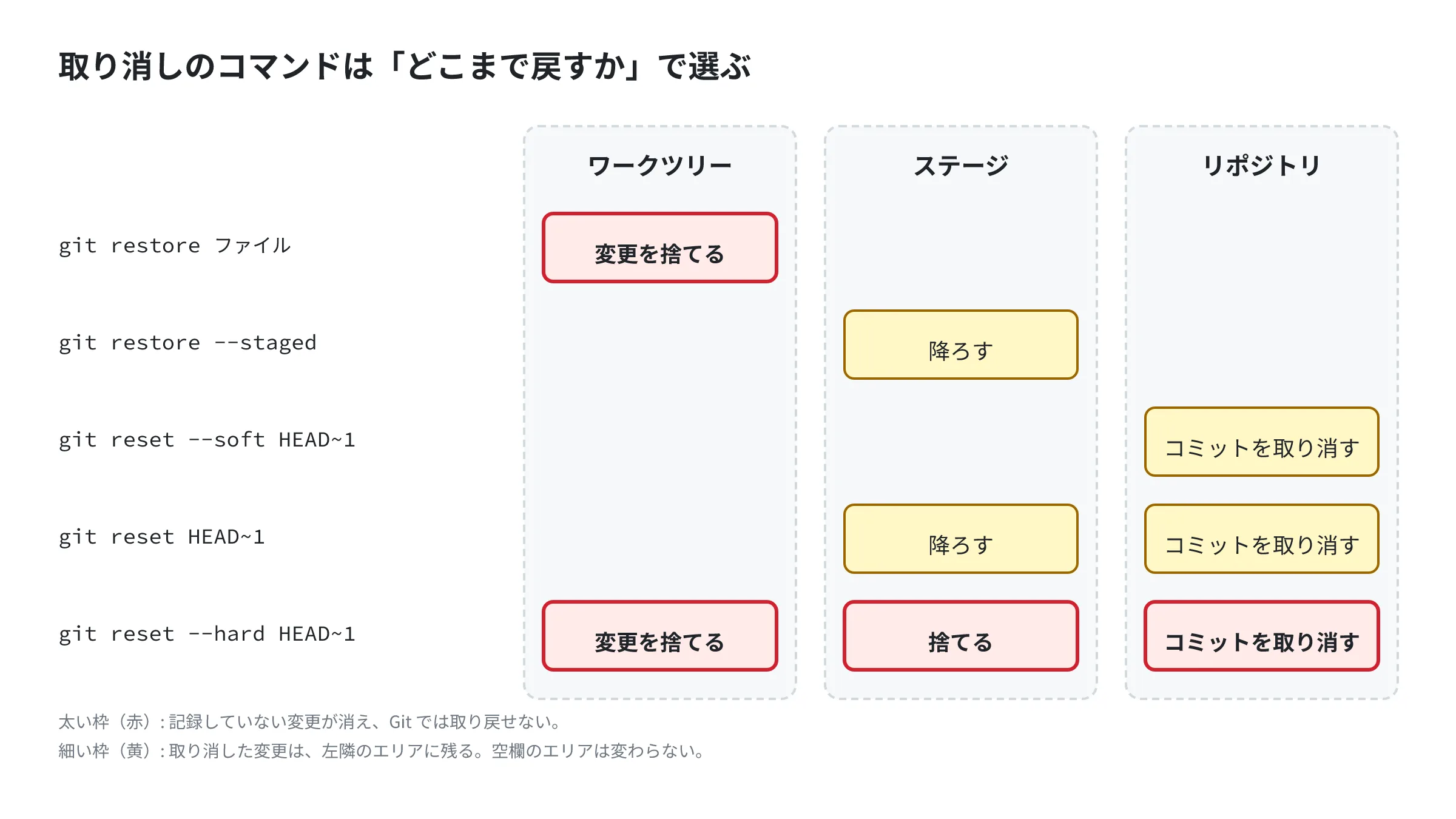
Each row is a command, and the filled boxes are the areas that command restores. Only the commands whose red box covers the working tree destroy uncommitted changes. Commands with yellow boxes keep the undone changes in the area to their left.
When in doubt, the rule is “choose one that stays yellow”.
Discarding edits: git restore#
Use this when you’ve modified a file but want to go back to the committed state.
cd ~/git-practice
echo "a wrong line" >> shopping.txt
git status -s

# Output:
#  M shopping.txt

git restore shopping.txt
git status -s

# Output:
# (nothing is shown)
shopping.txt is back to its last committed contents.
git restore --staged, which unstages files, was covered in Part 2, #08. It doesn’t change file contents, so it’s safe to use.
Remaking the last commit: git commit –amend#
Right after committing, you sometimes notice a typo in the message or a file you forgot to include.
Fixing the message#
echo "Buy bread" >> shopping.txt
git add shopping.txt
git commit -m "Add bred"

# Output:
# [main ccf1352] Add bred
#  1 file changed, 1 insertion(+)

git commit --amend -m "Add bread to the shopping list"

# Output:
# [main 1acb8f0] Add bread to the shopping list
#  Date: Thu Oct 22 01:02:18 2026 +0900
#  1 file changed, 1 insertion(+)
Adding a forgotten file#
echo "Go to the post office" >> todo.txt
git add todo.txt
git commit --amend --no-edit
--no-edit means “keep the message as is”. The staged change to todo.txt joins the last commit.
Notice that the hash changed from ccf1352 to 1acb8f0. --amend doesn’t rewrite the last commit; it creates a new commit with the contents swapped in and replaces the old one with it.
Undoing commits: git reset#
git reset is a command that undoes commits and lets you choose which area to roll their changes back to.
HEAD and HEAD~1#
git log --oneline -n 2

# Output:
# ff5986c Add bread to the shopping list
# b90cd28 Stop tracking config.txt
HEAD is the name for “where you are now”, that is, the latest commit. HEAD~1 refers to the commit one before it. In this example, HEAD is ff5986c and HEAD~1 is b90cd28. What HEAD really is will be covered in Part 3, #18.
git reset HEAD~1 means “move HEAD back one commit”, in other words, undo the latest commit.
–soft: undo only the commit#
git reset --soft HEAD~1
git status -s

# Output:
# M  shopping.txt
# M  todo.txt
The commit is gone, but the changes remain still staged. Use this when you want to redo the message or recombine with other changes.
git commit -m "Add bread and the post office"No option: roll back to the staging area#
git reset without an option undoes the commit and also unstages the changes (the same as specifying --mixed). The changes remain in the working tree.
git reset HEAD~1

# Output:
# Unstaged changes after reset:
# M shopping.txt
# M todo.txt
This is handy for redoing how commits are split up. As seen in Part 2, #09, you can select and recommit one meaning at a time.
git add shopping.txt
git commit -m "Add bread to the shopping list"
git add todo.txt
git commit -m "Add the post office to the to-do list"
–hard: throw away the changes too#
git reset --hard HEAD~1

# Output:
# HEAD is now at 1acb8f0 Add bread to the shopping list
In addition to undoing the commit, this also brings the staging area and working tree in line with the last commit. Open todo.txt and the line “Go to the post office” is gone.
The undone commit itself (“Add the post office to the to-do list”) is actually still inside Git. You’ll recover it with reflog in Part 2, #15.
Quick reference#
| What you want to do | Command | Uncommitted changes |
|---|---|---|
| Discard edits and return to the last commit | git restore <file> | Lost |
| Unstage | git restore --staged <file> | Kept |
| Fix the last commit’s message | git commit --amend -m "…" | Kept |
| Add a file to the last commit | git add → git commit --amend --no-edit | Kept |
| Undo a commit, keep changes staged | git reset --soft HEAD~1 | Kept |
| Undo a commit, keep changes in the working tree | git reset HEAD~1 | Kept |
| Throw away the commit and all changes | git reset --hard HEAD~1 | Lost |
FAQ#
Q. Can I undo commits two or more back?
A. HEAD~2 points two back, HEAD~3 three back. git reset --soft HEAD~3 undoes the last three commits so you can recombine them into one.
Q. What are git checkout -- <file> and git reset HEAD <file> that appear in older material?
A. They’re the old ways of writing git restore <file> and git restore --staged <file>, respectively. Both still work, but because one command had many roles and was confusing, restore was added in Git 2.23. This guide uses restore.
Summary#
- Choose an undo command by “which area it restores to the state of the last commit”
- ⚠️ Only
git restore <file>andgit reset --hard, which restore the working tree, destroy uncommitted changes --amendreplaces the last commit with a new commit containing the swapped-in contentsgit resetkeeps changes in the staging area with--soft, and in the working tree with no option- Don’t use
--amendorreseton commits you’ve shared
Next page#
15. Undoing Things, Part 2 (revert, reflog) ── Learn how to cancel out a commit without erasing history, and how to recover a commit you thought you’d undone.