Uploading with push
What you will learn on this page
- Register a GitHub repository as origin with
git remote add - Send your local history to GitHub with
git push -u origin main - Explain push as the operation that "sends the missing commits and moves the remote branch forward"
- Know how to push tags and why a push gets rejected
On this page9 items
In Part 6, #38, you created an empty repository on GitHub. Now it’s finally time to send the practice repository you’ve been building up locally since Part 2. The sending operation is push.
Registering the remote#
First, do what we saw in #36: give the remote a name and register it. Use the URL you noted down in Part 6, #38.
cd ~/git-practice
git remote add origin https://github.com/username/git-practice.git
git remote -vorigin https://github.com/<username>/git-practice.git (fetch)
origin https://github.com/<username>/git-practice.git (push)git remote add name URL gave the URL the name origin. If you authenticate with SSH (Part 6, #37), use a URL of the form [email protected]:username/git-practice.git.
Sending: git push#
git push -u origin mainTo https://github.com/<username>/git-practice.git
* [new branch] main -> main
branch 'main' set up to track 'origin/main'.The first time you push, you’ll be asked to authenticate using the method you chose in Part 6, #37. With Git for Windows a browser opens; with a token, you enter your username and the token. Progress such as Enumerating objects may also be shown along the way.
The last three lines are the result.
To https://github.com/…: where it was sent* [new branch] main -> main: your local main was created on the remote as a new branch mainbranch 'main' set up to track 'origin/main': your local main and the remote main are now linked
git push destination branch is the basic form, read as “send main to origin”. -u sets up the “linking” in the third line; once you’ve done it, you can push with just git push from then on. What this linking really is gets covered in Part 6, #41.
If you reopen the GitHub repository in your browser, you should see the file list and the full commit history since Part 2.
What does push send?#
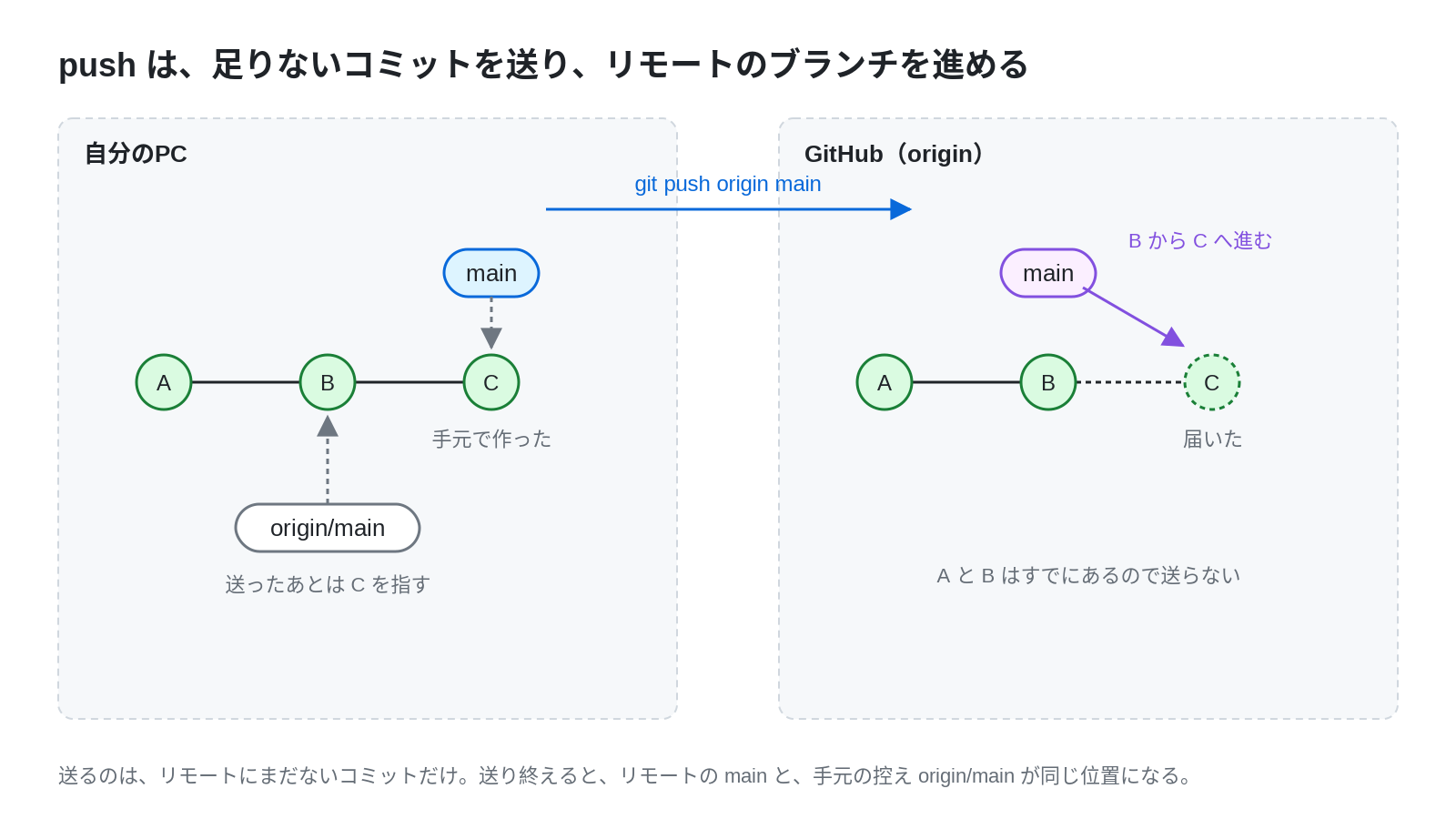
Push isn’t an operation that uploads files wholesale.
- It sends the commits the remote doesn’t have yet (and their contents, the objects from Part 3, #17)
- It moves the position of the remote branch to the same commit as your local one
Commits already on the remote aren’t sent. From the second push on, only what’s new gets sent.
Record locally, then send#
Day-to-day work is a repeating cycle of “commit locally” and “push from time to time”.
echo "Trim nails" >> todo.txt
git commit -am "Add nail trimming to the to-do list"
git statusOn branch main
Your branch is ahead of 'origin/main' by 1 commit.
(use "git push" to publish your local commits)ahead of 'origin/main' by 1 commit means “your local branch is one commit ahead of GitHub’s main”. Just committing doesn’t change anything on GitHub. Send it.
git pushTo https://github.com/<username>/git-practice.git
e73a1b3..b61e25d main -> maine73a1b3..b61e25d means “the remote main was moved from e73a1b3 to b61e25d”. If there’s nothing to send, it shows Everything up-to-date.
Pushing tags#
The tags you created in Part 5, #30 aren’t sent by git push. Tags are sent separately.
git push origin --tagsTo https://github.com/<username>/git-practice.git
* [new tag] v1.0 -> v1.0
* [new tag] v1.1 -> v1.1--tags sends all your local tags at once. To send just one, use git push origin v1.1.
When a push is rejected#
If someone else (or you on another PC) pushed first, your push gets rejected.
To https://github.com/<username>/git-practice.git
 ! [rejected]        main -> main (fetch first)
error: failed to push some refs to 'https://github.com/<username>/git-practice.git'
hint: Updates were rejected because the remote contains work that you do not
hint: have locally. This is usually caused by another repository pushing to
hint: the same ref. If you want to integrate the remote changes, use
hint: 'git pull' before pushing again.
As fetch first says, the remote has commits you don’t have locally. Pushing as is would throw away those commits on the remote, so Git refuses. First receive the remote changes and combine them with your local work, then push. How to receive them is covered next, in Part 6, #40.
FAQ#
Q. When I push, are the files in my working tree sent too?
A. Only commits are sent. Uncommitted changes and files excluded in Part 2, #12 aren’t sent. Get into the habit of checking git status before pushing to make sure you haven’t forgotten to record anything.
Q. Can I push branches too?
A. Yes. With git push -u origin branch-name, you can push branches other than main the same way. You’ll actually do this in Part 6, #41.
Summary#
- Register a GitHub repository as origin with
git remote add origin URL - Push for the first time with
git push -u origin main, linking your local main and the remote main. After that,git pushalone is enough - Push sends the commits the remote doesn’t have and moves the remote branch forward. Just committing doesn’t change GitHub
- Tags are sent separately with
git push origin --tags - If rejected, receive the remote changes first. Don’t use
--forceon shared branches
Next page#
40. Downloading with clone, fetch and pull: the differences between the three commands that bring remote history to your machine, and what happens next with the rejected push.