The Idea of a Remote Repository
What you will learn on this page
- You can explain a remote repository as "another repository, separate from your local one"
- You'll understand that local and remote only match when you send or receive
- You'll understand how remotes are given a name (origin) and referred to by it
- You'll understand that GitHub is one place to host a remote
On this page8 items
This is the start of Part 6. From Part 2 through Part 5, you did everything — recording, branching, undoing — inside your own computer. You never once connected to the internet. In Part 6, you’ll place another repository outside your local Git and exchange records with it. GitHub finally makes its appearance.
A remote is “another, separate repository”#
In Part 1, #03, you saw that Git is software that runs locally and GitHub is a service on the internet. The concept that connects the two is the remote repository (remote for short).
A remote is a separate repository with the same shape as your local one. It has commits, branches, and tags, and records history just like your local repository. The only difference is where it lives.
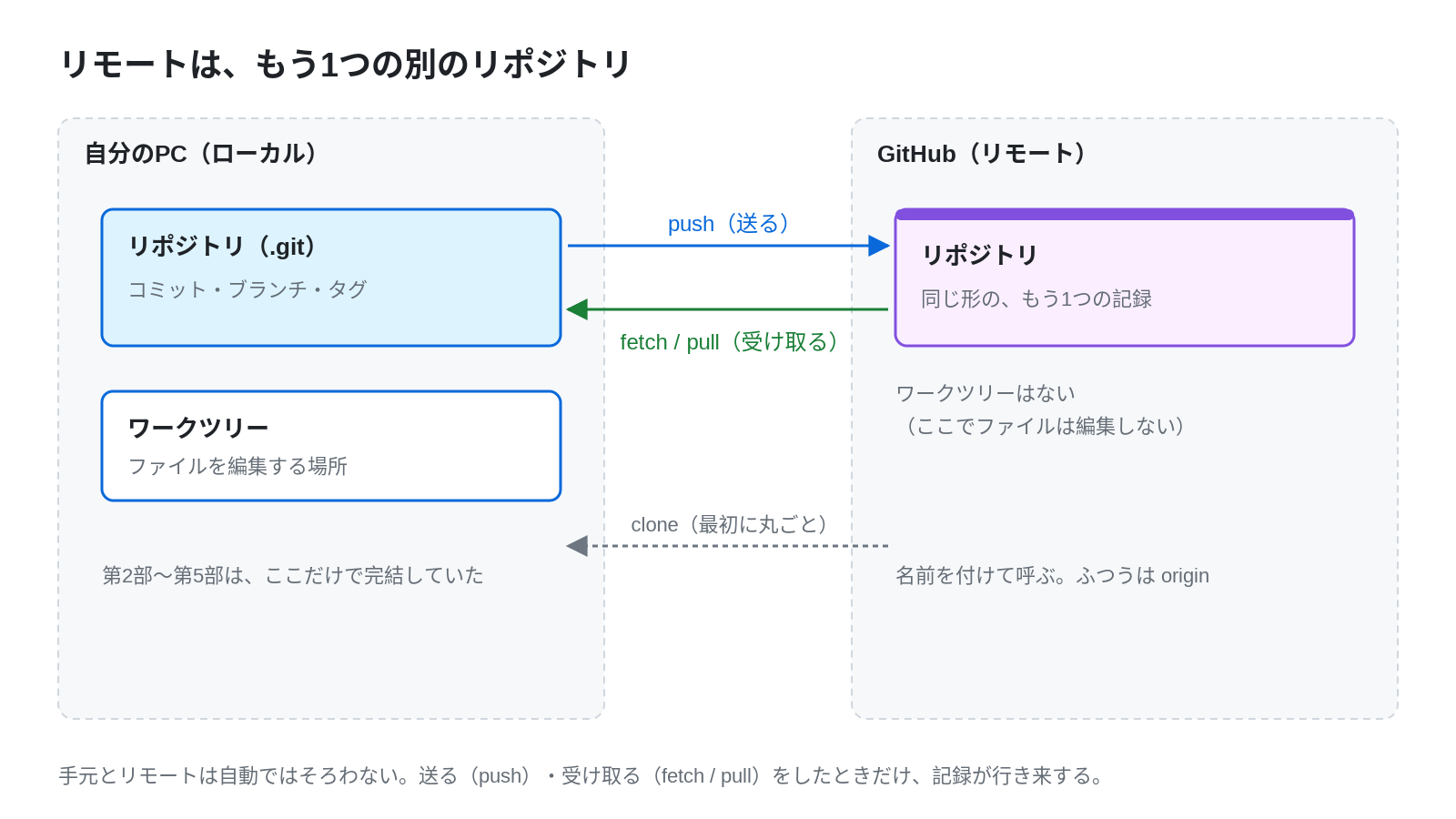
There are three things to take from the diagram.
- A remote usually has no working tree. It isn’t a place for editing files; it’s a place for keeping records
- Local and remote don’t sync automatically. Committing locally does nothing to the remote. Records move only when you send (push) or receive (fetch / pull)
- Copying an entire remote to your machine at the start is clone (Part 1, #05)
The most common confusion for first-timers — “I committed, but it doesn’t show up on GitHub” — won’t happen if you know the second point. A commit is a local record; a push is sending to the remote. They’re separate operations.
Why have another one?#
| Purpose | With a remote |
|---|---|
| Backup | Even if your computer breaks, the records remain on the remote |
| Continuing on another computer | You can use the same history on different computers, such as at home and at work |
| Sharing with others | By looking at the same remote, any number of people can work with the same history |
| Publishing | You can put what you’ve made where anyone can see it |
As you saw in Part 1, #02, Git is a distributed version control system. Your local repository is itself a complete repository containing the full history. It’s not a relationship where the remote is “the real one” and your local one is “a copy.” There are two equal repositories, and records are passed between them.
Remotes are referred to by name#
A remote is specified by a URL that represents its location. Typing the URL every time would be tedious, so in Git you give a remote a name and refer to it by that. Your practice repository doesn’t have a remote yet.
cd ~/git-practice
git remote -v
git remote -v lists the names and URLs of registered remotes. Nothing is displayed because there aren’t any yet. That’s a direct reflection of the fact that Parts 2 through 5 stayed entirely on your machine.
Once you register a remote, it will be displayed like this.
origin	https://github.com/<username>/git-practice.git (fetch)
origin	https://github.com/<username>/git-practice.git (push)
origin on the left is the name, and the right is the URL. (fetch) and (push) are the URLs used for receiving and sending; they’re usually the same.
origin means “source,” and it’s the conventional name given to the first remote you register. It isn’t a rule; you can give it any name you like, such as backup or github. But since almost all tutorials and tools assume origin, this guide uses origin too. You can register as many remotes as you like.
You’ll actually register one in Part 6, #39, after preparing a repository on GitHub.
What registration contains#
Registering a remote writes it into the repository’s configuration file (.git/config), which you saw in Part 3, #20. A repository obtained with clone has its source registered as origin from the start. Checking a practice repository cloned on another computer gives the following.
git config --get-regexp '^remote\.origin'remote.origin.url https://github.com/<username>/git-practice.git
remote.origin.fetch +refs/heads/*:refs/remotes/origin/*The first line is the URL. The second line is the rule “keep a local note of the remote’s branches (refs/heads/*) under the name refs/remotes/origin/*,” which shows that a place for the remote is added to the refs you saw in Part 3, #19. What these notes are for is covered in detail in Part 6, #41. For now, it’s enough to remember that “registering a remote creates a place on your machine to keep a note of the remote’s state.”
You can change the URL later. For example, if you rename the repository, fix the registration with git remote set-url origin <new URL>. To delete the registration itself, use git remote remove origin. This deletes only the local registration; nothing happens to the remote repository.
GitHub is one place to host a remote#
A remote doesn’t have to be on GitHub.
- GitHub: The most widely used service. Covered in this guide
- GitLab, Bitbucket, and others: Other services with the same role
- An in-house server, or another folder on your machine: In Part 5, #34, a local folder was used as the source
Git’s commands (push, fetch, pull, clone) are the same whichever one you’re talking to. What’s specific to GitHub are the features built around the repository, such as Issues and Pull Requests (Part 7).
FAQ#
Q. I heard you can edit files directly on GitHub. Doesn’t that mean the remote has a working tree?
A. When you edit on the GitHub screen, GitHub creates a commit on the spot and records it on the remote. There’s no “place where editing is in progress” like your local working tree. The edits aren’t reflected on your machine until you receive them (Part 6, #40).
Summary#
- A remote repository is another repository with the same shape, in a different place from your local one
- Local and remote don’t sync automatically. Records move only when you send with push and receive with fetch / pull
- A commit is a local record; a push is sending to the remote. They’re separate operations
- Remotes are referred to by name. By convention, the first remote is named origin
- GitHub is one place to host a remote. Git’s commands are the same wherever the remote is
Next page#
37. Getting through authentication (HTTPS+PAT / SSH) — To send records to GitHub, you need to prove who you are. We’ll look at the two methods and how to choose between them.