Cleaning Up History with Interactive Rebase
What you will learn on this page
- Read the "to-do list" that
git rebase -iopens - Use pick, reword, squash, fixup and drop appropriately
- Fold fixes in later with
git commit --fixupand--autosquash - Know how to abort midway or undo the result
On this page8 items
In #25, you learned that rebase rebuilds commits one at a time. Interactive rebase lets you combine, drop, reword and reorder commits while it rebuilds them. Use it to tidy a work branch into readable history before you share it.
Create some history to clean up#
Commits made while working tend to get sloppy. Let’s record a curry recipe in four commits with typical sloppiness.
cd ~/git-practice
git switch -c recipe-curry
printf 'Potatoes x2\nCarrot x1\n' > recipes/curry.txt
git add recipes/curry.txt
git commit -m "Add curry recipe"
echo "Oniom x1" >> recipes/curry.txt
git commit -am "onion"
sed -i.bak 's/Oniom/Onion/' recipes/curry.txt && rm recipes/curry.txt.bak
git commit -am "Fix typo"
echo "delete later" >> recipes/curry.txt
git commit -am "WIP"
git log --oneline main..recipe-curry1f0d30f WIP
f8f3c22 Fix typo
43b5885 onion
a914e16 Add curry recipemain..recipe-curry specifies the range “commits in recipe-curry that aren’t in main”. It shows the four commits added on this branch.
This history has three problems:
- “onion” alone doesn’t make it clear what the commit did
- “Fix typo” corrects a slip you made just before; there’s no point in it being a separate commit
- “WIP” (work in progress) is scratch content that doesn’t need to be kept
Let’s clean this up before sharing.
Open the to-do list#
git rebase -i main-i stands for interactive. As in #25, you specify main as the base, but this time main hasn’t moved, so the base doesn’t change. You’ll be rebuilding in the same place while tidying up.
When you run it, a “to-do list” like this opens in your editor:
pick a914e16 # Add curry recipe
pick 43b5885 # onion
pick f8f3c22 # Fix typo
pick 1f0d30f # WIP

# Rebase 7137480..1f0d30f onto 7137480 (4 commands)
#
# Commands:
# p, pick <commit> = use commit
# r, reword <commit> = use commit, but edit the commit message
# e, edit <commit> = use commit, but stop for amending
# s, squash <commit> = use commit, but meld into previous commit
# f, fixup [-C | -c] <commit> = like "squash" but keep only the previous
#                    commit's log message, unless -C is used, in which case
#                    keep only this commit's message; -c is same as -C but
#                    opens the editor
# (snip: descriptions of drop and others follow)
The top four lines are the list of commits to rebuild. Unlike git log, the oldest is at the top. Git executes this list one line at a time from the top. Lines starting with # are explanations and have no effect.
The pick at the start of each line is the command “use this commit as is”. By rewriting it, you decide how each commit is handled.
| Command | Effect |
|---|---|
pick | Use as is |
reword | Use, but rewrite the message |
edit | Use, but stop there so you can change its contents |
squash | Combine into the commit above. Edit a message that joins both |
fixup | Combine into the commit above. Discard this commit’s message |
drop | Discard (deleting the whole line does the same) |
Reordering the lines reorders the commits too.
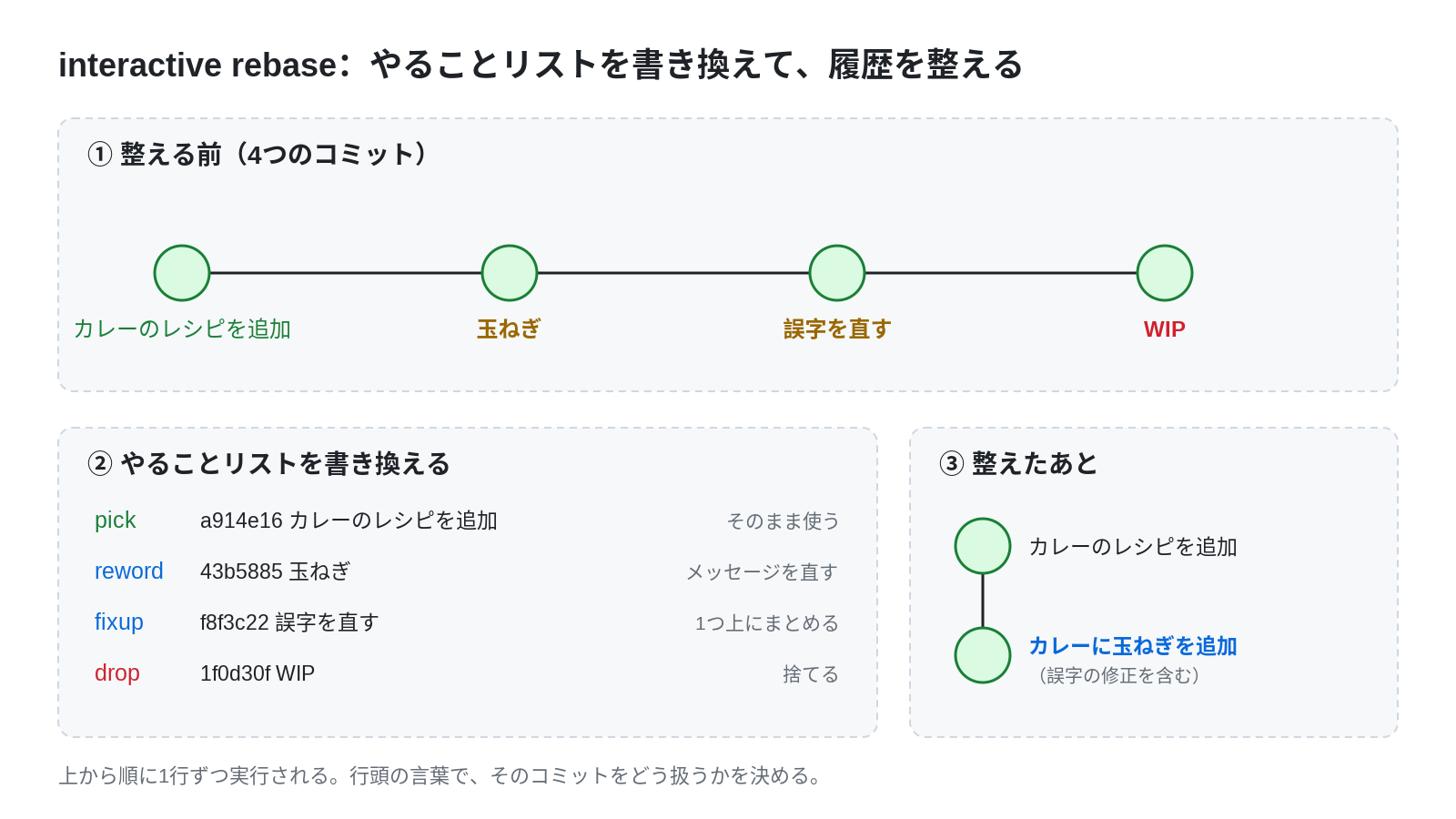
Rewrite it and run#
Rewrite the top four lines as follows, save, and close the editor.
pick a914e16 # Add curry recipe
reword 43b5885 # onion
fixup f8f3c22 # Fix typo
drop 1f0d30f # WIP- “onion” gets
reword, to make the message clearer - “Fix typo” gets
fixup, to fold it into “onion” above it - “WIP” gets
drop, to discard it
When you close the editor, Git executes the list from the top, and the editor opens again at the reword line. Change “onion” on the first line to “Add onion to curry”, save, and close.
Successfully rebased and updated refs/heads/recipe-curry.git log --oneline main..recipe-curry
cat recipes/curry.txtaeb914a Add onion to curry
a914e16 Add curry recipe
Potatoes x2
Carrot x1
Onion x1The four commits have been tidied into two. The onion commit includes the typo fix, so it’s as if you wrote “Onion” correctly from the start. The “delete later” line from WIP is gone too.
The ID of the first commit, a914e16, hasn’t changed. It stayed pick, and neither its parent nor its contents changed, so Git reused it without rebuilding. The second commit onward, which changed, got new IDs, just as in #25.
Folding in fixes later: —fixup and —autosquash#
Sometimes you only realize “I’d like to tweak that commit” a few commits later. In that case, it’s handy to commit the fix marked with which commit it fixes, and clean them all up later.
echo "Curry roux 1 box" >> recipes/curry.txt
git commit -am "Add roux"
sed -i.bak 's/Potatoes x2/Potatoes x3/' recipes/curry.txt && rm recipes/curry.txt.bak
git commit -am "Make it 3 potatoes"
Now suppose you realize the roux should be half a box, not one. The commit you want to fix is the one before last (HEAD~1).
sed -i.bak 's/Curry roux 1 box/Curry roux 1\/2 box/' recipes/curry.txt && rm recipes/curry.txt.bak
git commit -a --fixup HEAD~1[recipe-curry b8b59c8] fixup! Add roux
1 file changed, 1 insertion(+), 1 deletion(-)Adding --fixup <target> creates a commit named fixup! <target's message>. This is the marker meaning “a fix for Add roux”.
git rebase -i --autosquash mainWith --autosquash, the to-do list opens already rearranged like this:
pick a914e16 # Add curry recipe
pick aeb914a # Add onion to curry
pick 5843e96 # Add roux
fixup b8b59c8 # fixup! Add roux
pick e4ac77c # Make it 3 potatoes
The fixup! commit has been moved right after its target, “Add roux”, and its command has become fixup. All you have to do is save and close.
git log --oneline main..recipe-curry93a4042 Make it 3 potatoes
175e766 Add roux
aeb914a Add onion to curry
a914e16 Add curry recipeThe marker commit is gone, and “Add roux” is now a commit that said half a box from the start. Merge the tidied branch into main.
git switch main
git merge recipe-curry
git branch -d recipe-curryWhen things go wrong#
Interactive rebase works the same way as the rebase in #25, so the remedies when you get stuck are the same.
| Situation | Remedy |
|---|---|
| You opened the to-do list but want to stop | Delete every line in the list and save (However, if you remove everything, the rebase will be aborted.) |
| It stopped midway with a conflict | Fix it, git add → git rebase --continue. To quit, git rebase --abort |
| It’s done, but you want to go back to before tidying | Find the pre-rebase ID with git reflog, then git reset --hard ID |
FAQ#
Q. How do I choose between squash and fixup?
A. When both commits’ messages have content you want to keep, use squash (you can join and edit the messages in the editor). When one of them is a message like “Fix typo” that doesn’t need to be kept, use fixup. If in doubt, choose squash and delete the unneeded lines in the editor; the result is the same.
Q. What if I want to tidy all the way back to the branch’s first commit?
A. Change the base you specify. git rebase -i main targets everything after main. For just the last three commits, you can also count back, as in git rebase -i HEAD~3.
Summary#
git rebase -i <base>opens a “to-do list” of the commits after the base, oldest at the top- The command at the start of each line decides the handling:
pick(as is),reword(message),squash/fixup(combine),drop(discard). Reordering the lines reorders the commits - Mark fixes with
git commit --fixup <target>and clean them up together withgit rebase -i --autosquash - To stop, use
--abort; after it’s done, you can go back via the reflog - Tidy only your own work branch, before sharing it
Next page#
27. Moving Specific Commits with cherry-pick ── Instead of merging a whole branch, pick just the one commit you need and bring it over to main.