stash: Setting Work Aside Temporarily
What you will learn on this page
- Set aside in-progress changes without committing them, using
git stash - Understand the difference between
git stash popandgit stash apply - Know that files not yet recorded aren't stashed unless you add
-u - List stashed changes with
git stash list
On this page11 items
This is the start of Part 5. In Part 4, we looked at how to create branches and separate your work. In Part 4, #22, there was a situation where you couldn’t switch branches because of in-progress changes, and Git suggested “commit or stash them.” This page covers that stash.
stash “shelves your in-progress changes”#
To stash means “to put away, to hide.” It’s an operation that moves in-progress changes you don’t want to commit yet into a temporary storage area in Git, and returns the working tree to the state of the last commit.
Let’s set up a scenario: you’re in the middle of adding beef to the curry recipe when you want to quickly fix the shopping memo and commit it. You’ve also started writing a new salad recipe.
cd ~/git-practice
echo "Beef 200g" >> recipes/curry.txt
echo "Tomato 1" > recipes/salad.txt
git status -s M recipes/curry.txt
?? recipes/salad.txtIf you fix the shopping memo and commit in this state, the half-finished curry change could end up included too. So, you shelve the in-progress changes.
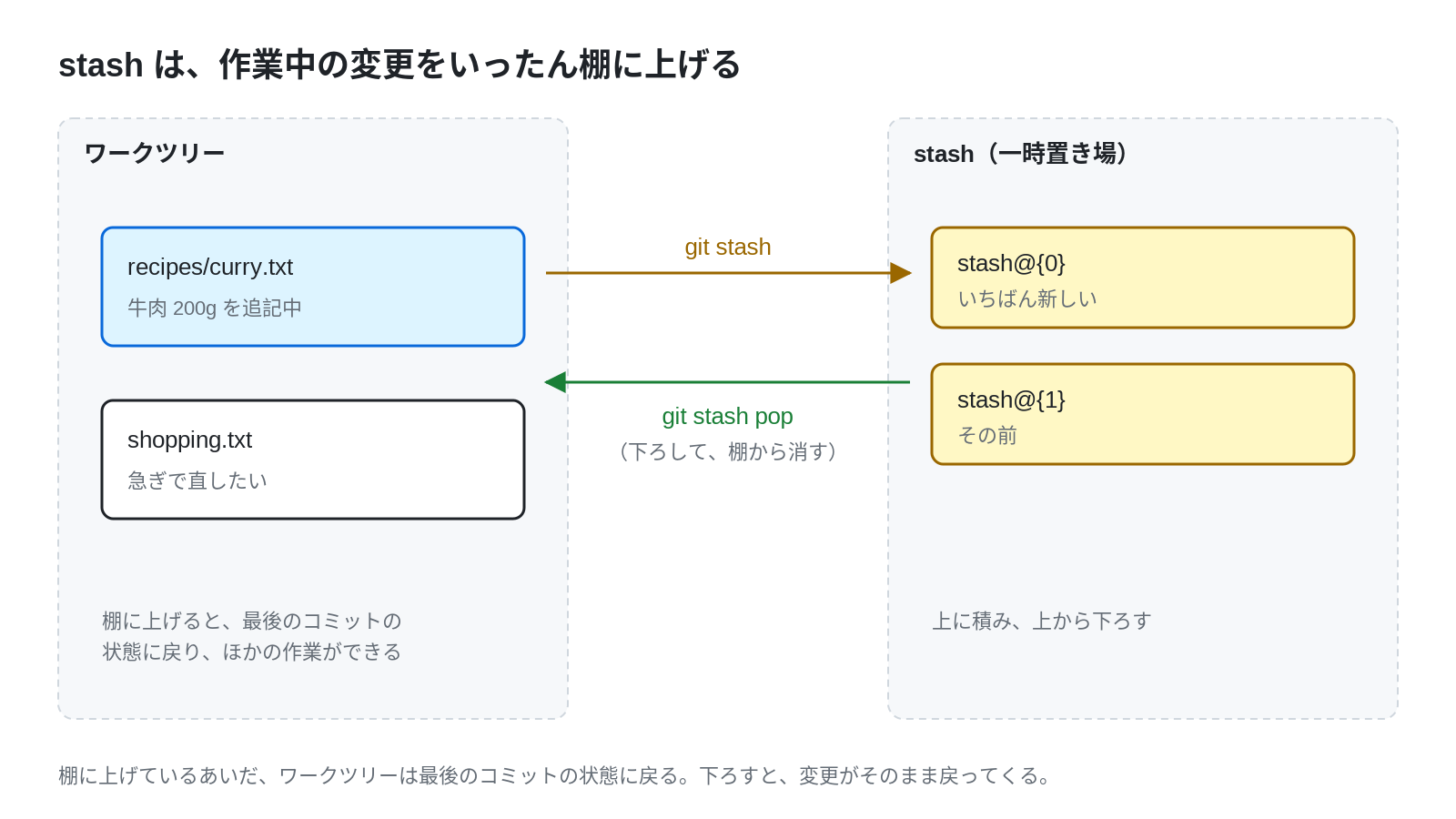
Stash, then do the interrupting work#
git stash
git status -sSaved working directory and index state WIP on main: 199373b Add butter to the shopping memo
?? recipes/salad.txtThe curry change has been stashed, and M recipes/curry.txt is gone. WIP on main: 199373b … means “work in progress on top of 199373b on main” (WIP stands for Work In Progress).
However, salad.txt is still there. Unless told otherwise, stash only sets aside changes to “files that have been committed at least once.” Files that have never been recorded (the ?? from Part 2, #10) aren’t included. We’ll deal with that later.
You can check stashed changes with git stash list.
git stash liststash@{0}: WIP on main: 199373b Add butter to the shopping memoNow that the working tree is clean, do the interrupting work and commit it.
sed -i.bak 's/Buy eggs/Buy a pack of eggs/' shopping.txt && rm shopping.txt.bak
git commit -am "Change eggs to one pack"[main 7cff5ef] Change eggs to one pack
1 file changed, 1 insertion(+), 1 deletion(-)Take it back down and return to work: git stash pop#
git stash popOn branch main
Changes not staged for commit:
(use "git add <file>..." to update what will be committed)
(use "git restore <file>..." to discard changes in working directory)
modified: recipes/curry.txt
Untracked files:
(use "git add <file>..." to include in what will be committed)
recipes/salad.txt
no changes added to commit (use "git add" and/or "git commit -a")
Dropped refs/stash@{0} (7a7ca1457f796c1701b053314323a3c23a947563)The curry change is back in the working tree, and as the Dropped on the last line says, it’s been removed from the temporary storage. When you stashed it, you were on 199373b, but main is now one commit ahead at 7cff5ef. Stash reapplies the changes on top of the commit you’re on now, so it’s fine even if the base has moved forward.
The difference between pop and apply#
| Command | Restores changes | Removes from storage |
|---|---|---|
git stash pop | ○ | ○ |
git stash apply | ○ | × (kept) |
git stash drop | × | ○ |
apply is used when, for example, you want to apply the same change to another branch too. When you no longer need the remaining stash, delete it with drop. Normally, pop is all you need.
Getting more out of it#
Stash new files too: -u#
git stash -u
git status -s
git stash show --include-untracked stash@{0}Saved working directory and index state WIP on main: 7cff5ef Change eggs to one pack
recipes/curry.txt | 1 +
recipes/salad.txt | 1 +
2 files changed, 2 insertions(+)Add -u (--include-untracked) and files not yet recorded are stashed along with everything else. git status -s now shows nothing, and salad.txt has been shelved too. You can check what’s been stashed with git stash show. Once you’ve checked, restore it for now (git stash pop).
Give it a name: git stash push -m#
git stash push -m "Adding beef to the curry"
git stash liststash@{0}: On main: Adding beef to the curryWithout anything added, the name is WIP on main: …, and if you stack up several, you can’t tell them apart. Naming them with -m saves you confusion later.
Specify an older one#
You can stack as many stashes as you like. The newest is stash@{0}, the one before it is stash@{1}. Specify it like git stash pop stash@{1} and you can take down ones other than the top.
When you’re done practicing, restore the stashed changes and record them as two separate commits.
git stash pop
git add recipes/curry.txt
git commit -m "Add beef to the curry"
git add recipes/salad.txt
git commit -m "Add a salad recipe"FAQ#
Q. I got a conflict when I popped.
A. This happens when, after stashing, the same lines were changed in another commit. The fix is the same as in Part 4, #24. The markers are <<<<<<< Updated upstream (the current commit’s content) and >>>>>>> Stashed changes (the stashed change). In this case the stash isn’t removed but kept (it shows The stash entry is kept in case you need it again.), so once you’ve finished fixing it, delete it with git stash drop.
Q. Is it OK to keep things stashed for a long time?
A. They won’t disappear, but it’s easy to forget what you stashed. If you’ll leave it for more than half a day, it’s safer to create a branch and make a “work in progress” commit. You can tidy it up later with the method from Part 4, #26.
Summary#
git stashmoves in-progress changes to temporary storage and returns the working tree to the state of the last commit- Without options, files not yet recorded aren’t stashed. Add
-uto stash them too git stash poprestores the changes and removes them from storage;applyonly restores them and keeps them- List them with
git stash list, and name them with-mto tell them apart easily - For longer storage, a branch and a commit are more reliable than stash
Next page#
30. tag: Marking versions: How to give a commit a fixed name like “v1.0,” and the difference between the two kinds of tags.