Bringing Over a Specific Commit with cherry-pick
What you will learn on this page
- Explain cherry-pick as an operation that "copies one commit's change onto the branch you're on"
- Find the ID of the commit you want to bring over with
git log main.. - Record which commit it was copied from with
-x - Know when to use cherry-pick and when to avoid it
On this page9 items
In #23–#26, we brought a branch’s commits into main all together. Sometimes, though, a branch contains just one commit that you want “on main right now.” This page covers cherry-pick, which lets you pick one commit and bring it over.
cherry-pick “copies a change”#
cherry-pick means “picking cherries one at a time.” It’s an operation that chooses one commit from another branch and copies just its change onto the branch you’re on as a new commit. It doesn’t bring in the whole branch.
In the practice repository, let’s create a branch for planning meals. Suppose that along the way, an addition to the shopping memo that has nothing to do with the meal plan got mixed in.
cd ~/git-practice
git switch -c menu-plan
echo "Monday curry" > menu.txt
git add menu.txt
git commit -m "Create the meal plan"
echo "Buy butter" >> shopping.txt
git commit -am "Add butter to the shopping memo"
echo "Tuesday pudding" >> menu.txt
git commit -am "Add Tuesday to the meal plan"
git switch main
The meal plan is still a work in progress, so you can’t bring in the whole branch. But you’re going to buy butter today, so you want just the shopping memo change on main. This is exactly when cherry-pick comes in.
Find the commit to bring over, and copy it#
First, look up the ID of the commit you want to bring over.
git log --oneline main..menu-plana858a32 Add Tuesday to the meal plan
d2feb3d Add butter to the shopping memo
e46ec1d Create the meal planmain..menu-plan, which we used in #26, is the range of “commits in menu-plan that aren’t in main.” The one you want is d2feb3d. Make sure you’re on main, and specify the ID.
git cherry-pick d2feb3d[main 40c666c] Add butter to the shopping memo
Date: Tue Oct 27 23:34:20 2026 +0900
1 file changed, 1 insertion(+)A new commit, 40c666c, has been created on main. The Date: line shows that the copied commit inherits the creation date and time of the original commit.
git log --oneline --decorate --graph --all -n 5* 40c666c (HEAD -> main) Add butter to the shopping memo
| * a858a32 (menu-plan) Add Tuesday to the meal plan
| * d2feb3d Add butter to the shopping memo
| * e46ec1d Create the meal plan
|/
* 93a4042 Change potatoes to 3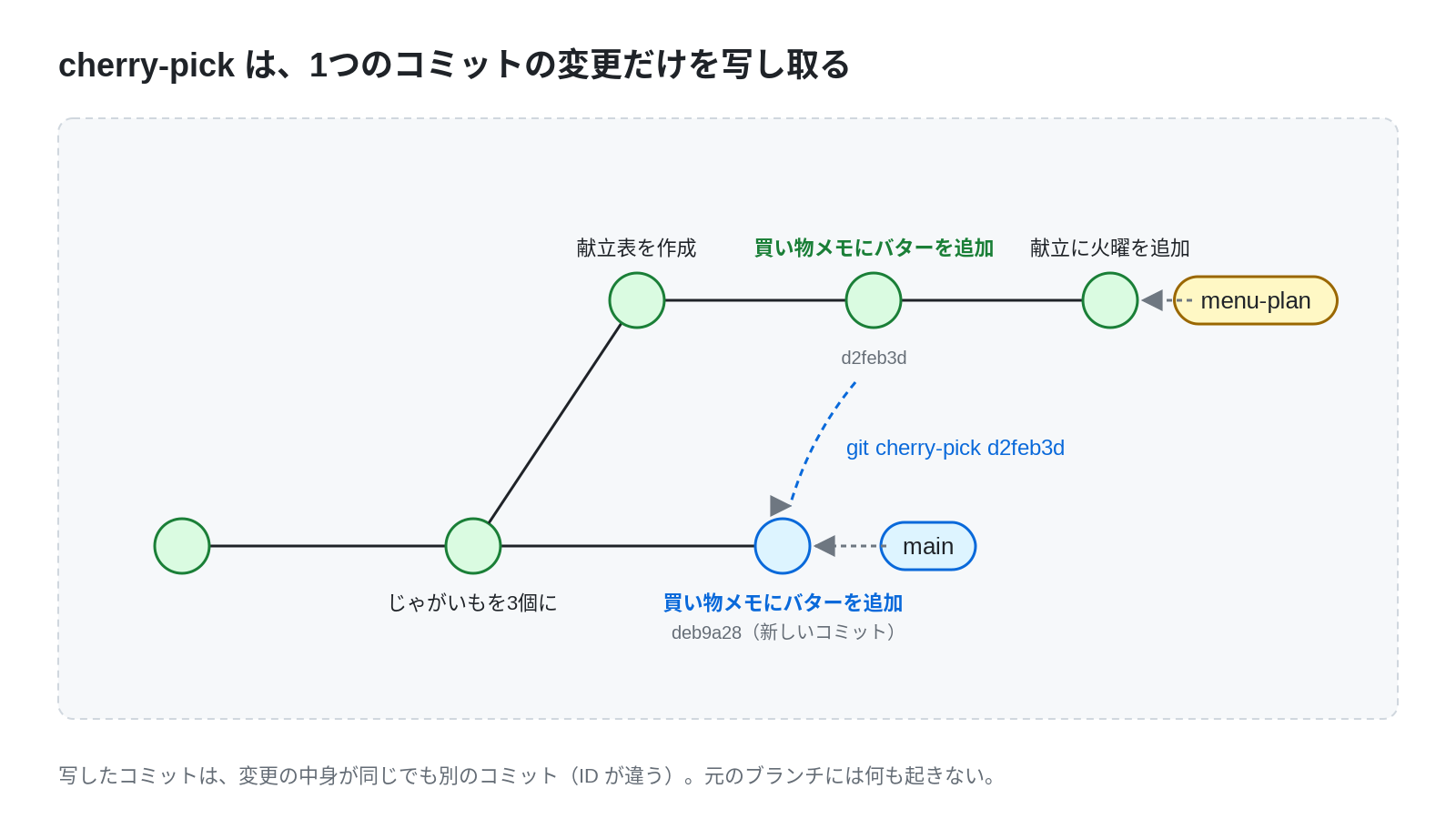
The same “Add butter to the shopping memo” now exists on both main (40c666c) and menu-plan (d2feb3d). Nothing has changed on menu-plan. And menu.txt is not on main.
lsconfig.txt
debug.log
recipes
shopping.txt
tmp
todo.txtconfig.txt, debug.log and tmp are files we excluded in Part 2, #12 and #13, so they stay in the working tree regardless of branch.
Record where it came from: -x#
40c666c and d2feb3d are different commits, even though their contents are the same. So that you can tell later “where this was copied from,” it’s a good idea to add -x. Let’s undo the current commit and redo it with -x.
git reset --hard HEAD~1
git cherry-pick -x d2feb3d
git log -n 1 --format='%h%n%B'HEAD is now at 93a4042 Change potatoes to 3
[main deb9a28] Add butter to the shopping memo
Date: Tue Oct 27 23:34:20 2026 +0900
1 file changed, 1 insertion(+)
deb9a28
Add butter to the shopping memo
(cherry picked from commit d2feb3d24ec6092696377f1c560a3ddd57acf11f)(cherry picked from commit …) has been appended to the end of the message. --format='%h%n%B' displays the short ID and the full message (Part 2, #11).
Check whether something has already been copied#
You can check which of menu-plan’s commits have already been copied to main with git cherry.
git cherry -v main menu-plan+ e46ec1df73e8df735dcd553d4cf757d4432c1e19 Create the meal plan
- d2feb3d24ec6092696377f1c560a3ddd57acf11f Add butter to the shopping memo
+ a858a32716fe51948ae4218e0e6c4b963d258edd Add Tuesday to the meal plan- means “the same change is already on main,” and + means “not yet.” Even though the IDs differ, it decides by comparing the content of the changes.
Cleaning up, and when there’s a conflict#
This time, we’ll throw the meal plan away instead of bringing it in.
git branch -d menu-planerror: the branch 'menu-plan' is not fully merged
hint: If you are sure you want to delete it, run 'git branch -D menu-plan'
hint: Disable this message with "git config set advice.forceDeleteBranch false"Even though we copied the butter commit, menu-plan’s commits themselves aren’t on main, so -d refuses (#22). We’ve decided to throw it away, so delete it with -D.
git branch -D menu-planDeleted branch menu-plan (was a858a32).With cherry-pick too, if the change being copied clashes with the content of the branch you’re on, you get a conflict. How to fix it when it stops is the same as in #24: editing the file and running git add are the same. After that, you use the cherry-pick-specific commands.
| Command | What it does |
|---|---|
git cherry-pick --continue | Create the commit with your fixes |
git cherry-pick --skip | Stop copying this commit and move on to the next (when copying several) |
git cherry-pick --abort | Return to the state before you started the cherry-pick |
When to use it, and when to avoid it#
| Good times to use it | Better to avoid |
|---|---|
| You want just an urgent fix from a work branch on main first | You want to bring over many commits from a branch (use merge or rebase) |
| You committed on the wrong branch and want to move it to the right one | You plan to merge that whole branch later anyway |
| You want just a bug fix made on main in an older version’s branch |
A commit copied with cherry-pick is “a different commit with the same change,” so if you merge the original branch later, the same change appears twice in the history. Git usually layers them nicely, but if you’ve changed the same lines again afterward, it can cause conflicts. cherry-pick is the tool for when you want “just that one,” and connecting branches to each other is the job of merge and rebase.
FAQ#
Q. Can I cherry-pick several commits at once?
A. Yes. List them like git cherry-pick ID1 ID2 and they’re copied in order. Specify a range like git cherry-pick A..B to copy from the one after A through B (A itself isn’t included). But if you’re bringing over a lot, consider merge or rebase.
Q. Can I bring just the changes into the working tree without committing?
A. With -n (--no-commit), the changes are only applied to the working tree and staging area, and no commit is created. Use it when you want to check the contents and commit yourself.
Summary#
- cherry-pick chooses one commit from another branch and copies its change onto the branch you’re on as a new commit
- Find the ID of the commit you want with
git log --oneline main..<branch>, then stand on the receiving branch and rungit cherry-pick ID - The copied commit is a different commit with a different ID. It’s good to record its origin with
-x git cherry -vtells you whether something has already been copied- Connecting branches is the job of merge and rebase. Use cherry-pick when you want “just that one”
Next page#
28. Branching strategies (GitHub Flow / Git Flow / trunk-based): To wrap up Part 4, we compare three sets of team rules for how to create branches and how to bring them in.