Introduction: How to Read This Guide
What you will learn on this page
- Understand who this guide is for and what it covers
- Understand the order for learning Git and GitHub (a map of the 11 parts)
- Decide where you should start reading
On this page15 items
Git and GitHub are often thought of as “things engineers use”, but what they actually do is something very simple: keep a history of changes to files and share it with others. They feel hard not because there are many features, but because the terms and concepts all hit you at once at the start.
This guide untangles those concepts one at a time, in the order you need them.
What this guide covers#
It has 75 pages in 11 parts, organized into two big blocks: Git and GitHub.
Git (Parts 1–5, 35 pages)#
Everything here stays inside your own PC. You never need an internet connection.
| Part | Theme | What you’ll be able to do |
|---|---|---|
| Part 1 | Getting started | Understand the difference between Git and GitHub, and use an account |
| Part 2 | Git basics | Record and restore change history on your own PC alone |
| Part 3 | Git internals | Explain command results through understanding rather than memorization |
| Part 4 | Branching and merging | Branch off work and integrate it safely |
| Part 5 | Practical techniques | Use real-world tools like stash, bisect and hooks |
GitHub (Parts 6–11, 40 pages)#
This is where the internet first appears.
| Part | Theme | What you’ll be able to do |
|---|---|---|
| Part 6 | Connecting to GitHub | Upload your local history to the cloud and fetch it |
| Part 7 | Collaboration | Develop with others using Issues / Pull Requests |
| Part 8 | GitHub features | Make full use of READMEs, licenses, Pages and more |
| Part 9 | GitHub Actions | Automate testing and publishing |
| Part 10 | Tools | Speed up daily work with GUIs and CLIs |
| Part 11 | Practice and quick reference | Build real workflows and recover from trouble |
Why Git first and GitHub later?#
This guide says nothing about GitHub until Part 5 is over. This is a deliberate design.
The place beginners stumble most is a scene like this:
I committed, but nothing changed when I looked at the GitHub page.
This happens because learning Git and GitHub at the same time leaves you not understanding that “recording” and “sending” are separate operations. Learn them in order and it never happens in the first place.
Once you understand Git on its own, GitHub sinks in naturally as “a service that looks after your Git repositories”. It looks like a detour, but it’s the shortest route.
Suggested reading order#
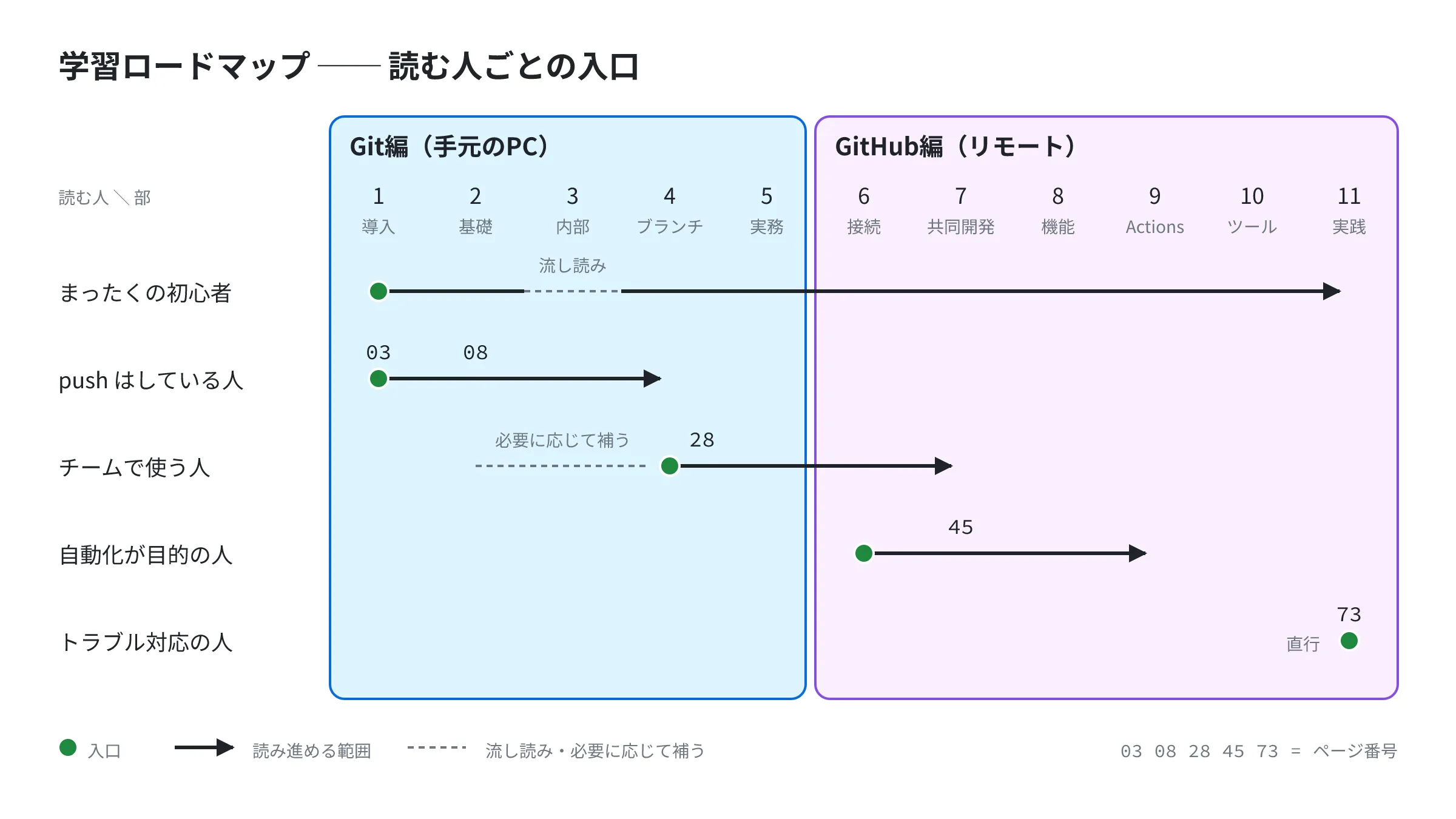
Green circles are entry points, and arrows show how far to read. Dashed lines are parts you can skim, or come back to when you need them.
Complete beginners#
Read Part 2 while actually doing it, without exception. The fastest way is to create one throwaway practice folder and try everything there. Part 3 makes the most sense if you come back to it when you start wondering “why does it work this way?” in Part 4.
People who “sort of push without really knowing”#
Two pages, Part 1, #03 (the difference between Git and GitHub) and Part 2, #08 (Git’s three areas), connect the dots on what you’re actually doing. It isn’t shown in the figure, but Parts 3 and 5 are the most rewarding for this group.
People starting to use it as a team#
Decide your workflow with Part 4, #28 (branching strategies), then work backwards to fill in what you’re missing. If you’re using it in an organization, cover Part 7, #49 (Organizations and team permissions) first.
People aiming for automation and CI/CD#
Actions are triggered by pushes and Pull Requests, so Part 6 and Part 7, #45 (Pull Requests) are prerequisites.
People here to fix a problem#
Part 11, #73 (a troubleshooting quick reference) is an index you can look up by symptom.
Prerequisites and what to prepare#
| What you need | Notes |
|---|---|
| A PC (Windows / macOS / Linux) | Any of them is fine. Commands are given for each OS |
| The ability to open a terminal | PowerShell on Windows, the Terminal app on macOS |
| An email address | Used to create a GitHub account |
| A text editor | VS Code recommended (integration is covered in Part 10) |
No programming knowledge is required. The files used in this guide start with a single text file.
About how commands are written#
Commands in the text are written so you can copy and paste them as is.
git statusThere’s no $ or > at the start of lines. When showing results, they’re separated with comments.
git status

# Output:
# On branch main
# nothing to commit, working tree clean
Irreversible operations always come with a warning in the following format.
About how current the information is#
GitHub’s screen design, menu names and pricing change frequently. This guide is written with information as of August 2026.
On the other hand, how Git itself works (commits, branches, merges) has barely changed in over ten years. The screens change, but how it works doesn’t. Keep this distinction in mind as you read, and you won’t get lost even if the UI changes a bit.
What you learn in the Git section (Parts 1–5) carries over as is even if you move from GitHub to GitLab or Bitbucket. This is where your time investment pays off most.
If the on-screen steps don’t match the text, check the official GitHub documentation (Japanese).
Summary#
- This guide has 75 pages in 11 parts, split into Git (35 pages) and GitHub (40 pages)
- GitHub doesn’t appear until Part 5 is over. The design keeps you from confusing “recording” with “sending”
- Always read Part 2 while actually doing it. Prepare a throwaway practice folder
- Part 3 (internals) can be skimmed on first reading. Come back when questions come up in Part 4
- How it works (Git) doesn’t change and carries over to other services, but the screens (GitHub) change
Next page#
02. What Is Version Control? ── Explains why you should escape the life of endlessly creating final_revised_v2.zip.