What Is HEAD? Understanding Detached HEAD
What you will learn on this page
- Understand that HEAD is a name pointing to "where you are now"
- Explain the two-level pointing of HEAD → branch → commit
- Understand what detached HEAD is, and get back without panicking
- Know how to avoid losing commits made in detached HEAD
On this page8 items
In Part 2, #14, we used HEAD as “the name for where you are now, that is, the latest commit.” On this page, we’ll open it up and see what it really is. Once you understand HEAD, you’ll see that the branch operations in Part 4 are “just moving names around.”
HEAD is a single file#
HEAD is actually a text file named HEAD inside .git.
cd ~/git-practice
cat .git/HEAD

# Output:
# ref: refs/heads/main
It contains just one line, saying “look at refs/heads/main.” refs/heads/main is the main branch, and we’ll open it up in Part 3, #19. For now, just note that “HEAD doesn’t point to a commit directly; it points to a branch.”
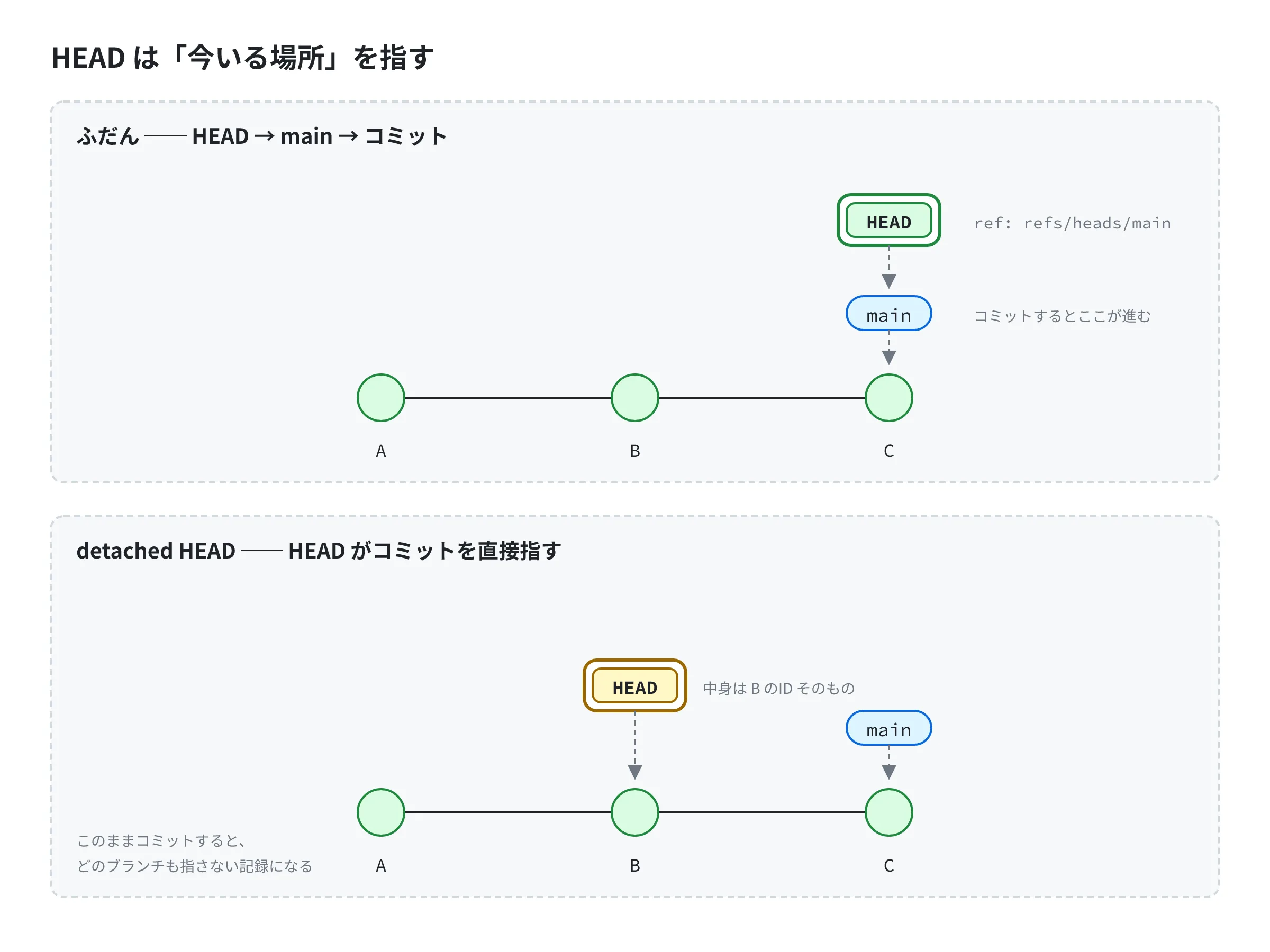
The top row is the normal state. HEAD points to main, and main points to the latest commit. Whether you ask about HEAD or main, you end up at the same commit.
git rev-parse HEAD
git rev-parse main

# Output (both the same):
# b505e8e8f92abb8142a6ca486600de9100f98e42
git rev-parse is a command that answers, with an ID, which commit a name points to.
What moves when you commit#
This two-level pointing has a purpose. When you commit, Git moves the branch HEAD points to forward to the new commit. The contents of the HEAD file stay ref: refs/heads/main. HEAD keeps pointing to main, and only main moves one step ahead.
HEAD remembers “which branch you’re working on now,” and records pile up on that branch. When you switch branches in Part 4, #22, what changes is the contents of HEAD.
Detached HEAD: when HEAD points directly to a commit#
When you want to see the state of a past commit, you can move to that commit.
git switch --detach HEAD~2

# Output:
# HEAD is now at 35b12cd Add post office to the to-do list
git switch is the command that switches where you are, and --detach means “move directly to a commit without going through a branch.” If you look at the contents of HEAD, they’ve changed.
cat .git/HEAD

# Output:
# 35b12cd6e2f8655e722088f0cc635c3686230db0
Instead of ref: …, a commit ID is written directly. This is detached HEAD. It’s the state in the bottom row of the figure: HEAD has been detached from the branch and points directly to a commit.
git status

# Output:
# HEAD detached at 35b12cd
# nothing to commit, working tree clean
The files in the working tree have changed to their contents as of that commit. If you open todo.txt, there’s a “Go to the post office” line, and there’s no recipes folder. Nothing about the commits on the main branch has changed. You’ve only moved where you’re looking.
Getting back#
When you’re done looking, go back to a branch.
git switch main
cat .git/HEAD

# Output:
# ref: refs/heads/main
HEAD points to main again, and the working tree is back to the state of main’s latest commit. Detached HEAD is not an error, just a state. There’s no need to panic.
Caution: committing in detached HEAD#
You can still commit while in detached HEAD. But no branch points to that commit.
git switch --detach HEAD~2
echo "A line that will disappear later" >> todo.txt
git commit -a -m "Lost commit"
git switch main

# Output:
# Warning: you are leaving 1 commit behind, not connected to
# any of your branches:
#
#   4d25345 Lost commit
# (rest omitted)
When you go back to main, Git warns you that it’s “leaving behind one commit that isn’t connected to any branch.” It no longer shows up in git log, and as we saw in Part 2, #15, it can only be reached through the reflog.
If you want to keep it, give that commit a branch name while you’re still in detached HEAD.
git switch -c rescuegit switch -c <name> is the command that creates a new branch at the commit you’re on and moves you to it. Creating branches is covered in Part 4, #22. Even after you’ve already gone back, you can rescue it using the ID shown in the warning (here, 4d25345) or the reflog, as in git switch -c rescue 4d25345.
This “Lost commit” is just practice, so it’s fine to leave it without rescuing it.
FAQ#
Q. What’s the difference between HEAD~1 and HEAD@{1}?
A. HEAD~1 is “the commit before the current one (its parent),” and HEAD@{1} is “where HEAD was one move ago.” The former follows how the history connects; the latter follows the reflog from Part 2, #15. After a reset or switch, the two can point to different commits.
Q. When would you use detached HEAD?
A. When you want to check all the files as of some point in the past. Git also uses detached HEAD automatically for bisect (a feature for finding the commit that introduced a bug), covered in Part 5, #32.
Summary#
- HEAD is a file called
.git/HEAD, and it normally points to a branch name - When you commit, the branch HEAD points to moves forward to the new commit
- Detached HEAD is the state where HEAD points directly to a commit without going through a branch
- You can get back with
git switch <branch>. Detached HEAD is not an error - Keep commits made in detached HEAD by giving them a branch with
git switch -c
Next page#
19. References (refs) and What a Branch Really Is ── Open up the refs/heads/main that HEAD was pointing to, and confirm that a branch is really a 41-byte file.