Reading Where You Are with status and diff
What you will learn on this page
- You'll know which area each of the three
git statusheadings refers to - You can read the two-character codes in
git status -s - You can choose between
git diffandgit diff --staged - You can read which lines were added and which were removed in diff output
On this page11 items
By Part 2, #09, you’ve learned to choose changes and record them. But unless you know “which files have changed right now, and where,” before you record, you can’t decide what to include. This page covers two commands for reading where you are yourself.
Create a state with three kinds of changes mixed together#
In ~/git-practice, create three changes of different kinds. In memo.txt, rewrite one line and stage it; in todo.txt, just add one line; and also create a new file, draft.txt.
cd ~/git-practice
sed -i.bak 's/milk/soy milk/' memo.txt && rm memo.txt.bak
git add memo.txt
echo "Go to the bank" >> todo.txt
echo "Draft" > draft.txt
The sed on the first line is a command that replaces “milk” in the file with “soy milk.” Editing it in an editor works just the same.
git status: which files are in which area#
git status

# Output:
# On branch main
# Changes to be committed:
#   (use "git restore --staged <file>..." to unstage)
#   modified:   memo.txt
#
# Changes not staged for commit:
#   (use "git add <file>..." to update what will be committed)
#   (use "git restore <file>..." to discard changes in working directory)
#   modified:   todo.txt
#
# Untracked files:
#   (use "git add <file>..." to include in what will be committed)
#   draft.txt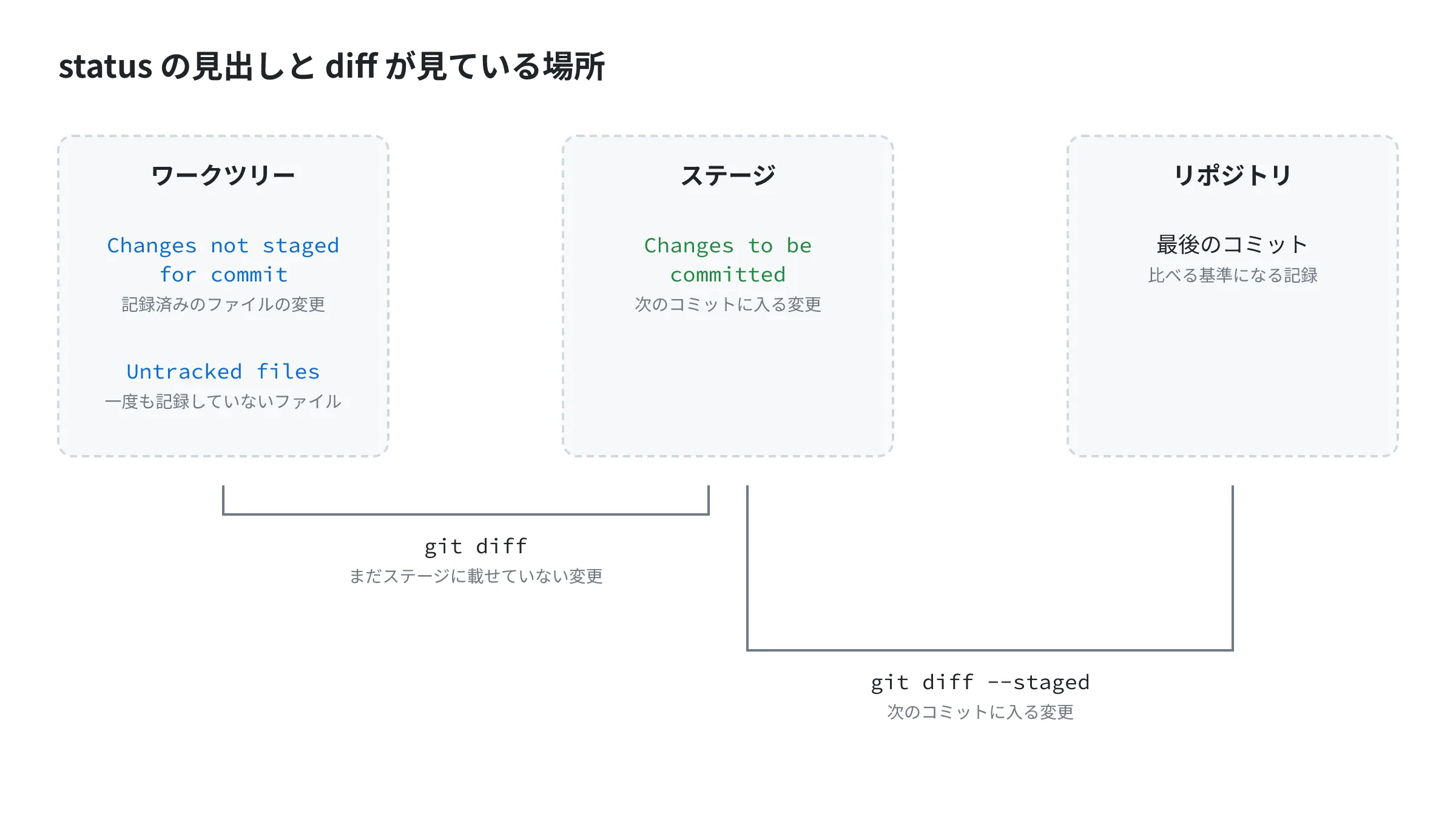
The headings show which area each file is currently in. memo.txt, in the staging area, will go into the next commit; todo.txt and draft.txt, in the working tree, won’t.
The (use "…") lines under the headings are hints about commands you can run next from that state. When in doubt, choosing an operation written there won’t lead you far astray.
Short output: git status -s#
git status -s

# Output:
# M  memo.txt
#  M todo.txt
# ?? draft.txt
In the two characters at the start of each line, the left character is the staging area’s state and the right character is the working tree’s.
| Display | Left (staging area) | Right (working tree) | Meaning |
|---|---|---|---|
M | Changed | None | You staged a change |
M | None | Changed | You changed it but haven’t staged it yet |
MM | Changed | Changed | You staged it, then edited it further |
A | Added | None | You staged a new file |
?? | — | — | A file that has never been recorded |
As the number of files grows, the normal output won’t fit on one screen. Once you’re used to it, using -s all the time gives you a clearer view.
git diff: where things changed#
git status only tells you “which files changed.” To see which lines inside a file changed, use git diff.
See changes not yet staged#
git diff

# Output:
# diff --git a/todo.txt b/todo.txt
# index 520f940..d3038db 100644
# --- a/todo.txt
# +++ b/todo.txt
# @@ -1 +1,2 @@
#  Book a dentist appointment
# +Go to the bank
git diff with no arguments compares the working tree and the staging area. Only todo.txt is shown; memo.txt doesn’t appear. That’s because memo.txt’s change is already staged, so there’s no difference between the staging area and the working tree. draft.txt doesn’t appear either, because a file that has never been recorded has nothing to compare against.
See staged changes#
git diff --staged

# Output:
# diff --git a/memo.txt b/memo.txt
# index 5be9f6d..dc6dcc3 100644
# --- a/memo.txt
# +++ b/memo.txt
# @@ -1,2 +1,2 @@
# -Buy milk
# +Buy soy milk
#  Buy eggs
Adding --staged compares the staging area and the last commit. In other words, “what would be recorded if you ran git commit now.” Make a habit of looking at git diff --staged right before you commit, and you’ll almost entirely prevent unintended changes from slipping in.
How to read a diff#
| Line | Meaning |
|---|---|
--- a/memo.txt | The file before the change |
+++ b/memo.txt | The file after the change |
@@ -1,2 +1,2 @@ | 2 lines starting at line 1 before the change became 2 lines starting at line 1 after |
Lines starting with - | Removed lines |
Lines starting with + | Added lines |
| Lines starting with a space | Unchanged lines (shown as surrounding context) |
Git doesn’t describe this as “rewrote one line.” It describes it as removing the old line and adding a new one. That’s why the change from milk to soy milk is shown as two lines, - and +.
The index 5be9f6d..dc6dcc3 part is a pair of IDs pointing to the contents of the file before and after the change. How that works is covered in Part 3, #17, so you can skip over it for now.
See just the list of changed files#
When a diff is long, adding --stat shows only the additions and deletions per file.
git diff --staged --stat

# Output:
#  memo.txt | 2 +-
# 1 file changed, 1 insertion(+), 1 deletion(-)FAQ#
Q. I run git diff and nothing is displayed.
A. There’s no difference between the working tree and the staging area. If you’ve already run git add on all your changes, that’s normal. To see staged changes, use git diff --staged.
Q. The diff output is long and I can’t get back to the normal screen.
A. Long output is shown in a pager. Press q to exit. Use space for the next page and b for the previous page.
Q. Can I compare both staged and working-tree changes against the last commit at once?
A. Yes, with git diff HEAD. HEAD is a name pointing to “the latest commit where you are now,” and it’s covered in detail in Part 3, #18.
Summary#
- The headings in
git statusshow which area each file is currently in - In the two characters of
git status -s, the left is the staging area’s state and the right is the working tree’s git diffcompares the working tree and the staging area;git diff --stagedcompares the staging area and the last commit- Files that have never been recorded don’t appear in
git diff - Looking at
git diff --stagedright before committing prevents unintended changes from slipping in
Next page#
11. Reading history with log — We’ll look at how to list the commits you’ve built up, filter them by conditions, and find the record you need.