The 10 Terms You Need to Know
What you will learn on this page
- Understand the ten most common terms, such as repository, commit and branch
- Hold a single mental picture of how the terms connect
- Tell apart pairs of terms that are easy to confuse
On this page14 items
The biggest reason Git and GitHub feel difficult is that a flood of unfamiliar words hits you all at once. If you get through the vocabulary here first, the explanations from Part 2 onward will sink in much more easily.
You don’t need to understand everything completely right now. It’s enough to know “there’s something called that.” You’ll do the actual operations starting in Part 2.
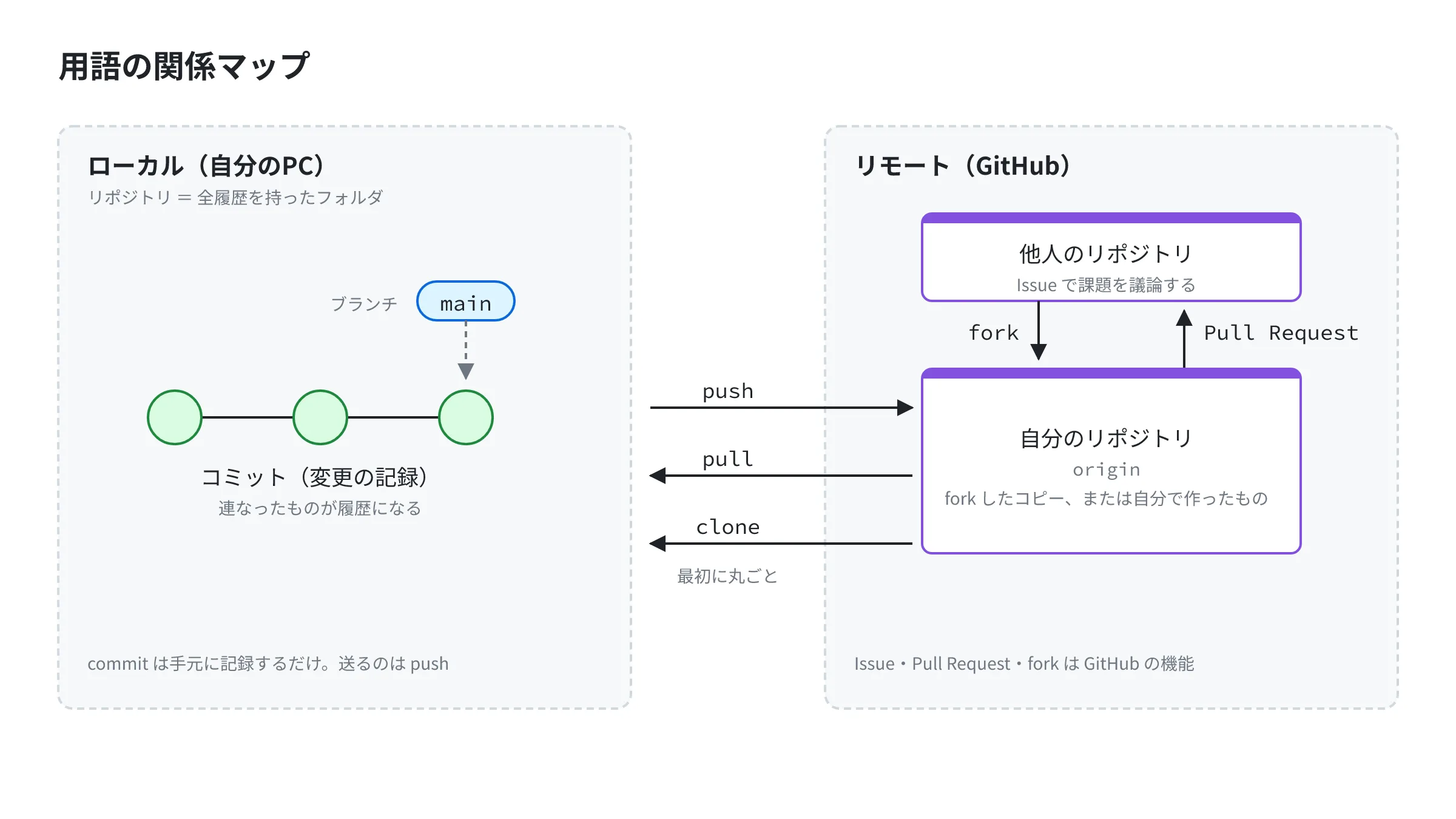
The left side is your computer, and the right side is GitHub. Apart from push, pull and clone, which connect the two, every term lives entirely within one side. As you read the ten items below, check where each one fits in this diagram (merge and conflict aren’t drawn in it).
1. Repository (repo)#
The container for an entire project, including its change history.
The word means “storehouse.” In reality, it’s a single folder. The only difference from an ordinary folder is that it contains a hidden folder called .git, which holds the entire history.
“Creating a repository” means “starting to track the change history of this folder.”
2. Commit#
Recording the state of your files at a certain point in time, along with a message. Or the record itself.
It’s the smallest unit of version control. It’s often described as a “save point,” but more precisely it’s a record of changes, and these records are strung together to form the history.
Commit A ← Commit B ← Commit C ← Commit D
(older)                            (newer)
Each commit points to “the commit before it,” and this chain is what the history really is.
A commit contains the following information:
– The changes
– The commit message (why you made the change)
– The author’s name and email address
– The date and time
– A unique ID (a 40-character string like a3f5b2c..., called a hash)
3. Branch#
A “bookmark” for splitting off your work.
The word “branch” makes it tempting to imagine the history physically splitting like a tree, but the reality is simpler: it’s a named pointer to a specific commit.
                      ┌── Commit E  ← feature branch
                      │
A ← B ← C ← D ────────┘
              ↑
            main branch
Creating a new branch doesn’t copy any files. That’s why Git branches can be created in an instant and thrown away casually. This is covered in detail in Part 4, #21.
Common branch names:
– main: The main line. Kept in a published, releasable state (formerly master was used)
– feature/xxx: For developing a new feature
– fix/xxx: For fixing a bug
4. Merge#
Combining work that has split off back into one.
The typical use is bringing changes made on a feature branch into main. Git tries to combine the changes from both sides automatically.
If both sides changed the same spot in different ways, Git can’t decide automatically, and a conflict occurs. In that case, a human decides which version to keep. It sounds scary, but it simply means “Git is leaving the decision to a human” (Part 4, #24).
5. Remote#
A copy of a repository placed on the internet.
The opposite is local (the repository on your own computer). From your local machine’s point of view, a repository on GitHub is “remote.”
Remotes are given conventional names. The first remote you register is usually named origin. origin isn’t a reserved word with special meaning; it’s just a conventional nickname.
6. Clone#
Copying an entire remote repository, history and all, to your machine.
The difference from a “download” is that the entire history comes with it. From the moment you clone, you can go back to any point in the past.
You use it when you want to run someone else’s project locally, or when you want to work on your own repository from another computer.
7. Push and pull#
push = send local changes to the remote. pull = bring remote changes into your local copy.
   Local  ──── push ────→  Remote (GitHub)
   Local  ←──── pull ────  Remote (GitHub)
The trick to remembering the direction is to think of yourself as the center. Pushing out is sending; pulling in is receiving.
A similar word is fetch. Fetch is an operation that “gets the state of the remote, but doesn’t apply it to your local files yet.” Pull does a fetch and a merge at the same time. This difference is covered in Part 6, #40.
8. Fork#
Copying someone else’s repository under your own account.
The difference from a clone is where the copy goes.
| Copied to | Purpose | |
|---|---|---|
| clone | Your computer (local) | You want to work on it locally |
| fork | Your GitHub account (remote) | You want to propose changes to a repository you don’t have write access to |
You can’t push directly to someone else’s project. So you fork it to make your own copy, make changes there, and propose “please take these in.” That proposal is the next item, the Pull Request (Part 7, #48).
9. Pull Request (PR)#
A proposal saying “please bring in these changes.”
It’s a central feature of GitHub, and not a feature of Git (on GitLab, it’s called a “Merge Request”).
On a Pull Request page, you can do all of the following in one place:
– View a diff of what changed
– Discuss the changes
– Comment on individual lines (code review)
– See the results of automated tests
– Merge after approval
In team development, it’s common practice that every change to main goes through a Pull Request (Part 7, #45).
10. Issue#
A place to record and discuss tasks, bugs and requests.
This is also a GitHub feature. Think of it as a bulletin board where you write down “things to do.”
The relationship between Issues and Pull Requests is: an Issue says “what should be done,” and a Pull Request says “here’s how I fixed it.” The basic flow is to discuss and decide on a direction in an Issue, then propose the implementation in a Pull Request (Part 7, #43).
Pairs that are easy to confuse#
Getting these straight will speed up your understanding later.
| Pair | Difference |
|---|---|
| Git and GitHub | Git = software on your machine, GitHub = a cloud service (Part 1, #03) |
| clone and fork | clone = copy to your computer, fork = copy to your GitHub account |
| fetch and pull | fetch = only retrieves, pull = retrieves and integrates |
| commit and push | commit = record locally, push = send it to GitHub |
| merge and rebase | Both integrate. The shape of the history differs (Part 4, #25) |
In particular, commit and push are separate operations. Committing alone doesn’t put anything on GitHub. This is where beginners trip up the most.
GitHub-specific terms (they don’t exist in Git)#
For reference, here’s which world each term belongs to.
| Git terms | GitHub terms |
|---|---|
| Repository, commit, branch, merge, remote, clone, push, pull, fetch, rebase, tag | Pull Request, Issue, Fork, Star, Watch, Actions, Pages, Projects, Discussions, Organization |
The terms on the left still apply if you move to another service. The ones on the right are names of GitHub services.
Summary#
- Repository = a folder with history. Commit = the smallest unit of recording
- A branch isn’t a copy of files; it’s a pointer to a commit
- There are two places, local (your machine) and remote (GitHub), and you move between them with push / pull
- Commit and push are different things. Committing alone doesn’t reach GitHub
- Pull Requests and Issues are features of GitHub, not Git
Next page#
06. Installing and Setting Up Git ── This begins Part 2. You’ll install Git on your machine and do the initial setup.