What Is Cloudflare Access? Authentication in Front of Your Apps
On this page11 items
Of the “two flows” covered on the previous page, the checkpoint for flow 1 (protecting access to internal apps) is Cloudflare Access. As a VPN replacement, it is the entry point to Zero Trust, and it is the first Cloudflare One feature many people try.
In a word, Access is “a security guard standing in front of your apps.” It stands in front of things you only want a limited set of people to use, such as internal apps, a NAS admin screen or a staging environment, and checks identity on every access. This page looks at that authentication flow and at how the policies that decide who gets through work.
What you’ll learn on this page#
- The role of Cloudflare Access and how it differs from a VPN
- The authentication flow from login to the app appearing
- How to build policies (actions, rules, conditions)
- Supported identity providers (IdPs) and One-time PIN
- What’s free and what to watch out for
What is Cloudflare Access?#
An authentication gatekeeper for each app#
Access is a product in the category called ZTNA (Zero Trust Network Access). When you register an app you want to protect with Access, all access to that app’s URL is intercepted on Cloudflare’s network and redirected first to the Access login screen. Only people who pass authentication and policy checks reach the app itself.
The difference from a VPN is the unit of protection. A VPN guards a single “entrance to the network,” and once inside you were relatively free. Access stations a gatekeeper in front of “each app, one by one.” Because you can set different policies for the accounting system and the development server, you can implement the principle of least privilege you learned two pages ago directly. The user experience changes too. There’s no dedicated client to launch and no waiting to connect; when you open the URL in a browser, a login screen simply appears.
Authentication flow: four steps#
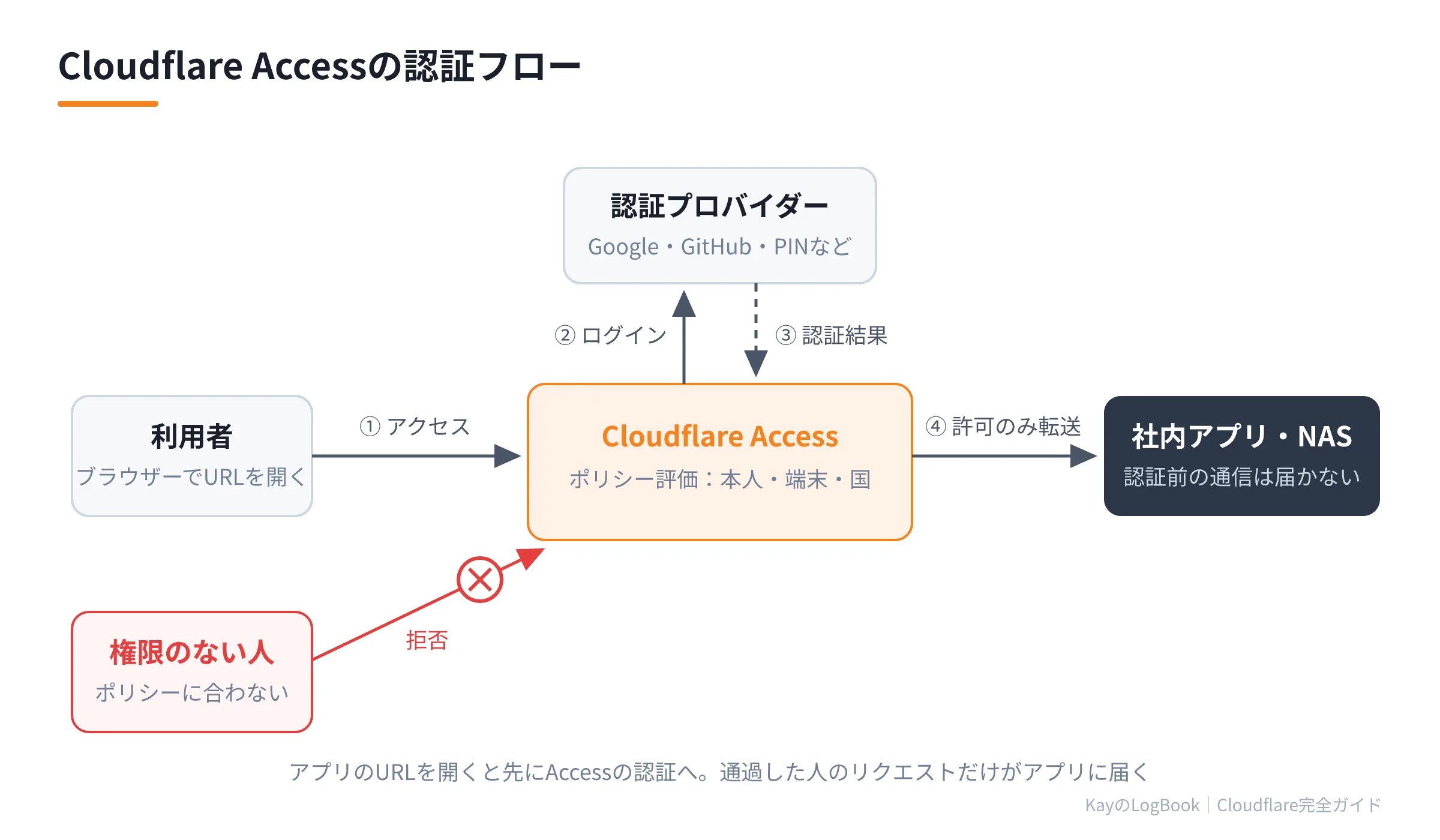
- Access: when a user opens the URL of a protected app, Cloudflare catches the request and redirects to the login screen (team-name.cloudflareaccess.com)
- Login: the user logs in with the configured identity provider (described below)
- Policy evaluation: Access checks the policies to see “whether this person may pass.” Besides email addresses, country, IP address and device state (device posture) can be conditions too
- Forwarding: only if allowed, Cloudflare forwards the request to the app. For a while afterward, the issued token (a browser cookie) lets the user in without re-authenticating. The session duration can be set per app
The important thing is that no unauthenticated request ever reaches the app’s server. People without permission can’t even see that a login screen exists.
How to build policies#
The core of Access is the policy that defines “who gets through.” Policies are built from the following parts.
- Action: Allow / Block / Bypass (pass through without inspection) / Service Auth (authentication for programs; described below)
- Rule type: Include (a candidate if any condition is met: OR) / Require (all conditions must be met: AND) / Exclude (excluded: NOT)
- Conditions (selectors): email address, email domain (e.g. everyone at @example.com), IdP group, country, IP range, device posture, multi-factor authentication method and more
For example, you combine them like “Include: email domain @example.com, Require: from within Japan, Exclude: list of former employees.” For access from programs or scripts rather than humans, use Service Auth with a service token (a pair of ID and secret).
Supported identity providers (IdPs)#
Access doesn’t have its own password infrastructure; it piggybacks on existing identity providers (IdPs). Support is broad: in addition to Google (personal Google accounts and Google Workspace), GitHub, Microsoft Entra ID and Okta, you can register any generic IdP that supports the SAML or OIDC standards. You can also enable multiple IdPs at once and let users choose.
For cases where you can’t set up any IdP, a mechanism called One-time PIN is available out of the box. A single-use code is sent to the user’s email address, and they log in by entering it. For personal use such as “allow only my and my family’s email addresses,” One-time PIN alone is plenty to get started without configuring an IdP.
Example: protecting a NAS admin screen#
Taking a home NAS admin screen as an example, a typical use of Access looks like this.
- Connect the NAS to Cloudflare with Tunnel, covered on the next page, and assign it a subdomain such as nas.example.com (no port forwarding, not publicly exposed)
- Register this domain as an app in Access and set a policy of “Allow only my email address”
- When you open the URL while out, you’re asked for a One-time PIN or a Google login, and once you pass, the NAS login screen appears
From an attacker’s point of view, they can’t even reach the NAS login screen, so it isn’t a target for password brute-forcing or vulnerability scanning. This procedure is covered in detail on the hands-on page in Part 8.
Things beginners should watch out for#
- Keep the app’s own login: keep using the NAS or app login that appears after passing Access. A two-layer setup of Access plus app authentication is the baseline (it’s insurance in case your Access credentials leak)
- It only works if you close the back door: even if you lock down the front with Access, if the app’s server can be reached directly from the internet, it gets bypassed. The standard practice is to connect via Tunnel and keep the origin private
- Use Bypass carefully: the Bypass action lets traffic through without inspection. Don’t make it a permanent setting; limit it to narrow uses
- It works for SaaS apps too: beyond self-hosted apps, you can also funnel logins to SaaS through Access (identity proxy). But beginners are best off starting with protecting their own apps
- The free tier covers 50 users: within the Cloudflare One Free plan, you can use all of Access’s basic features (as of August 2026)
Related services#
- Cloudflare Tunnel: the server-side connector used together with Access (next page)
- WARP (Cloudflare One Client): installed on devices when using device posture as a condition
- Turnstile: bot protection for web forms. While Access “chooses which people,” Turnstile “checks whether it’s a human”
- mTLS: the client certificate authentication covered on the API Security page. It can also be used as an Access condition
Summary#
- Access is an authentication gatekeeper in front of each app, delivering ZTNA as a VPN replacement
- The authentication flow has four stages: “intercept → log in via IdP → evaluate policy → forward only if allowed.” Unauthenticated requests never reach the server
- Policies are built from actions such as Allow/Block, Include/Require/Exclude rules, and conditions such as email, country and device state
- IdPs include Google, GitHub and Microsoft Entra ID. You can start even without an IdP using One-time PIN
- Not exposing the origin directly (using Tunnel alongside) is the precondition for it to be effective