Setup Pitfalls and Troubleshooting
On this page31 items
On the previous page, “Cloudflare vs. Other Services,” we laid out what to consider when deciding whether to choose Cloudflare. This final page deals with the problems that come up after you’ve actually set it up.
Cloudflare sits between visitors and your server. That makes it hard to tell, when something goes wrong, “whether it’s Cloudflare’s fault, the server’s fault, or DNS’s fault.” Put the other way around, once you know where things are stuck, most problems can be fixed with a set procedure.
This page is organized as a reverse-lookup reference, so you can “look things up when you’re stuck” using what you learned in the previous 49 pages.
What you’ll learn on this page#
- How to narrow the cause of a problem down to one of four places: “browser/DNS, edge, between edge and origin, origin”
- How to investigate with
curl -I,digand the dashboard - Common mistakes with nameserver changes and DNS records
- SSL/TLS modes and redirect loops (ERR_TOO_MANY_REDIRECTS)
- What error codes like 520–526 and 530 mean and where to look
- Where people stumble with caching, WAF, bot protection, Tunnel, and Workers/Pages
First, work out “where it’s stuck”#
The path splits into four segments#
A request through Cloudflare travels in the following order.
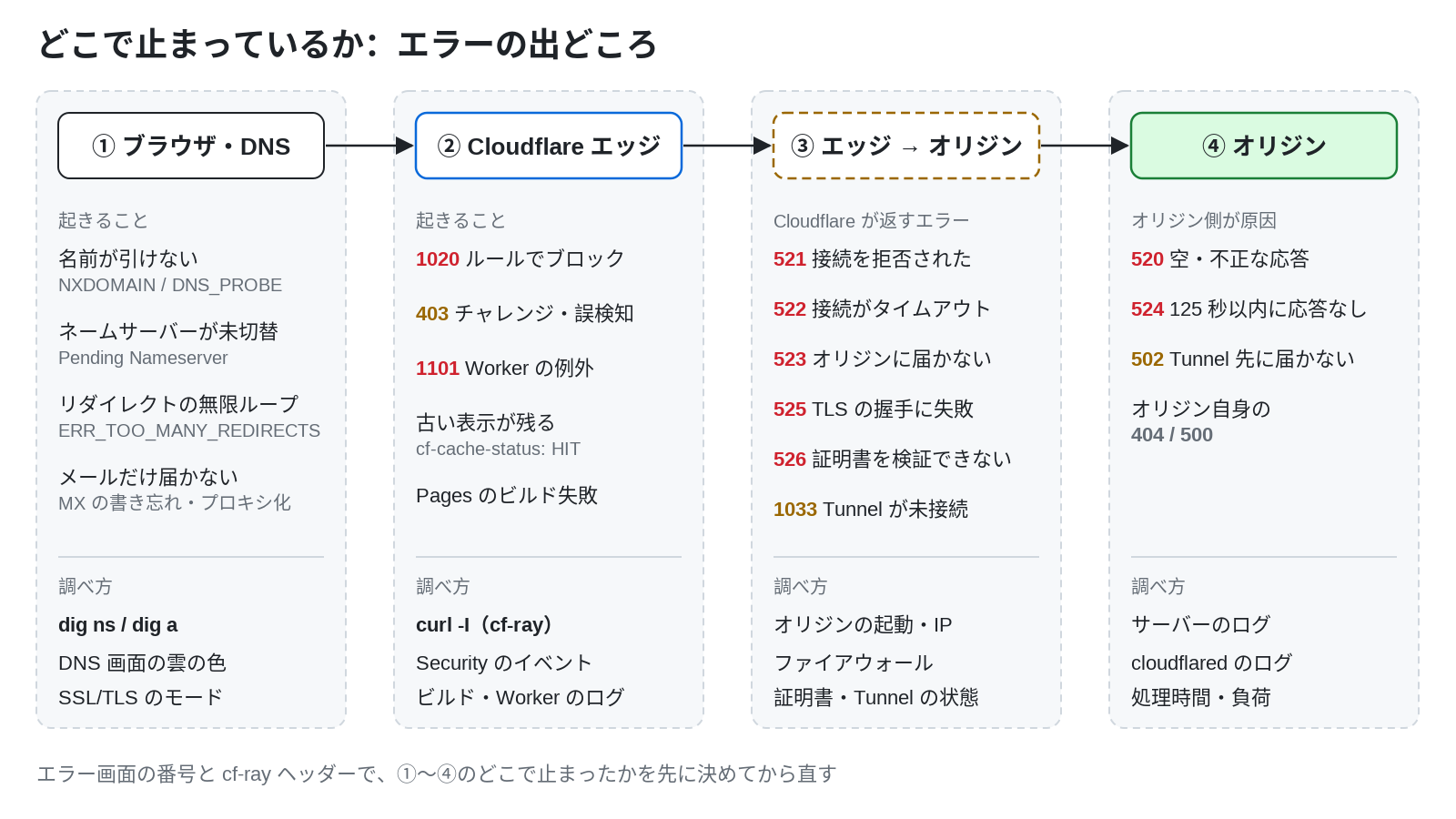
- Browser/DNS: The stage where the domain name is resolved to Cloudflare’s IP address. If this fails, the request never even reaches Cloudflare
- Cloudflare edge: One of the locations around the world receives the request and passes it through WAF, bot protection, cache and Workers in turn
- Edge → origin: For anything not in the cache, Cloudflare connects to the origin server (or a Tunnel) to fetch it
- Origin: The app on the server returns a response
The SSL/TLS page explained that “the connection has two segments,” but for troubleshooting, thinking a little more finely in these four segments gives you a clearer view.
Identify where the error page comes from#
The first thing to check is who is generating the error page you see.
- A Cloudflare error page: A page with a number like “Error 522,” a “Cloudflare Ray ID,” and three icons for Browser, Cloudflare and Host. Which icon has an × on it is a direct hint about the segment
- An origin error page: A page generated by server software such as WordPress or nginx. Cloudflare is just passing it along, so the cause is at the origin
- A browser error page: Messages like “This site can’t be reached,” “DNS_PROBE_FINISHED_NXDOMAIN” or “ERR_TOO_MANY_REDIRECTS.” The problem is happening before the request reaches Cloudflare, or in the round trips after it does
Tools for investigating#
Look at headers with curl -I#
Running curl -I in a terminal shows only the response headers. You can tell at a glance whether the request is going through Cloudflare and whether it was served from cache.
curl -sI https://example.com/HTTP/2 200
date: Wed, 28 Oct 2026 13:20:48 GMT
content-type: text/html; charset=utf-8
cache-control: public, max-age=0, must-revalidate
server: cloudflare
cf-cache-status: DYNAMIC
cf-ray: 8f1a3d6d9d3019c4-NRT(The output is an example. Actual values vary by site and by when you access it.)
server: cloudflare: The request is going through Cloudflare. If this is missing, DNS isn’t pointing to Cloudflare, or the record is grey-clouded (DNS only)cf-ray: An identifier for each request (the Ray ID). The last three letters show the location that responded (NRTis Tokyo). It’s the same as the Ray ID on error pages, and you use it for log searches and support requestscf-cache-status: The cache status. The meanings of the values are explained in the caching section below
You can also open https://example.com/cdn-cgi/trace to see as plain text which location you’re connected to (colo=), the TLS version and so on.
Check DNS with dig#
Check the state of DNS with the dig command (nslookup on Windows). The official documentation also recommends this method for confirming a nameserver change.
dig ns example.com @1.1.1.1 +short
dig example.com @1.1.1.1 +shortclint.ns.cloudflare.com.
martha.ns.cloudflare.com.
104.21.52.147
172.67.200.138(The output is an example.) If the first and second lines show the Cloudflare nameservers assigned to you in the dashboard, the switch is complete. Orange-clouded records return Cloudflare IP addresses (such as ones starting with 104. or 172.), while grey-clouded ones return the origin’s real IP address.
The dashboard and the status page#
- The Events tab in Analytics (security events): See requests blocked by WAF or bot protection, broken down by IP address or rule. On the Free plan, this covers sampled logs
- HTTP Traffic analytics: Filter by edge or origin status code (5xx, etc.)
- Cloudflare Status (https://www.cloudflarestatus.com/ ): Information on incidents on Cloudflare’s side. When multiple sites are misbehaving at once and you have no idea why, look here first
Pitfall 1: Nameservers and DNS records#
The switch can take up to 24 hours#
After adding a domain to Cloudflare, you change the nameservers at your registrar (the company you bought the domain from). According to the official documentation, it can take up to 24 hours to take effect. Meanwhile the dashboard shows “Pending Nameserver Update,” and when it’s done it changes to “Active” and you get an email.
If it never becomes Active, check the following.
- Did you misspell the nameservers? (Assignments differ for each account)
- Is one of the old nameservers still left? (Replace both)
- Did you disable DNSSEC before switching? If you change nameservers with DNSSEC still enabled, the domain itself may stop resolving. Once it’s Active, enable DNSSEC again on the Cloudflare side
Detailed steps are covered in Connecting WordPress to Cloudflare.
Records missed during import#
When you add a domain, Cloudflare automatically scans your existing DNS records, but there’s no guarantee it picks them all up. These are especially easy to miss:
- MX records: Where your mail is delivered. If missing, you get a state where “the site works, but email doesn’t arrive”
- TXT records: SPF, DKIM, domain ownership verification and so on. If missing, your mail may be treated as spam, or authentication with external services may break
- Subdomains you don’t normally use:
mail.,ftp., subdomains for admin panels and so on
The reliable approach is to compare against the record list from your old DNS before switching.
Records that must not be orange-clouded#
As we saw on the proxy page, Cloudflare can basically proxy only web traffic. Set the following records to grey cloud (DNS only).
- A/AAAA records pointing to mail servers (such as
mail.example.com, which an MX record points to) - Hostnames used for non-web traffic, such as SSH, FTP and game servers
- CNAMEs that an external service tells you to set to “grey cloud”
Pitfall 2: SSL/TLS and redirect loops#
What causes ERR_TOO_MANY_REDIRECTS#
The most common problem right after setting up Cloudflare is that the page won’t open and the browser says “too many redirects.” The main causes listed in the official documentation are as follows.
| State | What’s happening | Fix |
|---|---|---|
| SSL/TLS mode is Flexible, and the origin redirects HTTP→HTTPS | Cloudflare fetches over HTTP, the origin redirects to HTTPS, and again… over and over | Install a certificate on the origin and switch to Full (strict) |
| Full / Full (strict), and the origin redirects HTTPS→HTTP | The same loop in reverse | Remove the redirect to HTTP on the origin |
| Always Use HTTPS is on, and the origin redirects HTTPS→HTTP | The edge and the origin redirect in opposite directions | Remove the redirect on the origin |
| Redirect Rules or Page Rules conflict | The rules bounce back and forth between each other | Review the rules and remove the duplicates |
The basic principle is: “leave redirecting to HTTPS to Cloudflare (Always Use HTTPS), and have the origin accept connections in Full (strict).” As explained on the SSL/TLS page, think of Flexible as a stopgap.
525 and 526: problems with the origin’s certificate#
These two appear after you raise the mode to Full / Full (strict).
- 525 (SSL handshake failed): The TLS connection between Cloudflare and the origin itself is failing. Causes include no certificate installed on the origin, port 443 being closed, or mismatched SNI or ciphers
- 526 (Invalid SSL certificate): In Full (strict), the origin’s certificate couldn’t be validated. Causes include an expired certificate, a domain name mismatch, or a self-signed certificate
For a 526 you can temporarily drop to Full as a stopgap, but the real fix is to install a valid certificate on the origin (your hosting provider’s free SSL, or a Cloudflare Origin CA certificate) and go back to Full (strict).
How to read 5xx errors#
The 500-range codes on Cloudflare’s error pages are designed so the number tells you the segment. Based on the official documentation, here’s a summary.
| Code | Meaning | Main causes and what to check |
|---|---|---|
| 520 | The origin returned an empty or invalid response | App crash, response headers too large (too many cookies, etc.), the origin’s HTTP/2 settings. Check the server’s error log |
| 521 | The origin refused the connection | The web server is down, or a firewall is rejecting Cloudflare’s IPs |
| 522 | The connection timed out | Origin overload, blocking or rate-limiting Cloudflare’s IP ranges, an outdated IP address in DNS. The most common cause is a firewall |
| 523 | The origin is unreachable | The IP address registered in DNS is wrong, or there’s a routing problem |
| 524 | Connected, but no response in time | No response within 125 seconds by default. Review long-running processes (extending it is Enterprise only) |
| 525 | TLS handshake failed | See the previous section. Only occurs in Full / Full (strict) |
| 526 | The origin’s certificate is invalid | See the previous section. Only occurs in Full (strict) |
| 530 | Can’t connect to the origin (accompanied by a 1xxx error) | Look up the 1xxx code shown on the page (e.g. 1033 for Tunnel) |
The key point is that everything except 520 and 524 is a problem “before the connection is made.” Before fixing the origin’s app, first check whether the server is running, whether the IP address is right, and whether a firewall is blocking Cloudflare.
Caching: updates not showing up, or showing up too much#
Reading cf-cache-status#
For caching problems, start by checking cf-cache-status with curl -I.
| Value | Meaning |
|---|---|
HIT | Served from Cloudflare’s cache |
MISS | Eligible for caching but not in the cache, so fetched from the origin |
EXPIRED | The cached copy had expired, so it was fetched again from the origin |
REVALIDATED | Checked with the origin, unchanged, so the cached copy was served |
UPDATING | Serving an expired cached copy while updating it in the background |
STALE | Couldn’t reach the origin, so served an expired cached copy |
BYPASS | Eligible for caching, but the origin’s response was marked not cacheable |
DYNAMIC | Not eligible for caching at all, so fetched directly from the origin |
Three common symptoms#
You updated it, but the old version still shows (HIT is returned)
The cache is still there. From Caching > Configuration in the dashboard, purge (delete) by URL or everything. While you’re working, enabling Development Mode bypasses the cache for 3 hours. However, Development Mode doesn’t clear the cache, so you need to purge when you’re done. If purging doesn’t fix it, suspect the browser’s own cache and do a hard reload.
You want it cached, but it isn’t (DYNAMIC or BYPASS is returned)
As mentioned on the CDN page, Cloudflare doesn’t cache HTML by default. Responses where the origin adds Set-Cookie, Cache-Control: private or no-store also aren’t cached by default. If you want HTML cached too, specify the targets explicitly with Cache Rules.
A logged-in user’s page is visible to others
The opposite of the above: an accident where, after setting “cache everything” with Cache Rules, logged-in pages and even the admin panel end up in the shared cache. When creating Cache Rules, always exclude the admin panel (/wp-admin/ for WordPress) and requests with cookies indicating a logged-in session.
WAF and bot protection false positives#
When legitimate users get blocked#
When “only I can’t access it” or “APIs and webhooks suddenly fail,” you may be getting blocked by the WAF or bot protection.
- Note the Ray ID and the time from the error page or logs
- In the dashboard’s Analytics Events tab, find the request and see which rule fired
- Deal with it according to the rule responsible
If a WAF custom rule or managed rule is the cause, you can create a rule (Skip) that exempts just that request. If the error page says “1020,” it’s often a block by a rule you created yourself.
Bot Fight Mode can’t be exempted#
The Free plan’s Bot Fight Mode comes with a caveat. According to the official documentation, Bot Fight Mode runs on a separate mechanism from the WAF, so you can’t create exceptions with WAF Skip or Allow rules. It’s also said that it may challenge traffic from APIs and mobile apps.
If false positives keep happening on a site that receives webhooks or API calls from external services, turning Bot Fight Mode off is the reliable fix (you’ll find it under Security > Settings by filtering for “Bot traffic”). If you want to create exceptions, consider Super Bot Fight Mode on Pro or above, which supports Skip rules.
Cloudflare Tunnel stumbling blocks#
If it won’t connect even after following the Tunnel setup steps, first check the tunnel’s status.
| Status | Meaning |
|---|---|
| Healthy | Normal. Communicating over multiple connections to Cloudflare |
| Degraded | Communication works, but some connections are down |
| Down | It was connected before, but cloudflared has stopped |
| Inactive | The tunnel was created, but cloudflared has never connected |
The causes by symptom are as follows.
- Error 1033: From Cloudflare’s point of view, there isn’t a single healthy cloudflared. Check that the cloudflared container or process is running on your NAS or server, and that the token is correct. If the status is Healthy but you still get 1033, check whether the DNS CNAME points to a different tunnel
- 502 Bad Gateway: The tunnel is connected, but cloudflared can’t reach the destination service. Causes include a wrong IP address or port number in the service URL, mixing up HTTP and HTTPS, or the service itself being down
- Certificate errors (x509: …): These happen when the destination is set to
https://and cloudflared can’t validate the origin’s self-signed certificate. Either set the destination to HTTP, or enable the additional setting No TLS Verify (noTLSVerifyin the config file). The official documentation positions No TLS Verify as a temporary measure; if only the certificate’s hostname doesn’t match, specifying Origin Server Name (originServerName) can sometimes solve it
cloudflared’s logs state the reason it can’t connect quite specifically. If you run it in a container, checking the logs first is the shortcut.
Deploying Workers and Pages#
Pages builds fail#
If you’re publishing a static site through the GitHub integration and it builds locally but fails on Pages, it’s usually a difference in environment.
- Node.js version: Set the
NODE_VERSIONenvironment variable, or put a.node-versionor.nvmrcfile at the root of the repository containing the version number - Build output directory: Does the output directory in the build settings match reality, e.g.
distfor Astro oroutfor Next.js static export? - Environment variables: Values in your local
.envmay not have been added to the Pages project settings
Build logs are kept in the dashboard for each deployment. The trick is to read from the first error message.
Tracking down Workers errors#
When Worker code throws an exception, visitors see “Error 1101.” Check the cause in the logs.
npx wrangler tailKeep this command running and visit the site, and the Worker’s console.log output and exception details stream in real time. If you want to keep logs continuously, enable Workers Logs (observability) in the config file and you can search them later from the dashboard. The steps are also covered in “Viewing logs” in Your First Workers Project.
Before you ask for help#
If you can’t solve it yourself and ask for help, having the following information ready speeds things up.
- The error code and message, and the URL where it occurred
- The time it occurred (with time zone)
- The Ray ID (at the bottom of the error page, or in the
cf-rayheader) - The results of
curl -Ianddig
Most 5xx errors are problems on the origin side, so the official documentation also recommends “contacting your hosting provider first.” If Cloudflare seems to be at fault, check Cloudflare Status for incidents, then ask on the community forum if you’re on the Free plan, or contact support if you’re on a paid plan.
Points beginners should watch out for#
- Change only one thing at a time: If you tweak SSL mode, caching and WAF all at once, you won’t know what worked. After each change, check with
curl -Ibefore moving on - “Grey-clouding fixes it” is a diagnostic tool: If the symptom disappears when you temporarily switch to grey cloud, the cause is a Cloudflare setting. But leaving it that way exposes your origin’s IP address, so switch it back once you’ve found the cause
- There are three layers of cache: Cloudflare’s cache, the browser’s cache, and the DNS cache. When “I fixed it but it’s still broken,” think about which layer is stale
- Allow Cloudflare’s IPs in your origin firewall: This solves most 521s and 522s
- Don’t keep using Flexible: It’s a breeding ground for redirect loops, and segment B isn’t encrypted
- Settings screen names change: Cloudflare’s dashboard is redesigned frequently. If you can’t find a menu, check its location in the latest official documentation
Related services#
- What Is DNS?: Record types and how name resolution works
- What Is Cloudflare’s Proxy?: Orange cloud, grey cloud, and proxy limits
- What Is SSL/TLS?: Encryption modes and Origin CA certificates
- What Is a CDN?: The basics of caching and purging
- What Is a WAF? and Introduction to Bot Protection: The mechanisms behind false positives
- Publishing a Synology NAS with Cloudflare Tunnel: Tunnel setup steps
Summary#
- Split problems into four segments (browser/DNS, edge, edge → origin, origin) and decide first where things are stuck
- The main clues are
server,cf-rayandcf-cache-statusfromcurl -I, the results ofdig, and the events in the dashboard - Nameserver changes take up to 24 hours. Disable DNSSEC first, and watch for MX and TXT records missed during import
- Most ERR_TOO_MANY_REDIRECTS errors come from combining Flexible mode with redirect settings on the origin. Fix them by switching to Full (strict)
- 520 and 524 are origin response problems, 521–523 are connection problems, and 525 and 526 are certificate problems
- Judge caching by
cf-cache-status, and use purging and Development Mode as appropriate. Bot Fight Mode can’t be exempted with WAF rules - For Tunnel, use the status (Healthy/Down/Inactive) and the difference between 1033 and 502 to tell whether the problem is with cloudflared or the destination
With this, all 50 pages of “The Complete Cloudflare Guide” are complete. Whenever you’re stuck, come back to this page and the table of contents to find the page you need.