What Is Email Routing? Receiving Email on Your Own Domain
On this page11 items
After getting their own domain, what many people want next is an email address on it, like [email protected]. But setting this up yourself means the heavy work of building and running a mail server. The usual solution was to sign up for a paid service such as a hosting provider or Google Workspace.
Cloudflare Email Routing solves this by focusing on one thing: receiving and forwarding. Without owning a mail server, you can create as many addresses on your domain as you like and forward incoming mail to the mailbox you already use, such as Gmail. And it’s free.
What you’ll learn on this page#
- What Email Routing does for you (and what it doesn’t)
- How mail gets delivered, and the role of MX records
- When to use custom addresses versus Catch-all
- How to handle email in code with Email Workers
- What’s free, the main limits, and cautions to know before adopting it
What is Email Routing?#
Email Routing is a service in which Cloudflare receives mail sent to your own domain and forwards it to an existing email address you’ve registered in advance.
All it does is “forward email”, but that makes the following possible:
- Create several addresses for different purposes, such as
info@,support@andshop@ - Receive mail sent to any of those addresses in the one inbox you already use
- Process received mail with Workers code (two pages back)
The important point is that Email Routing does not provide a mailbox. Mail is never stored on Cloudflare’s side; it is forwarded and passes straight through. There’s nothing to connect to over IMAP or POP either. It’s a service that creates a “pathway” to your existing mailbox, nothing more.
Email Routing is now positioned as the receiving feature within a framework called “Cloudflare Email Service”. The same framework also includes Email Sending for outbound mail (in beta as of August 2026, for the Workers Paid plan), but the Email Routing covered on this page is generally available on all plans, including the free plan.
How mail gets delivered#
To understand how it works, you first need to know how a mail destination is determined. Among the records covered under DNS in Chapter 1, the one that specifies where mail is delivered is the MX record (Mail eXchanger).
When someone sends mail to [email protected], the sending server first asks DNS for the MX record of example.com to find out “which server receives mail for this domain”. When you enable Email Routing, this MX record is set automatically to point to Cloudflare’s mail servers. SPF and DKIM TXT records are also added to guard against spoofing.
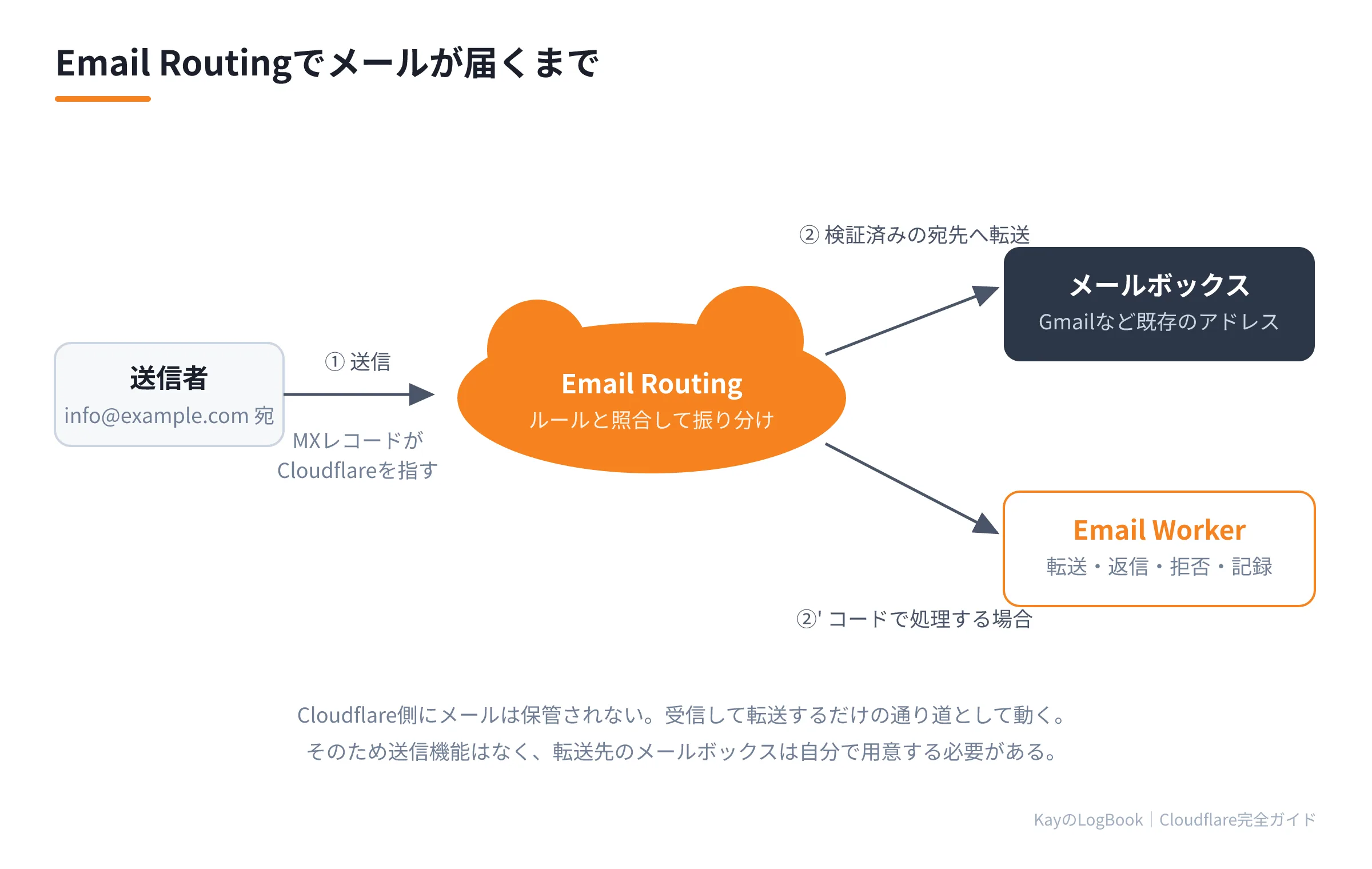
From there, the flow is as follows:
- The sender sends mail to
[email protected] - Following the MX record, the mail arrives at Cloudflare
- Cloudflare checks it against the configured rules
- If a rule matches, it forwards the mail to the specified destination (a verified address), or hands it to Email Worker code
From the user’s point of view, mail addressed to [email protected] simply shows up in their usual Gmail inbox.
Setup steps#
Roughly, there are three steps:
- Manage the domain on Cloudflare: Email Routing assumes you use Cloudflare’s DNS. Your nameservers need to point to Cloudflare (the setup covered in Chapter 1)
- Register and verify a destination address: When you register the email address you want to forward to (e.g. your Gmail), a confirmation email is sent to it. Only after you open the link inside can it be used as a destination. Because of this verification, nobody can make mail forward to someone else’s address without permission
- Create a custom address: Decide the name part, like
info, and choose which destination it goes to
Cloudflare adds the DNS records automatically, so you don’t need to write MX records by hand. Changes usually take effect in about 5–15 minutes.
Catch-all#
Besides creating addresses one by one, there’s a setting called Catch-all. When enabled, all mail sent to the domain, including mail that doesn’t match any rule, goes to the specified destination.
You won’t miss mail sent to an address the sender mistyped, like [email protected], but because anything gets through regardless of address, spam flows in too. It’s handy for small personal use, but on a public domain keep an eye on the volume.
Email Workers: handling email in code#
Instead of an email address, you can specify a Worker as an Email Routing destination. This is Email Workers.
The code follows the same idea as a Workers fetch handler; the entry point just becomes email.
export default {
  async email(message, env, ctx) {
    // Read the sender, subject, body and so on from message and process it
  },
};
Through message you can read the sender, recipient, subject, headers, body (raw MIME data) and size. Then you can do the following:
- Forward: Send to a verified destination (multiple destinations are possible)
- Reply: Send an automatic reply linked to the original message
- Reject: Bounce mail that doesn’t meet your conditions as an SMTP error
- Read it and pass it on: Integrations such as saving the content to D1 or notifying Slack
For example, automations like “forward only inquiries containing certain wording to the person in charge and just log the rest” or “parse order confirmation emails and register them in a database” become possible without owning a mail server. Like Turnstile in Chapter 2, it’s one example of adding practical features without setting up a server.
What’s free and the main limits#
Email Routing is free on all plans (as of August 2026). The main limits are:
- Destination addresses: Up to 200 per account (verification required; they can be shared across multiple domains)
- Routing rules: Up to 200 per domain
- Incoming message size: Mail over 25MiB is rejected
- Email Worker execution: Workers limits (CPU time and so on) apply as is. If you write heavy processing on the free plan, it may fail by exceeding CPU time
Points beginners should watch out for#
- It can’t send: This is the biggest caution. Addresses created with Email Routing are receive-only; there’s no feature to send mail with that address as the sender. Even if you try to send through Gmail’s “Add another email address”, you’ll need a separate SMTP server for sending. If you need to send as well, consider combining it with an email service such as Google Workspace or Microsoft 365, or a dedicated sending service
- It can’t coexist with an existing email service: The MX record determines where a domain’s mail is received. If you already receive mail for that domain with something like Google Workspace, enabling Email Routing replaces the MX records and your existing mail stops arriving. Switch over carefully
- Mail may be treated as spam at the destination: Forwarded mail has Cloudflare sitting between the sender and the destination. Because of how SPF and DMARC checks work, it can end up in the spam folder, so check the destination’s spam folder right after setting it up
- You have to keep managing the destination address: If you lose the destination Gmail account, you can no longer receive mail for the domain either
- It assumes you use Cloudflare’s DNS: It isn’t available for domains whose nameservers don’t point to Cloudflare
Related services#
- DNS: The MX record mechanism itself. The foundation of Email Routing (Chapter 1)
- Domains: The custom domain your receiving addresses are based on (Chapter 1)
- Workers: The runtime for Email Workers. Handles email in code (two pages back)
- Turnstile: Another example of a “practical feature you can use without a server” (Chapter 2)
- D1 and R2: Where to store content received by an Email Worker (Chapter 6)
Summary#
- Email Routing is a free service that receives mail sent to your own domain and forwards it to an existing email address
- It provides no mailbox; it acts purely as a pathway for receiving and forwarding
- Enabling it automatically points the MX records to Cloudflare and adds SPF and DKIM
- Besides custom addresses for each purpose, you can set up a Catch-all that receives everything
- Specify a Worker as the destination and you can write forwarding, auto-replies, rejection and logging in code
- Note that it can’t send, and that it competes with existing email services for the MX records
From the next page we return to the core of the developer platform. The mechanism that tackles Workers’ “can’t hold state” limitation head-on is Durable Objects.