What Are Containers? A Runtime Beyond Workers
On this page9 items
This is the last page of Chapter 5. The Workers we have looked at so far are light and fast, but in exchange they can do only so much. They are a JavaScript-centered runtime with 128MB of memory and no free use of a file system. Until now, anything that didn’t fit in that box meant setting up a server outside Cloudflare.
Cloudflare Containers remove that last wall. You can run programs written in any language, or existing software as is, as containers on Cloudflare’s network and call them from Workers.
What you’ll learn on this page#
- What a container is and how it differs from Workers
- How Cloudflare Containers work and how they divide roles with Workers
- What kinds of processing they suit (concrete examples)
- Instance types and how pricing works
- Constraints to know before adopting them
What is a container?#
A container packages an application together with everything it needs to run (libraries, configuration, part of the OS) into a single box. Take the box somewhere else and it runs the same way anywhere.
It’s a technology that solves the “it worked on my machine but not in production” problem by carrying the whole environment along, and a tool called Docker is widely used for it. The build instructions are the Dockerfile, and the box built from those instructions is the container image.
Think of Workers as “handing just your code to a runtime Cloudflare provides”, and containers as “preparing the runtime itself and bringing it with you”. You get more freedom, but because the box is bigger, it takes longer to start.
How Cloudflare Containers work#
In Cloudflare Containers, a container isn’t exposed on its own. A Worker always stands in front, and the Worker’s code calls the container.
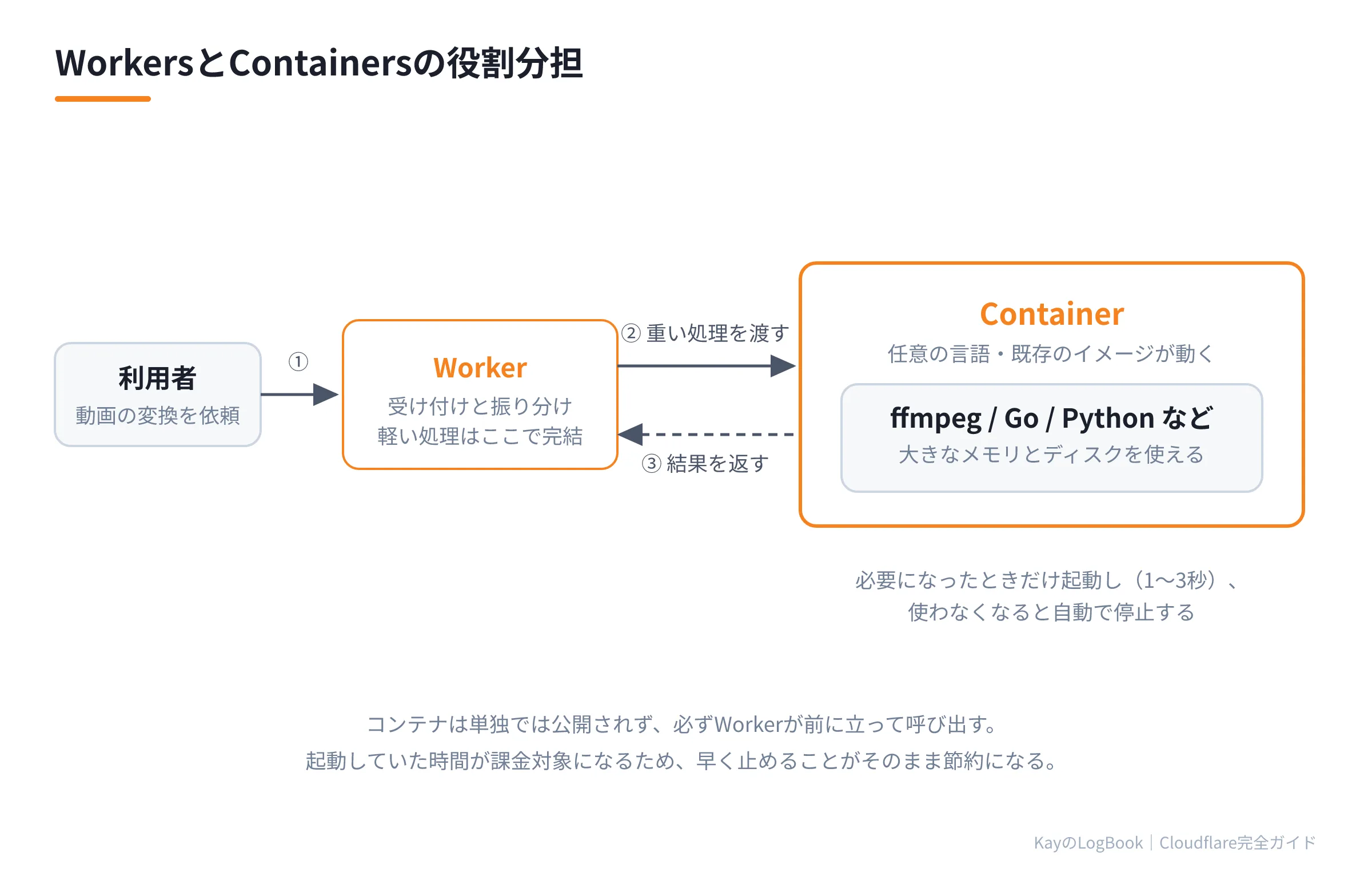
The flow is as follows:
- The user’s request is first received by a Worker
- The Worker decides, and hands heavy work to the container
- If the container isn’t running, it is started on the spot
- The Worker receives the result and returns it to the user
Container instances are managed on top of the Durable Objects mechanism covered on the previous page. As with Durable Objects, you can call a specific instance by name, so setups like “a dedicated container for each user” are natural to write.
Instances that are no longer in use stop automatically. You set the time until they stop with sleepAfter; the default is 10 minutes. When the next request arrives they start again, but starting takes around 1–3 seconds (depending on the image size). This is a big difference from a server that is always running.
The development flow is the same as Workers: write the Dockerfile location and instance type in the config file, then run wrangler deploy. Cloudflare takes care of building and uploading the image and placing it at each location.
What are they good for?#
Here are examples of work that’s a stretch for Workers and suits containers:
- Video and audio conversion: Run existing tools like ffmpeg as they are
- Advanced image processing: Conversions and analysis that use a lot of memory
- Programs written in other languages: Go, Java, Ruby, PHP, heavy Python libraries and so on
- Reusing existing software: Build in tools already distributed as Docker images
- Work that handles files: Jobs that write to disk temporarily as they go
- Time-consuming computation: Work that uses the CPU for a long time, or several cores in parallel
On the other hand, work like the following is fine on Workers. There’s no need to force a container into it.
- Proxying APIs, authentication, rewriting requests
- Generating HTML, serving static assets
- Work centered on reading and writing KV or D1
The rule of thumb is whether you hit Workers’ limits (128MB of memory, mainly web-standard APIs, no file system). If you don’t, Workers, which start fast and cost less, have the advantage.
| Workers | Containers | |
|---|---|---|
| Startup | Almost instant | Around 1–3 seconds |
| Languages | JavaScript / TypeScript / Python / Rust and others | Any (whatever is in the image) |
| Memory | 128MB | 256MiB–12GiB |
| File system | Effectively none | Yes (temporary) |
| Pricing | Free plan available | Requires Workers Paid plan |
| Best for | Lots of light, fast work | Heavy work, only when needed |
Pricing#
Containers require the Workers Paid plan ($5 a month); there is no allowance on the free plan (as of August 2026).
You choose an instance from the following types, depending on the resources allocated:
| Type | vCPU | Memory | Disk |
|---|---|---|---|
| lite | 1/16 | 256 MiB | 2 GB |
| basic | 1/4 | 1 GiB | 4 GB |
| standard-1 | 1/2 | 4 GiB | 8 GB |
| standard-2 | 1 | 6 GiB | 12 GB |
| standard-3 | 2 | 8 GiB | 16 GB |
| standard-4 | 4 | 12 GiB | 20 GB |
Billing is pay-as-you-go for the time the container was running. Memory, CPU and disk are each calculated per second. The paid plan includes a set amount each month, and there’s no extra charge within it.
- Memory: 25 GiB-hours/month included; overage at $0.0000025 per GiB-second
- CPU: 375 vCPU-minutes/month included; overage at $0.000020 per vCPU-second
- Disk: 200 GB-hours/month included; overage at $0.00000007 per GB-second
Unlike Workers, outbound data transfer (egress) is billed ($0.025–0.05 per GB depending on region, with a free allowance of 500GB–1TB per month).
The key point is that the running time itself is the cost. Shortening sleepAfter so unused instances stop sooner translates directly into savings.
Points beginners should watch out for#
- Not available on the free plan: Containers alone require a Workers Paid plan subscription
- Design around slow startup: For screens that can’t tolerate a 1–3 second cold start, a setup where Workers alone return the response and container work is pushed to asynchronous processing (Queues or Workflows from the previous page) works well
- The disk is not persistent storage: The disk inside a container is lost when the instance stops. Write anything you want to keep to R2 or D1 (Chapter 6)
- First check whether Workers are enough: Containers trade freedom for more startup time, cost and operational work. There’s no reason to pick them before you hit Workers’ limits
- Keep images small: The bigger the image, the slower the startup. Leaving out unneeded libraries and using a lightweight base image helps
Related services#
- Workers: The caller of containers. Always stands in front (Chapter 5)
- Durable Objects: The mechanism behind managing container instances (two pages back)
- Queues / Workflows: Run slow-to-start work asynchronously (previous page)
- R2: Where to store the results of container processing (Chapter 6)
- Workers AI: If your goal is running AI models, consider this first (Chapter 7)
Summary#
- A container is a box that bundles an application with its runtime so it can be carried anywhere
- Cloudflare Containers run those containers on Cloudflare’s network and let Workers call them
- A Worker always stands in front, handing only heavy work to the container
- They can run any language and existing software, but take 1–3 seconds to start and stop automatically when unused
- They require the Workers Paid plan and are billed for running time
- If you aren’t hitting Workers’ limits, staying on Workers is the better choice
That completes Chapter 5, “Developer Platform”. Centered on Workers, we now have publishing static sites, receiving email, managing state, asynchronous processing, and running heavy work. In Chapter 6, we look at where these programs keep their data: storage and databases. First up is R2, object storage whose distinguishing feature is free egress (data transfer).