What Is WARP? The Client That Connects Your Devices to Cloudflare
On this page12 items
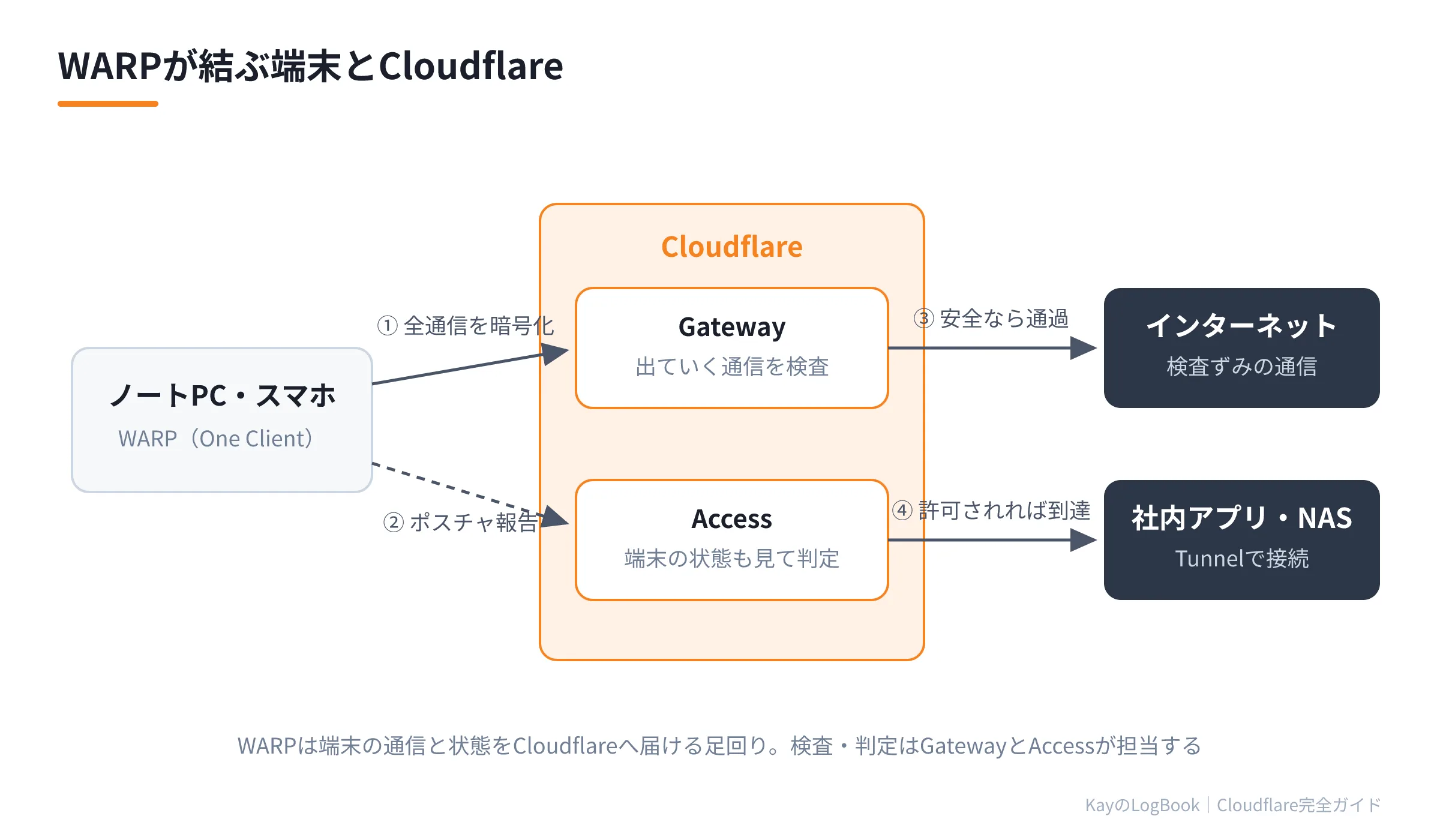
WARP has come up repeatedly in this chapter as “the connection component on the device side,” and this page tackles it head-on. WARP is a client app you install on laptops and smartphones that encrypts the device’s traffic and delivers it to Cloudflare’s network.
However powerful Gateway and Access may be, they can’t do anything if the device’s traffic doesn’t pass through Cloudflare. WARP handles that “passing through”; it’s the running gear of a Zero Trust setup. This page also sorts out the two things beginners always get confused about: “its relationship to the 1.1.1.1 app” and “how the names have changed.”
What you’ll learn on this page#
- WARP’s role and how it works
- Sorting out the confusing names (WARP / 1.1.1.1 / Cloudflare One Client)
- Operating modes (all traffic, DNS only, posture only)
- What device posture (a device health check) is
- How it differs from a VPN client, and points to watch
What is WARP?#
An encrypted tunnel between your device and Cloudflare#
Install WARP and flip the switch on, and all traffic leaving the device is sent through an encrypted tunnel to the nearest Cloudflare data center, and from there to its destination. It’s based on WireGuard, a modern, fast VPN technology, and is built to minimize any noticeable impact on speed.
You might think, “Isn’t that the same as a VPN client?” The shape is similar, but the destination is different. A traditional VPN connects to “the company network,” which becomes the gateway for all traffic. WARP connects not to the company but to Cloudflare’s global network. Wherever the device is, it connects to the nearest data center, so there’s no slowdown from roundabout routes, and beyond that point come Gateway’s inspection, Access’s authentication, and reaching internal networks connected via Tunnel.
Sorting out the confusing names#
The names around WARP have changed over time, so let’s sort them out first (as of August 2026).
- The 1.1.1.1 app (for individuals): A privacy app anyone can use for free. It resolves DNS through the fast, encrypted 1.1.1.1, and its WARP feature encrypts your traffic as well. It has no Zero Trust management features and doesn’t even require an account
- Cloudflare One Client (for companies and teams): The client for connecting to Cloudflare One, and the star of this page. The 1.1.1.1 app / WARP client used to double for Zero Trust use too, but it has since been split into a dedicated app, distributed as “Cloudflare One Client” on desktop and “Cloudflare One Agent” on mobile
- WARP: The name of the connection technology underlying all of these. The word WARP still appears constantly in documentation and settings screens, so it’s practical to remember it as “WARP is the technology name; Cloudflare One Client is the app name”
Older articles explain things like “log in to Zero Trust with the WARP client”; read that as the current dedicated app.
Enrolling in your team#
When you launch Cloudflare One Client, enter your organization’s team name and log in with the same identity provider as Access. This enrolls the device under Cloudflare One’s management, and you can check its status from the dashboard. For companies with many devices, bulk deployment and configuration through MDM (mobile device management tools) is also supported.
Operating modes: choose how much to send#
WARP lets you choose, by mode, how much of the device’s traffic to send to Cloudflare. The three main ones are as follows.
- All-traffic mode (default): Sends both traffic and DNS to Cloudflare. The standard mode, in which all three layers of Gateway filtering are available
- DNS-only mode: Encrypts and sends only name resolution to Cloudflare, while the traffic itself goes direct. An option when you only want DNS filtering, or want to start with a small blast radius
- Posture-only mode: Doesn’t send traffic; only reports the device’s state (posture, described below). Used when you want only Access’s device checks while running an existing VPN or another vendor’s product alongside it
Device posture: a health check for your device#
WARP’s other important role is collecting device posture (information about the device’s health). Is the OS up to date? Is the disk encrypted? Is the firewall on? Is the specified security software running? The device reports information like this, which can then be used as conditions in Access and Gateway policies.
This makes the “device” part of Zero Trust’s verification items (“identity, device, context”) a reality. Controls like “even the right person can’t get into internal systems from a device with an outdated OS” only become possible with WARP’s posture reports.
Concrete examples: using it step by step#
- Try it out personally first: Just installing the 1.1.1.1 app encrypts your traffic and DNS, even on public Wi-Fi. For people who often work in cafés, that alone is well worth it
- Zero Trust for your household or team: Enroll in a team with Cloudflare One Client and apply Gateway filtering. Free for up to 50 users
- Reaching internal resources: Combine it with the setup from the previous pages so that a home NAS or internal network connected via Tunnel can be accessed only from devices going through WARP. You can build “a private network that isn’t even published”
Points beginners should watch out for#
- Running it alongside other VPNs tends to cause conflicts: Using WARP at the same time as another vendor’s VPN client is a recipe for trouble, as they fight over routes. If you must use both, adjust the exclusion settings (split tunnels)
- How your IP address appears changes: Traffic via WARP appears to the other side as coming from a Cloudflare IP address. This can affect services that restrict by IP address (internal systems and some web services)
- The 1.1.1.1 app can’t be managed: If you want filtering on family members’ devices, the consumer 1.1.1.1 app doesn’t support policy management. You need to enroll in a team with Cloudflare One Client
- If it “got slow after turning it on,” check the connection point first: In most cases it’s a routing problem to the nearest data center, and reconnecting or changing the protocol setting improves it. Since it’s WireGuard-based, the inherent overhead is fairly small
Related services#
- Cloudflare Gateway: The filter that inspects traffic delivered by WARP (previous page)
- Cloudflare Access: The gatekeeper that uses posture information as an authentication condition
- Cloudflare Tunnel: The connection component on the server side. The counterpart to WARP (the device side)
- DNS: 1.1.1.1 is Cloudflare’s public DNS resolver. The DNS knowledge from Chapter 1 is the foundation
Summary#
- WARP is the client technology that encrypts device traffic and sends it to Cloudflare. The device-side running gear of a Zero Trust setup
- For individuals, the 1.1.1.1 app; for teams and companies, Cloudflare One Client (One Agent on mobile). WARP as the technology name is common to both
- Modes such as all traffic, DNS only and posture only let you choose how deep to go
- Device posture reports let you use “device health” as a policy condition
- It connects to Cloudflare’s network, not the company. A different thing from the traditional VPN model of “entering the company network”